



What is STV Player
STV Player, STV’s free streaming service, is changing how Scots watch TV. In this blog, we’ll guide you through the simple steps of installing it on your Firestick. With 167 drama box sets and exclusive shows, it’s not just for Scotland – everyone in the UK can enjoy its fun and flexible content.
If you want an even better streaming experience without interruptions, check out STV Player+. It’s a subscription-based version that enhances your viewing pleasure.
How to Get STV Player Anywhere with ExpressVPN on FireStick?
- Get ExpressVPN .
- Download ExpressVPN app on FireStick.
- Launch the app and connect to a UK server.
- Launch STV Player and stream content without any restrictions!
STV Player Features:
- Ad-free on-demand content
- Reduced ads on live TV
- Multi-device connectivity
- iOS offline streaming

The app also supports closed captions/subtitles.
Coronation Street, Emmerdale, The Masked Singer, and other popular TV programs may be found on STV Player. The English FA Cup (2021-2024) is now being broadcasted on the service.
Since STV is a free streaming service, it is ad-supported. There will be several unskippable and annoying ads during a single program.
To get fewer ads you can sign up as a VIP but there’s hardly any difference in the number of ads shown.
How to Install STV Player on FireStick?
There are three simple ways to get STV Player on your Fire Stick. First, use the Silk Browser on your Fire Stick and go to the STV Player website. However Another option is to use the Downloader app on your Fire Stick. Just open Downloader, enter the STV Player URL, and download it. Lastly, if you want to access STV Player outside the UK, install a reliable and affordable VPN like ExpressVPN on your Fire Stick. Connect to a UK server with the VPN to watch STV Player content from anywhere. Choose the way you like best and enjoy streaming
Watch STV Player using Silk Browser on FireStick
- Open ExpressVPN on your Firestick and connect to the UK Server if you’re not in the UK.
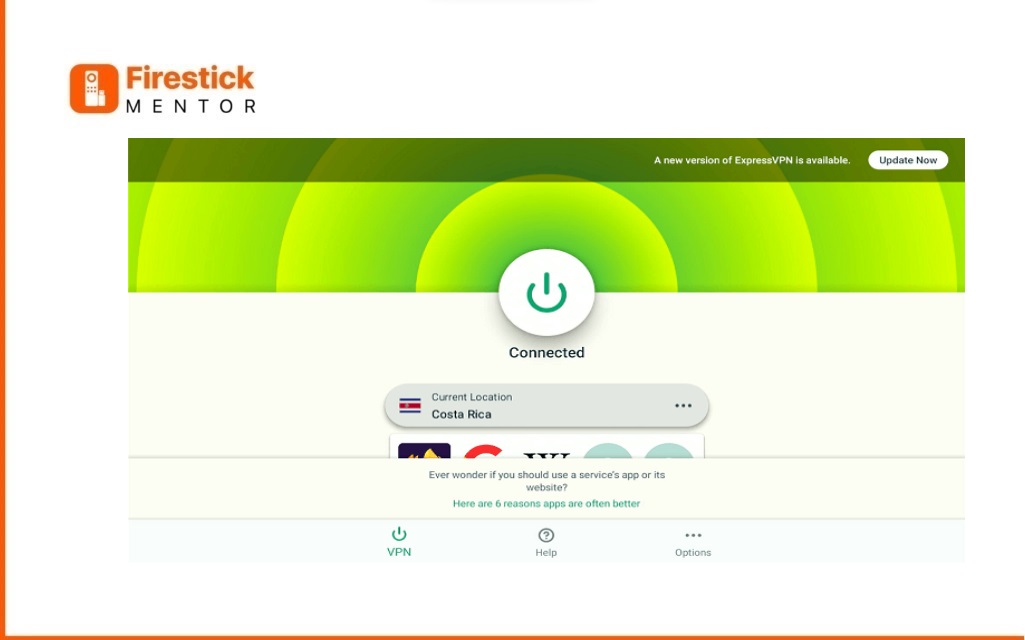
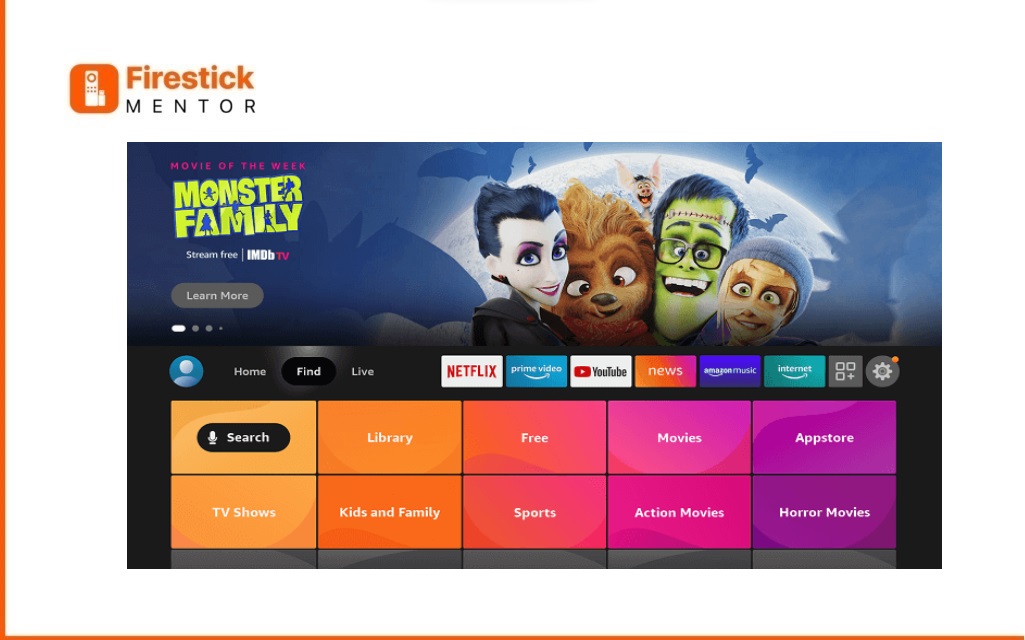
2. Click on the “Find” section.
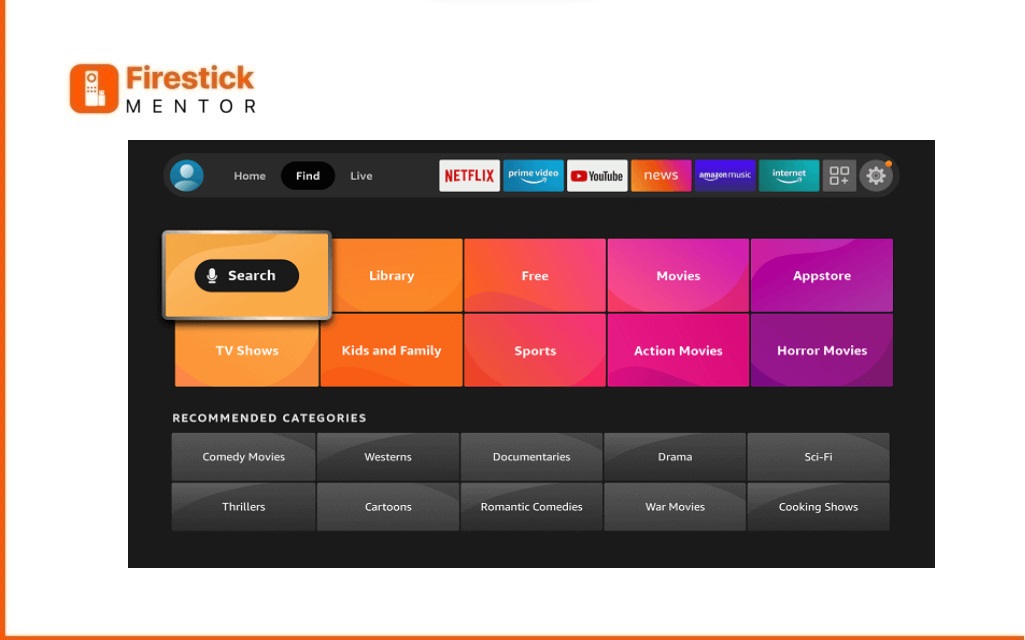
3. Select the “Search” option.
3. Type “Internet” in the search bar and choose it from the list.
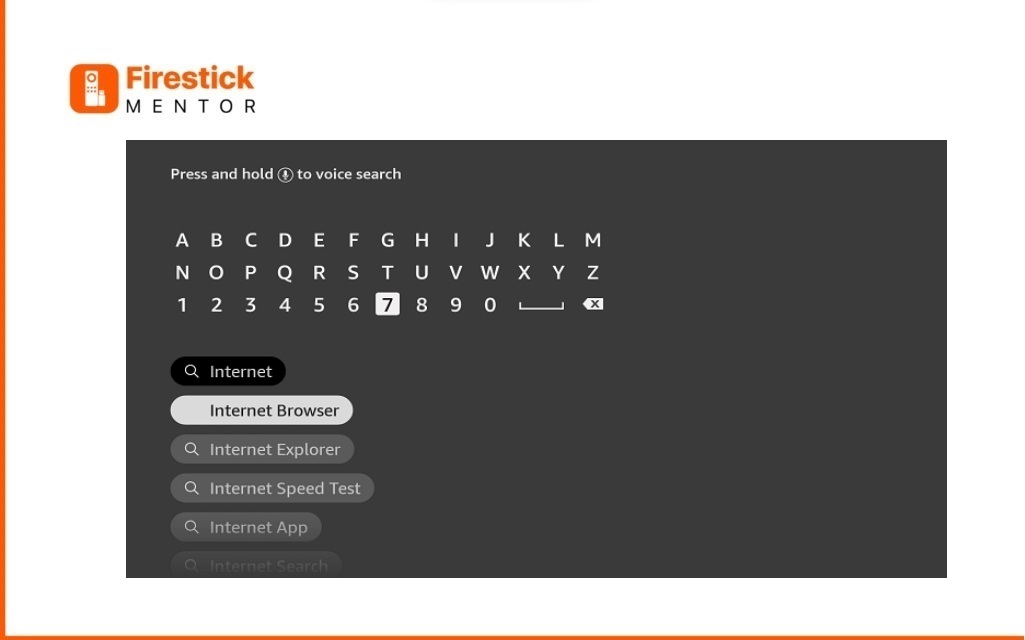
4. Pick the Internet App (Silk Browser) from the options.
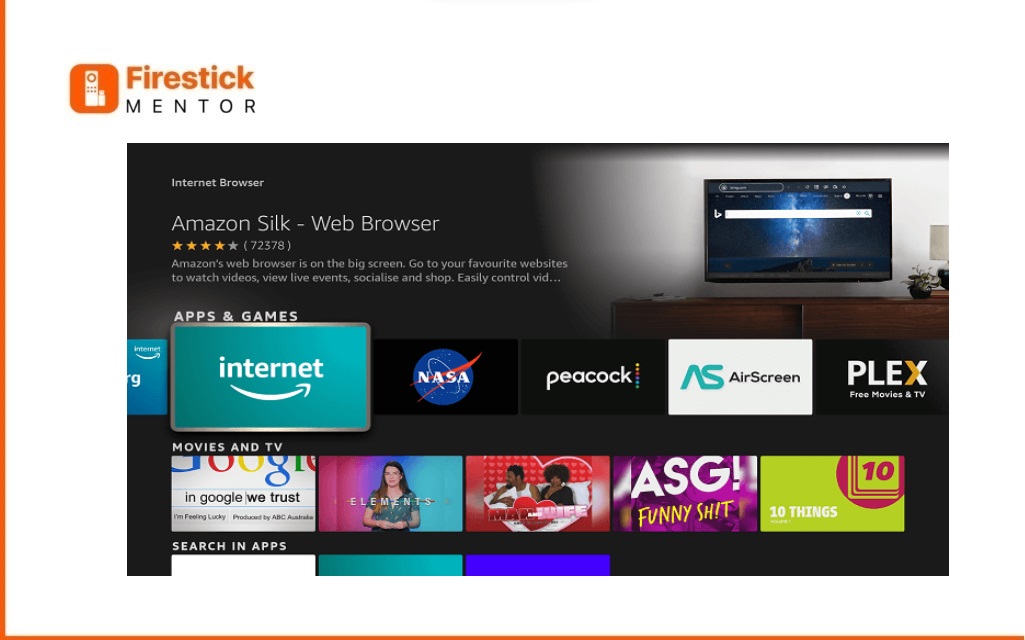
5. Press the Get/Download button.
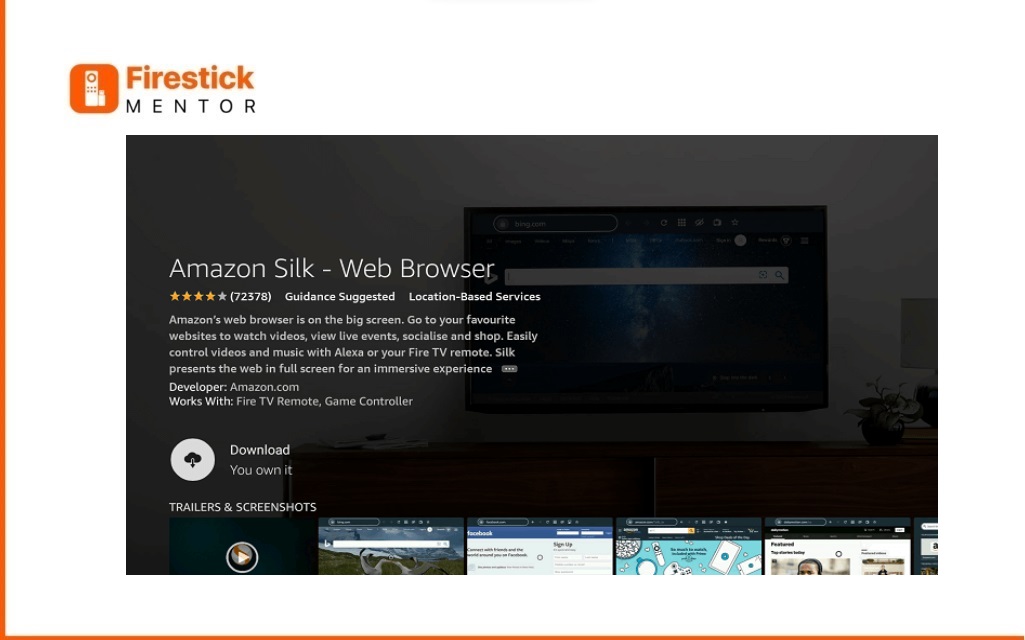
6. Wait for the browser to finish installing.
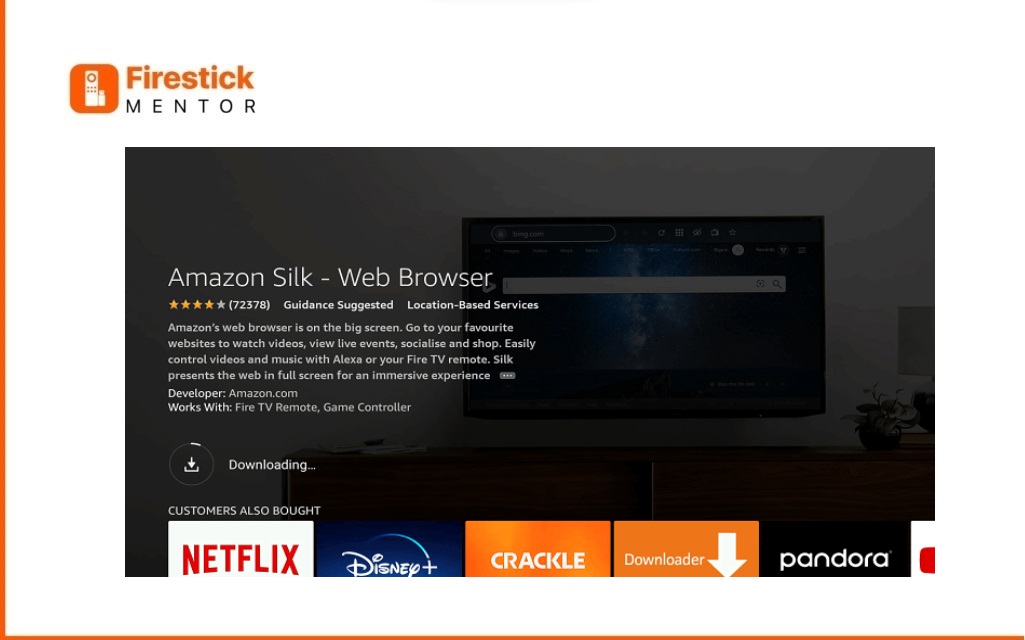
7. Open the browser after installation.
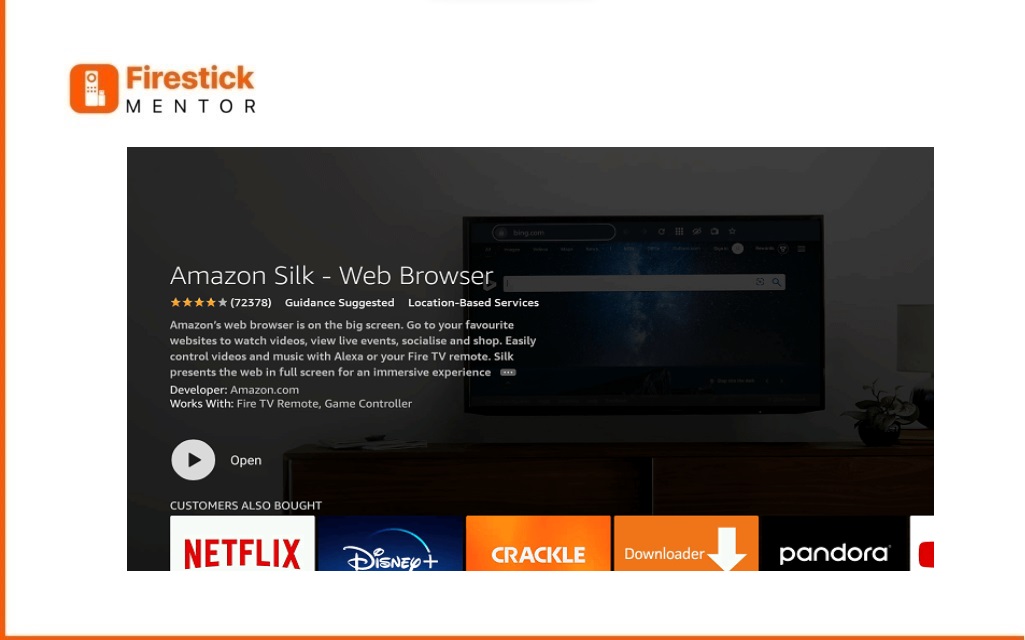
8. Open the browser after installation.
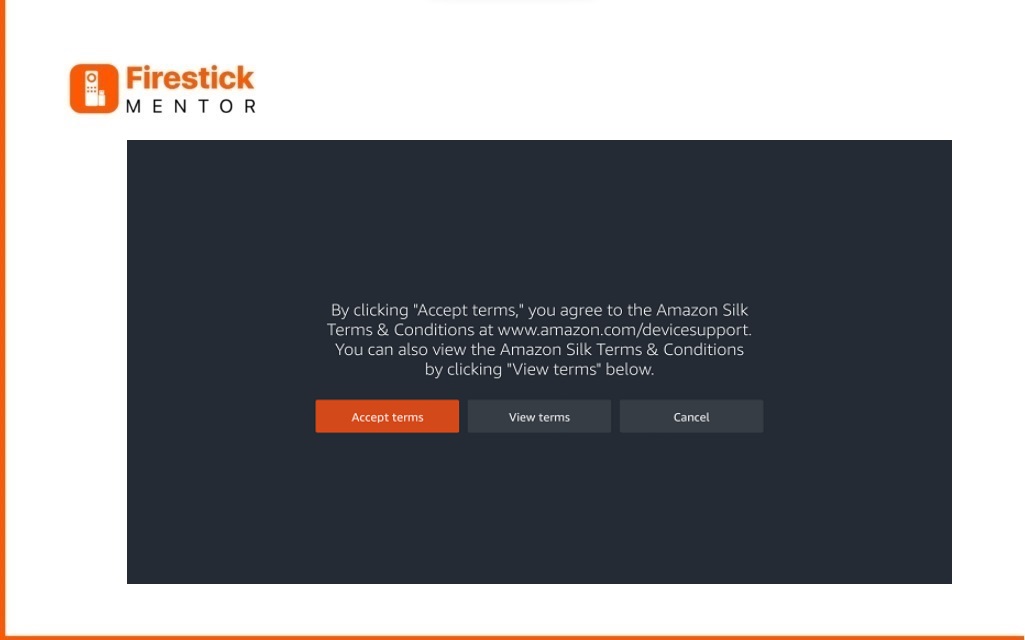
9. When the browser opens, it will start on Bing.com.
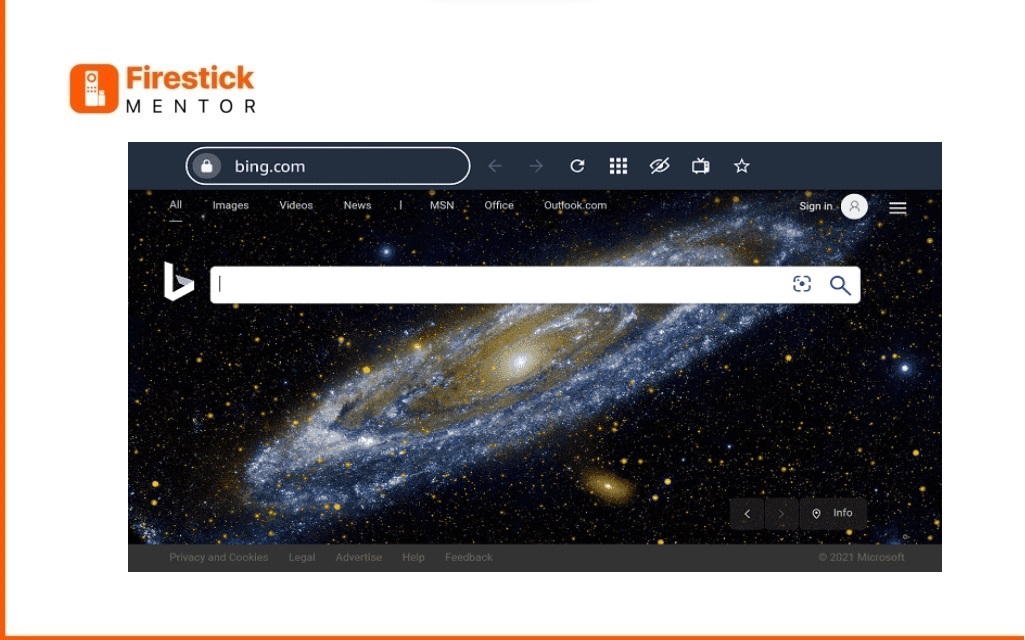
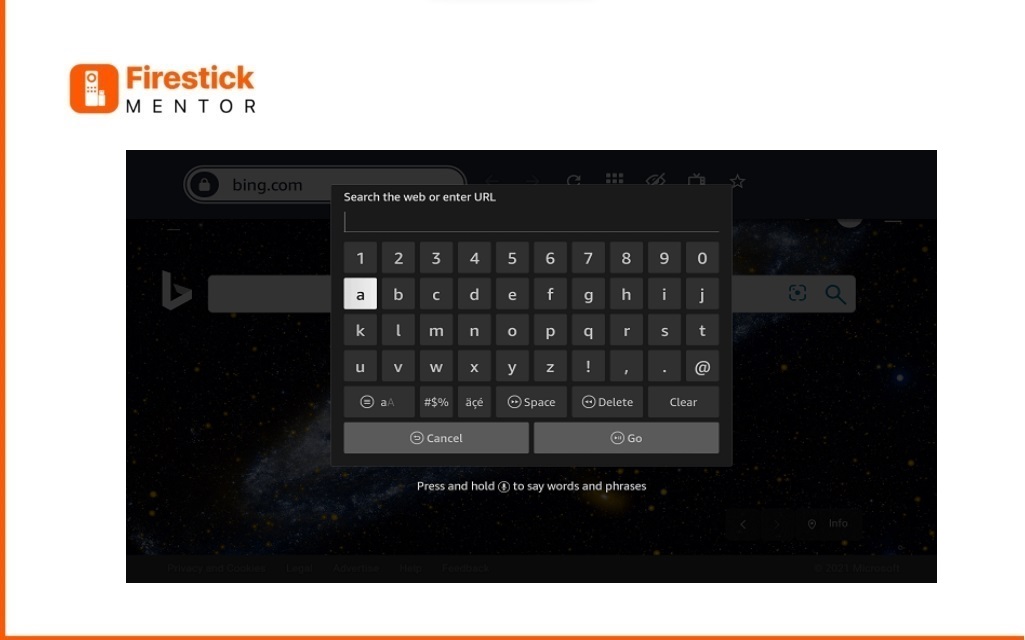
9. Enter the official STV Player website URL https://player.stv.tv/ and press Go.
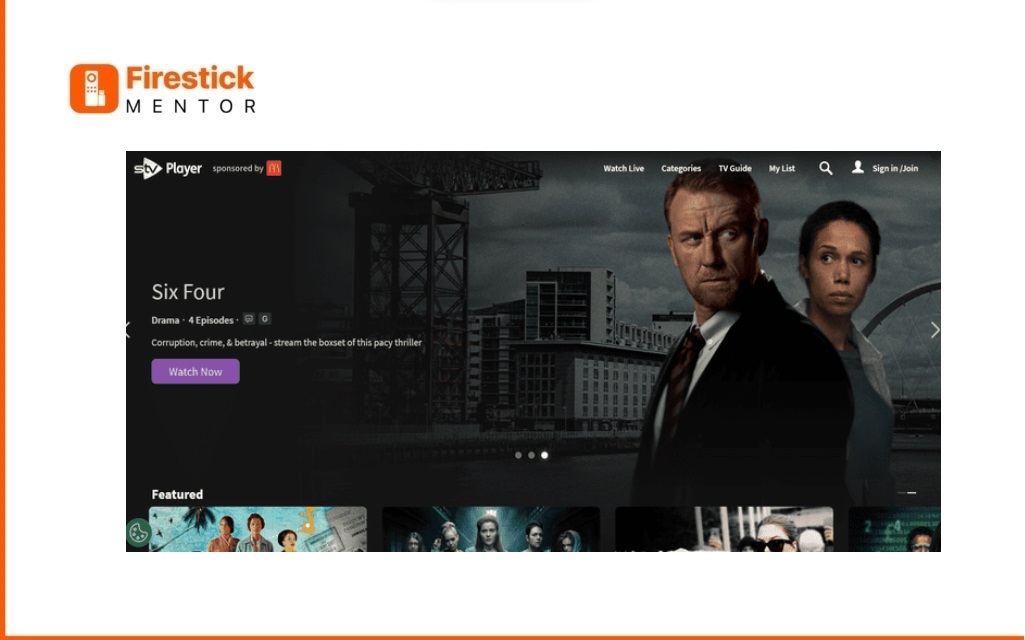
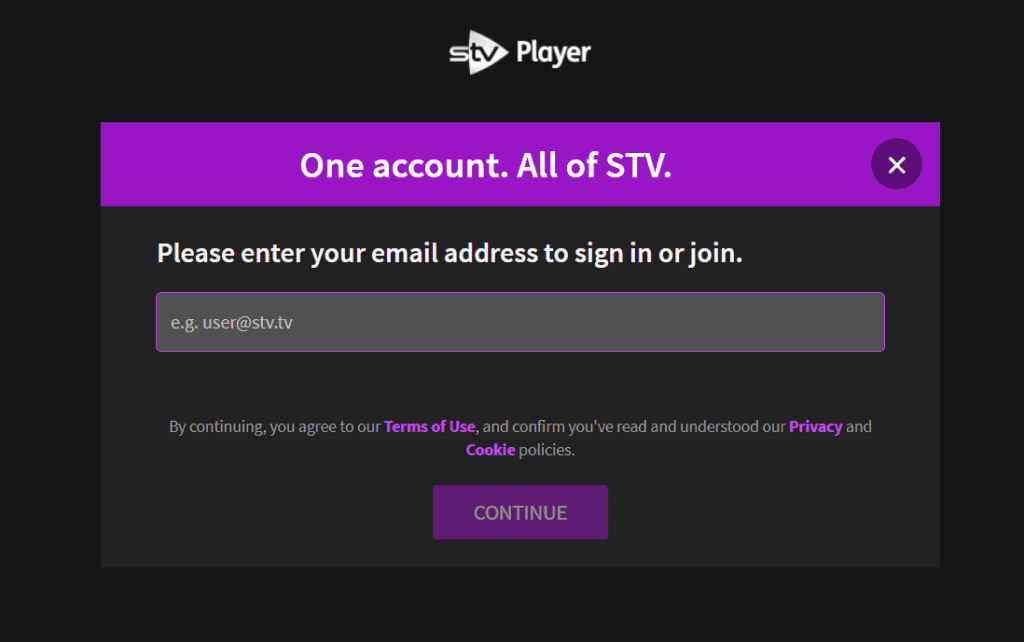
10. The STV Player website will appear. Click on “Sign In/Join.”
11. Enter a valid email to register a free account and click “Let’s Go.
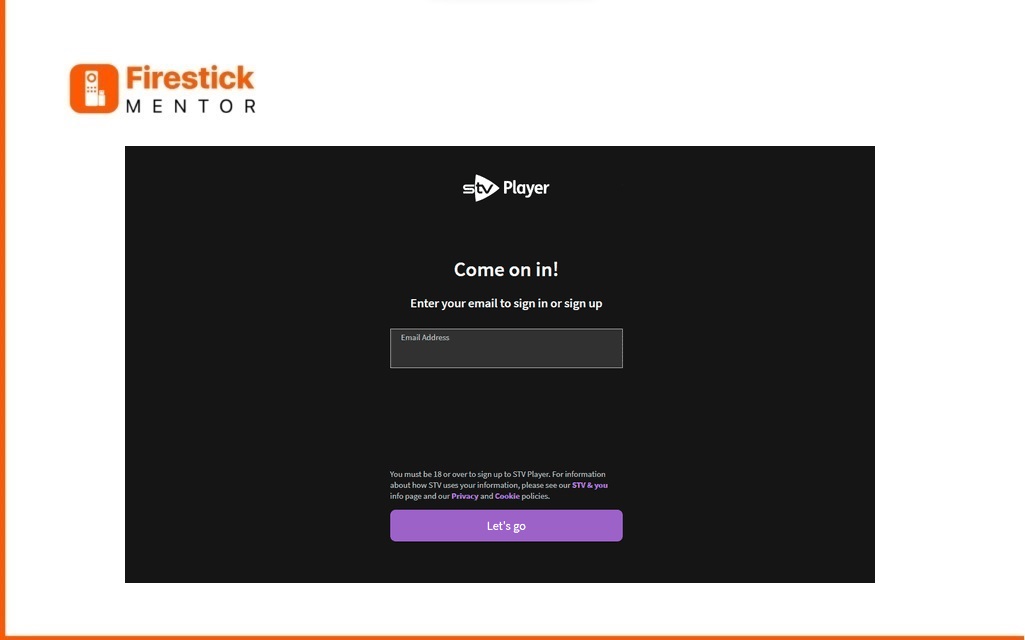
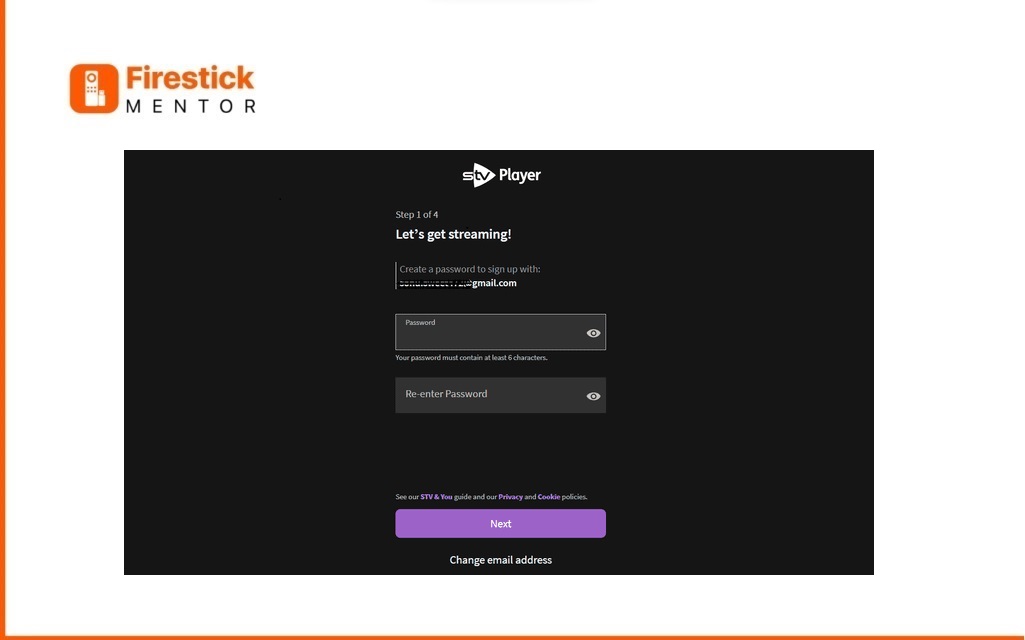
12. Create a password for your STV Player account and click “Next.”
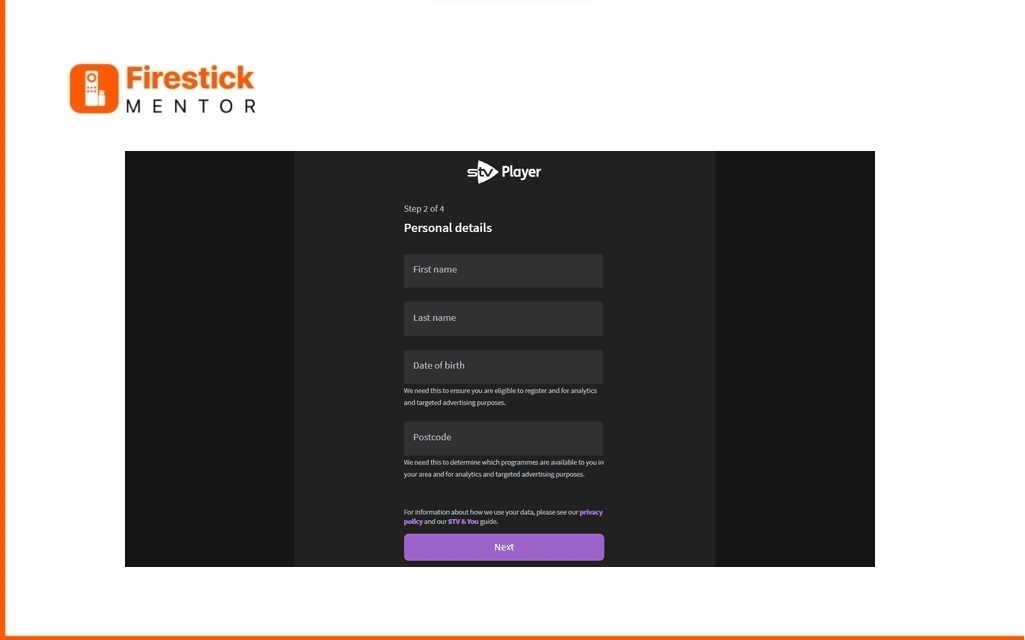
13. Provide the required details and enter a valid UK postal code (e.g., SO15, DN16, RH10, SE1P) or search it on Google, then click “Next.”
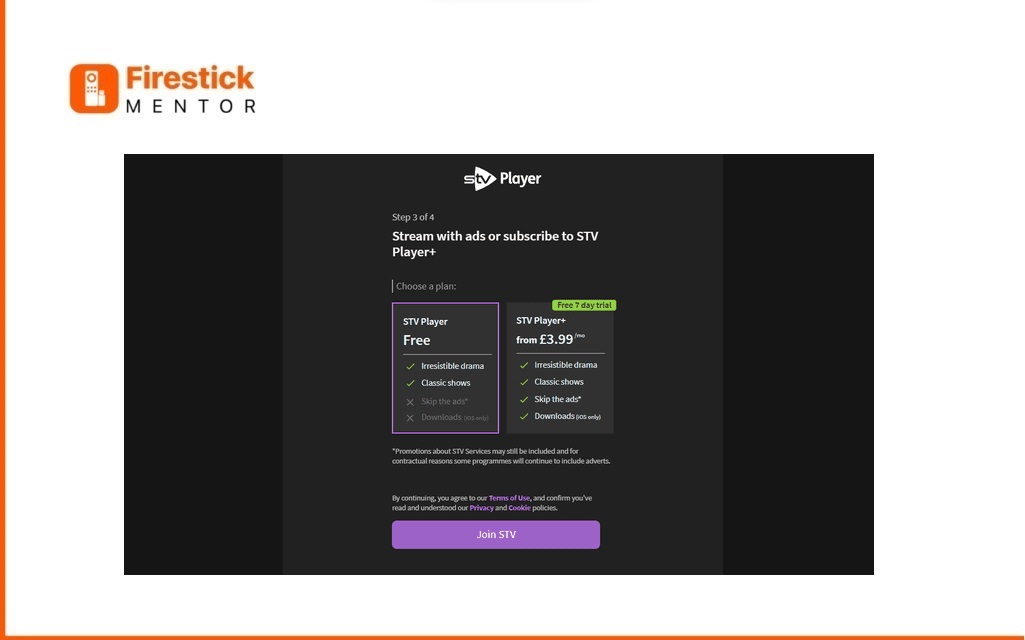
14. Choose the free plan and click “Join STV.“
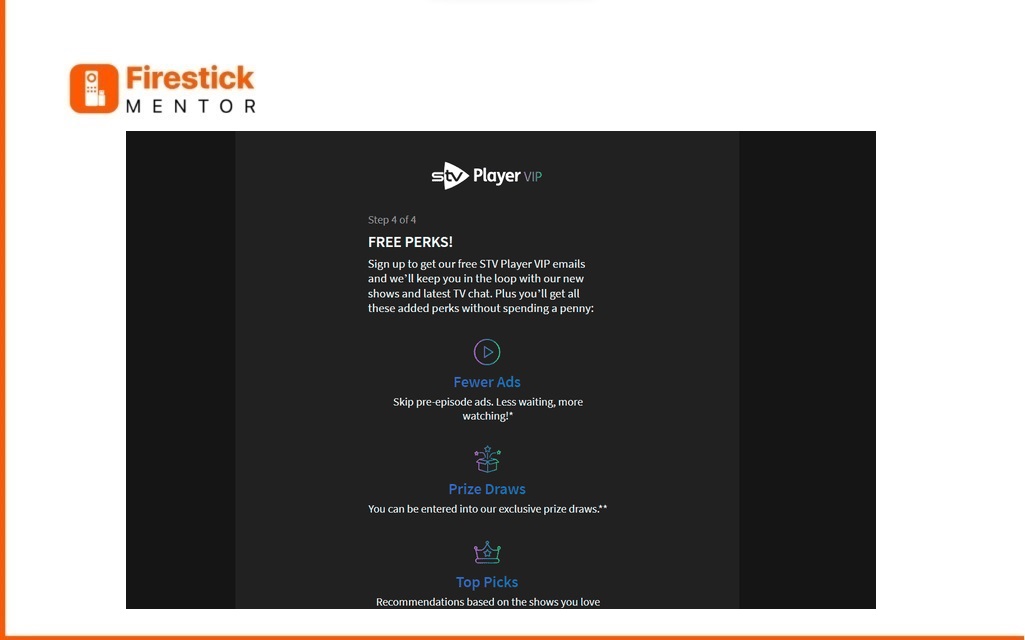
16. You may be asked to register for “STV Player VIP” for extra content and better suggestions. You can scroll down and click “Register” or “No thanks.” Note: It won’t cost extra, but you may receive promotional emails.
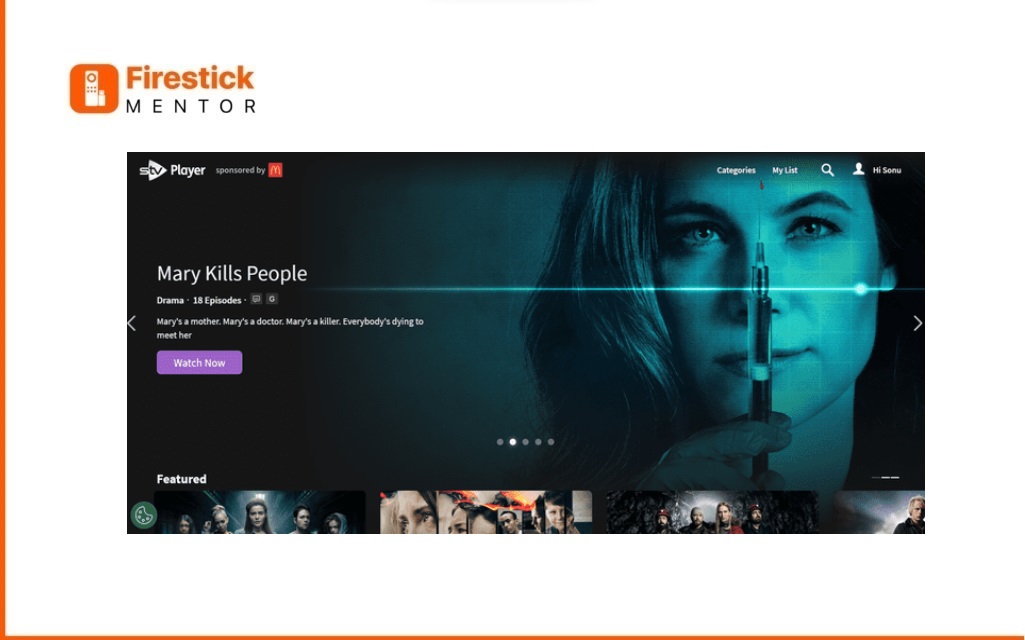
17. After registration, it will redirect to the Home page. Choose any content and click “Watch Now.”
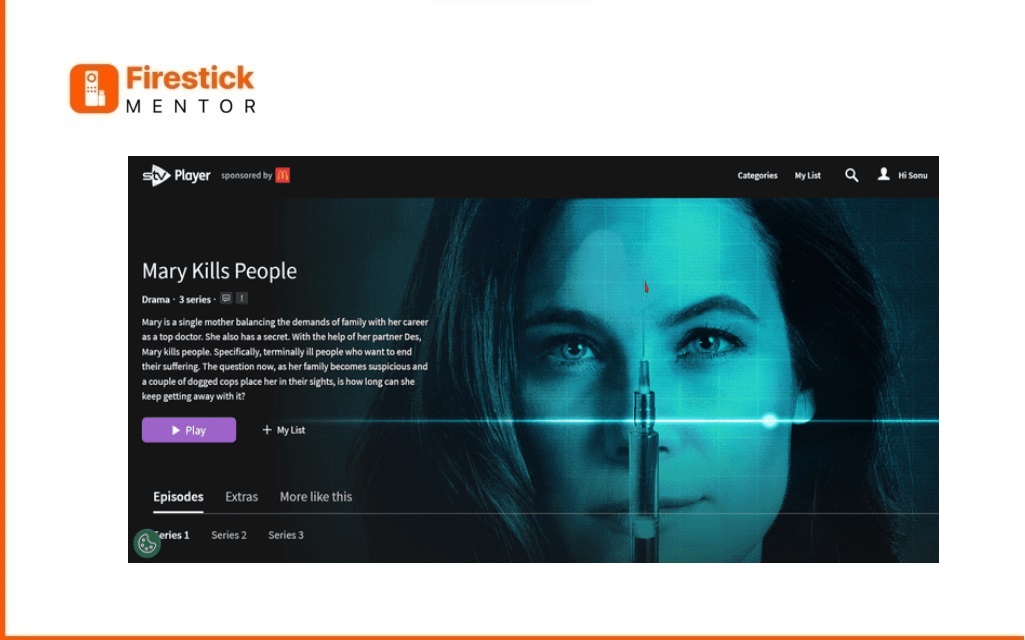
18. Tap on “Play.”
19. Since it’s a TV Drama, choose an episode.
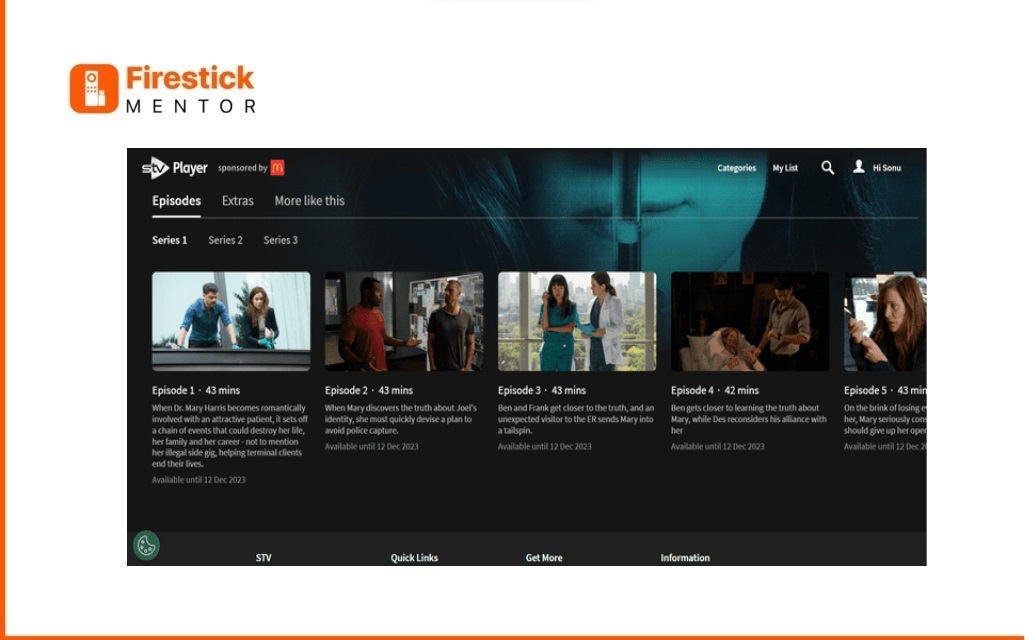
20. Click the “Play” button.

21. Enjoy watching free content on STV Player.

Watch STV Player using Downloader App on Firestick
If the above method did not work for you, you can try to sideload the app using a downloader app. Here’s how you can do it:
Note: Make sure to connect to a VPN like ExpressVPN and connect to a UK server before continuing.
- First, enable installation for unknown sources.
- Now on your FireStick Home, Click on Find then Search.
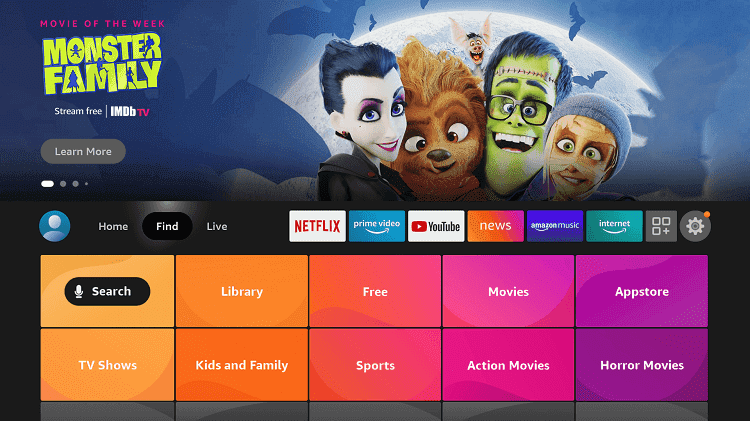
- Type and Search for the Downloader app and download it.
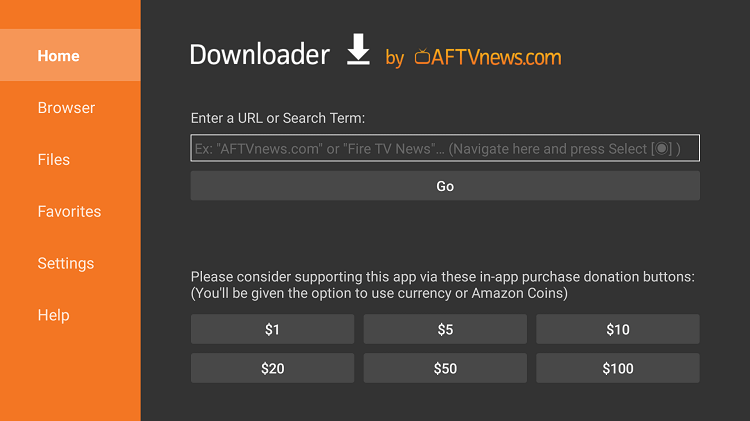
- Once the app is installed, launch it.
- Click on the Search bar and type this downloader code 28907 and click Go.
- A window will open, and from there click on the UK TV category from the top.
- Scroll down on the list, Find, and select STV Player.
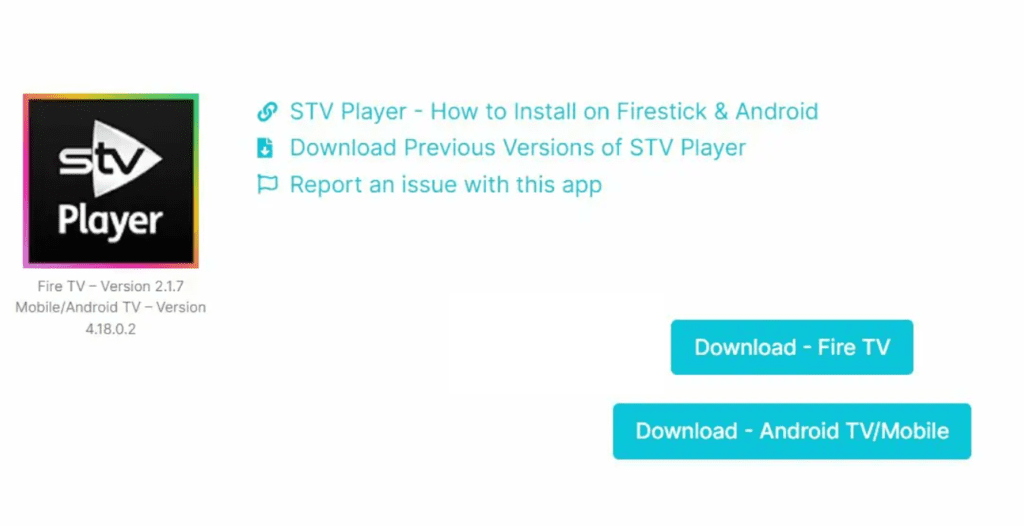
- On the next page, scroll down and click on the Download button.
- Click on the Download Fire TV option and Install the app.
- Once installation finishes, you can delete the APK file to save space as it is no longer useful.
You have successfully installed the STV Player app. You may now open it and enjoy streaming.
How to Install STV Player on Android TV?
You can similarly install the player on your Android TV from the Google Play Store or follow the sideloading method:
Install STV Player from Play Store:
- On your Android TV, navigate to the Play Store.
- Type and Search for STV Player.
- Click on the first option.
- Click on Install.
- Wait for the app to finish installing then click open to launch it.
Install STV Player via downloader:
First, enable sideloading on your device by enabling installation for unknown sources.
- Launch the downloader app.
- Click on the Search bar and type the downloader code 28907 and click Go.
- On the next window, click on the UK TV category from the top.
- Scroll down the list, and select STV Player.
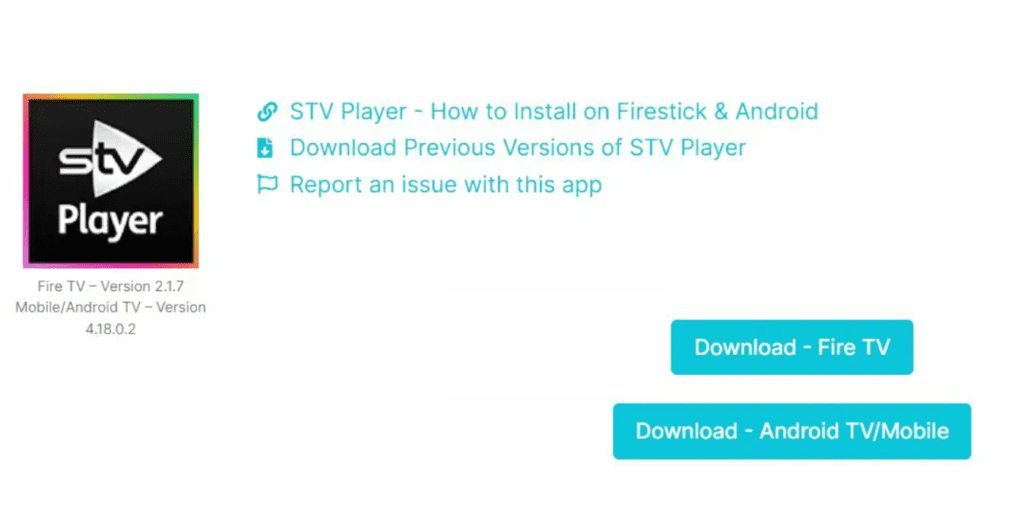
- Next, scroll down and click on the Download button.
- Click on the Download Android TV/Mobile option and Install the app.
You have successfully installed the STV Player app. You may now open it and begin streaming.
How to Use STV Player?
STV Player is straightforward to use. Browse the Home screen or use the menu to access Channels, Categories, Search, or A-Z.
By selecting Channels, you can begin watching live TV from STV or STV+1.
STV Player is an excellent way to watch a variety of sporting events for free, both live and on catch-up.
The Categories section contains numerous categories for various genres and interests. Choose a category, then a program, and begin watching.
STV Player content plays in 1080p HD without buffering or lag. The resolution can be changed from 180p to 1080p depending on your device and video.
STV Player Alternatives
Here are some alternatives of STV Player on FireStick:
- Peacock TV
- Xumo
- AMC+
- fuboTV
- Lepto Sports
Conclusion:
To conclude, STV Player is a great choice for anyone looking to stream on-demand content online for free. Since the service is only available in the UK, you will need to use ExpressVPN to get past the geo-restriction in another country.
FAQ’s
How do I activate STV Player on my Fire TV?
- Download and Install:
- Get the STV Player app on your device.
- Privacy Settings:
- Open the app, check privacy settings.
- Linking Options:
- Option 1: Website/Code:
- Visit www.stv.tv or scan QR code.
- Log in or sign up, enter the code, and click “Continue.”
- Option 2: Remote Control:
- Choose “Sign In,” enter email and password.
- Select “Sign In” to finish.
- Option 1: Website/Code:
Subscription Details:
- Regular monthly cost: £3.99
- Special offer until December 10, 2023: £2.99 for the first month
- Annual subscription option: £39.99