

Firestick MentorFirestick Mentor
    What's Hot

    How to Get Dedicated IP in the UK

    March 12, 2024

    How to Get Dedicated IP in India

    March 12, 2024

    A Comprehensive Guide to Obtaining a Dedicated IP in the US

    March 8, 2024
    • Privacy Policy
    • Contact Us
    Facebook YouTube
    Firestick MentorFirestick Mentor
    • Sports Movies & Shows
    • Channels Apps & IPTV
    • Tips & Tricks
    • VPN
    Firestick MentorFirestick Mentor
    Home » Channels Apps & IPTV » How to Install STV Player on FireStick and Android TV
    Channels Apps & IPTV

    How to Install STV Player on FireStick and Android TV

    Muhammad BasitBy Muhammad BasitDecember 14, 2023Updated:January 3, 2024No Comments8 Mins Read
    Facebook Twitter LinkedIn Email

    What is STV Player

    STV Player, a cool streaming service from STV, is changing how Scottish folks watch TV. You have the freedom to watch STV shows whenever you want, and the best part is, it’s completely free! This awesome service isn’t just for Scotland; people all over the UK can enjoy its diverse shows. It’s like TV, but way more flexible and fun!

    STV Player has 167 drama box sets, featuring engaging titles like “The Commons,” “Blood,” and “McLeod’s Daughters.” The platform offers a diverse content library, including must-watch dramas, factual entertainment, and popular archive shows like “Taggart.” What’s unique is that many of these shows are exclusive to STV Player and not available on other platforms in the UK.

    STV Player+ is the subscription-based, enhanced version of STV Player, designed to offer an uninterrupted streaming experience.

    STV Player+ Features:

    • Ad-free on-demand content
    • Reduced ads on live TV
    • Multi-device connectivity
    • iOS offline streaming

    Subscription Details:

    • Regular monthly cost: £3.99
    • Special offer until December 10, 2023: £2.99 for the first month
    • Annual subscription option: £39.99

    3 Methods to Watch And Get STV Player on your FireStick

    There are three simple ways to get STV Player on your Fire Stick. First, use the Silk Browser on your Fire Stick and go to the STV Player website. However Another option is to use the Downloader app on your Fire Stick. Just open Downloader, enter the STV Player URL, and download it. Lastly, if you want to access STV Player outside the UK, install a reliable and affordable VPN like ExpressVPN on your Fire Stick. Connect to a UK server with the VPN to watch STV Player content from anywhere. Choose the way you like best and enjoy streaming


    Alert: Your internet provider can track your IP address, which might jeopardize your online privacy. To tackle this and overcome location restrictions, using a VPN becomes crucial. With several options available, ExpressVPN is our top pick due to its speed, security, and trustworthy performance.

    Get ExpressVPN

    Watch STV Player using Silk Browser on FireStick

    To watch STV Player on Firestick from anywhere, we’ll use a different approach through a web browser, as the official app is designed for UK users only. Make sure to install and use ExpressVPN on your Firestick, connecting to the UK Server for access outside the UK.

    Quick Guide to Download ExpressVPN:

    • Open the Amazon App Store on your FireStick.
    • Use the search bar and type “ExpressVPN.“
    • Select the ExpressVPN app from the search results.
    • Click on the “Download” or “Get” button to start the installation.
    • Once the installation is complete, open the ExpressVPN app.
    • Log in with your ExpressVPN account credentials.
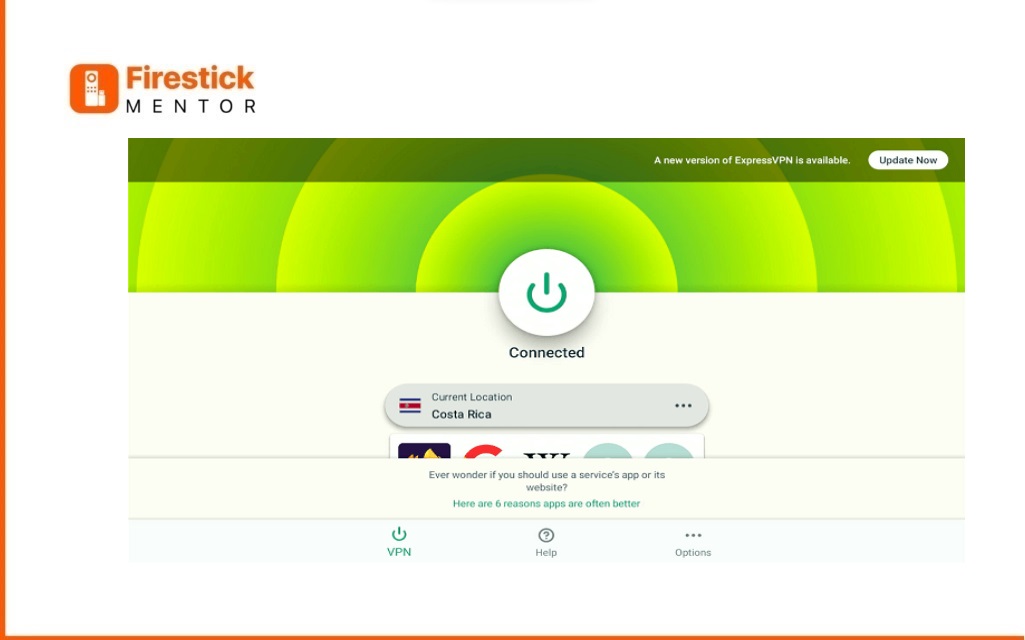
    • Open ExpressVPN on your Firestick and connect to the UK Server if you’re not in the UK.
    • Install Express VPN on FireStick
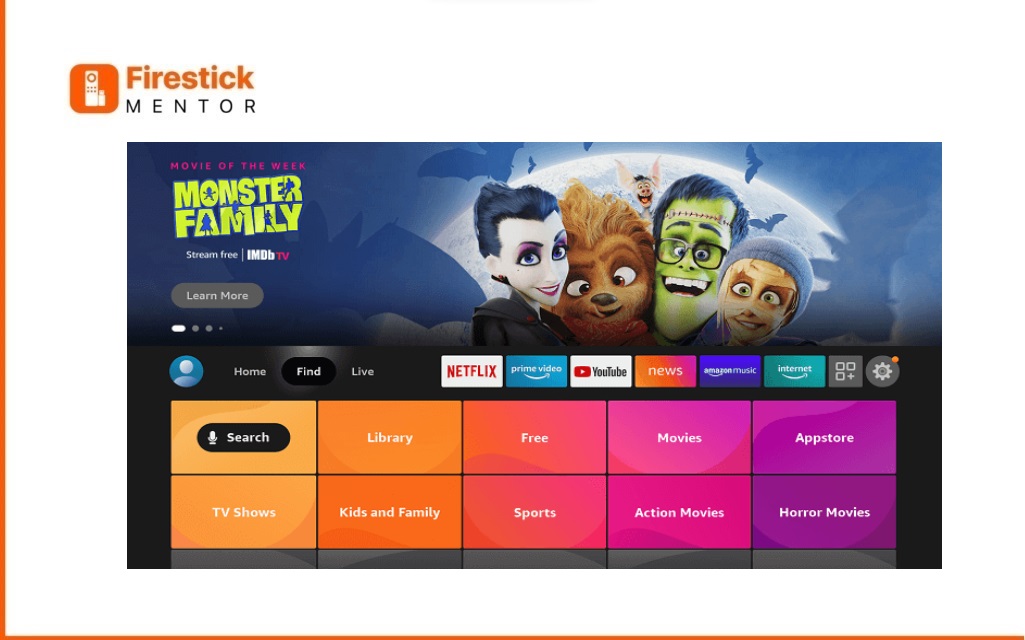
    • Click on the “Find” section.
    • Watch STV player Using Silk Browser step 1
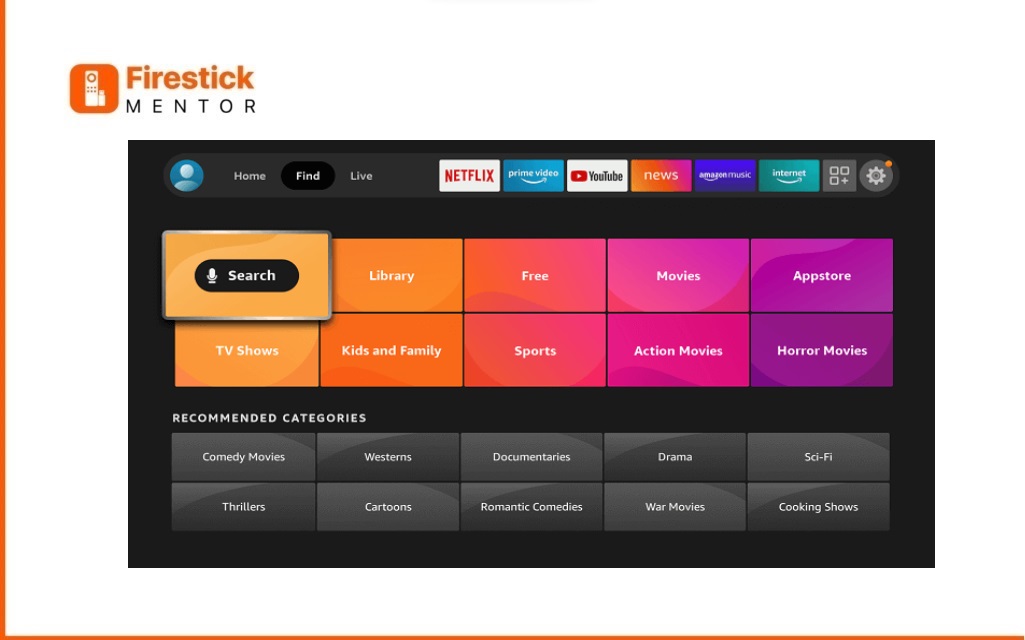
    • Select the “Search” option.
    • Watch STV player Using Silk Browser step 2
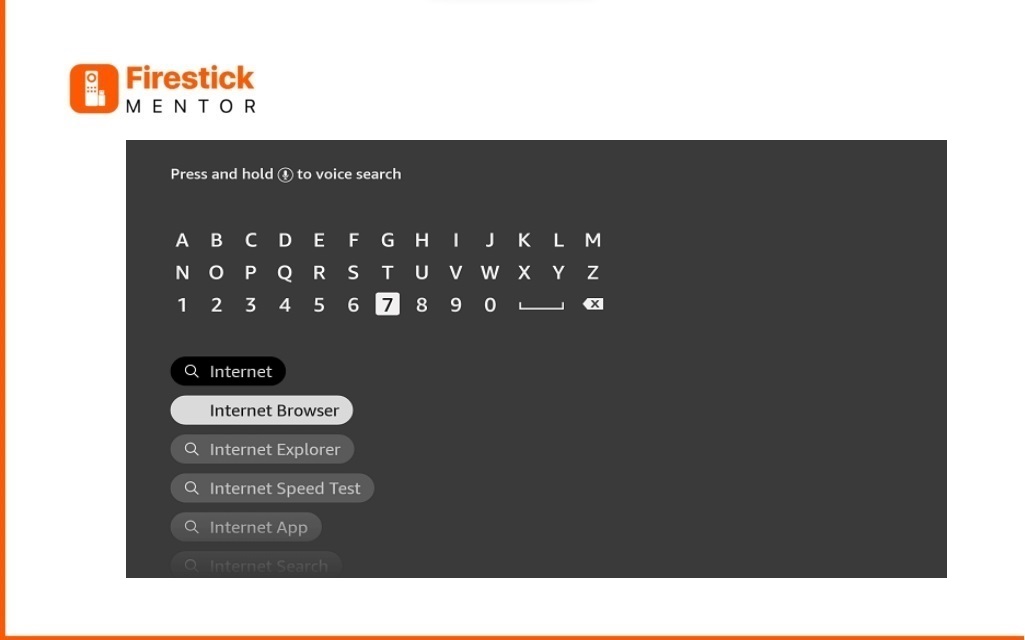
    • Type “Internet” in the search bar and choose it from the list.
    • Watch STV player Using Silk Browser step 3
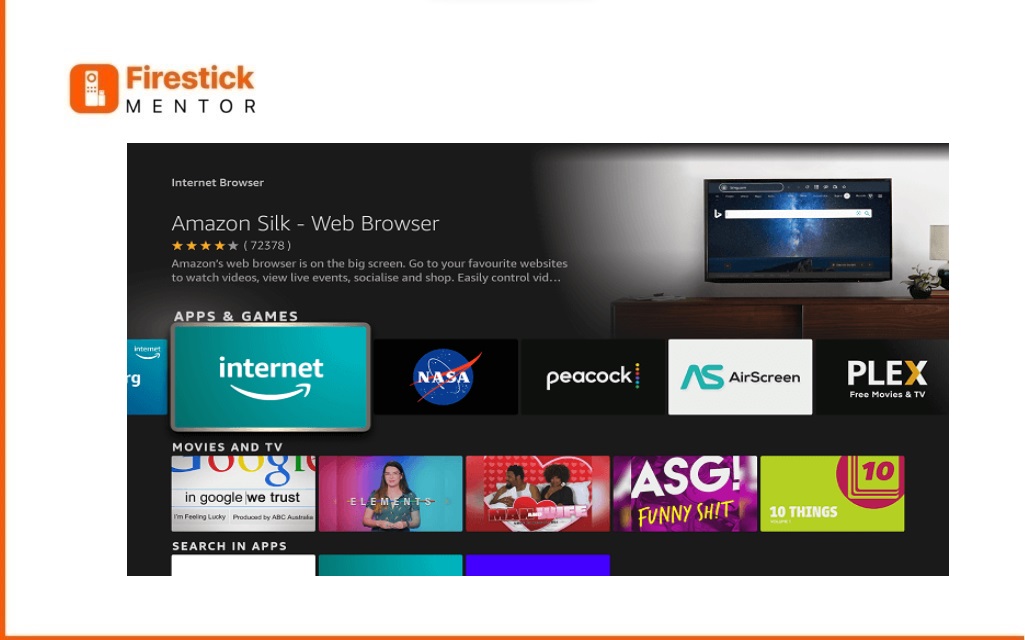
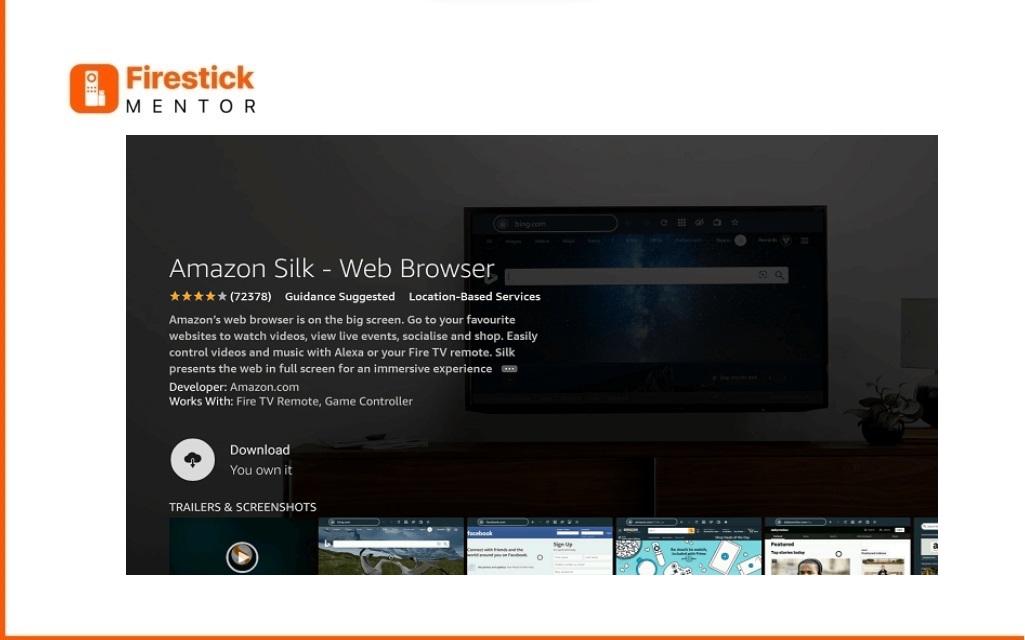
    • Pick the Internet App (Silk Browser) from the options.
    • Watch STV player Using Silk Browser step 4
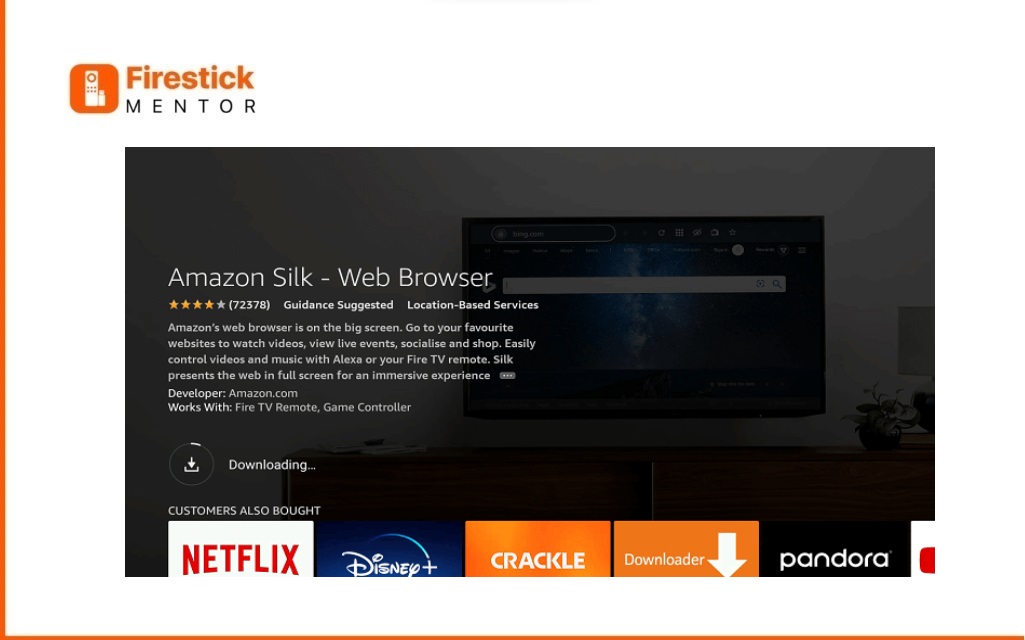
    • Press the Get/Download button.
    • Watch STV player Using Silk Browser step 5
    • Wait for the browser to finish installing.
    • Watch STV player Using Silk Browser step 6
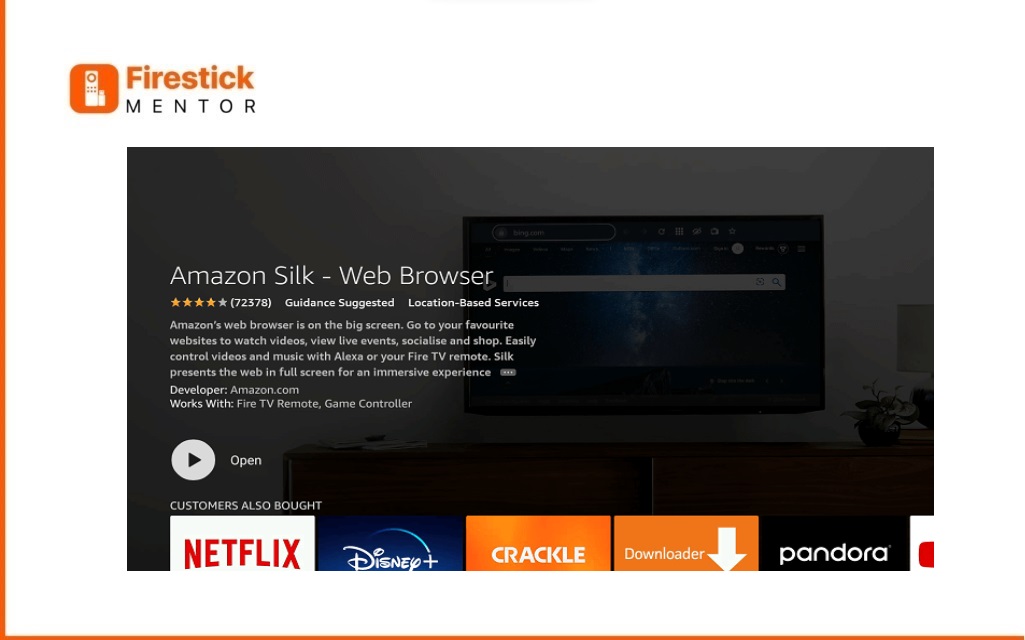
    • Open the browser after installation.
    • Watch STV player Using Silk Browser step 7
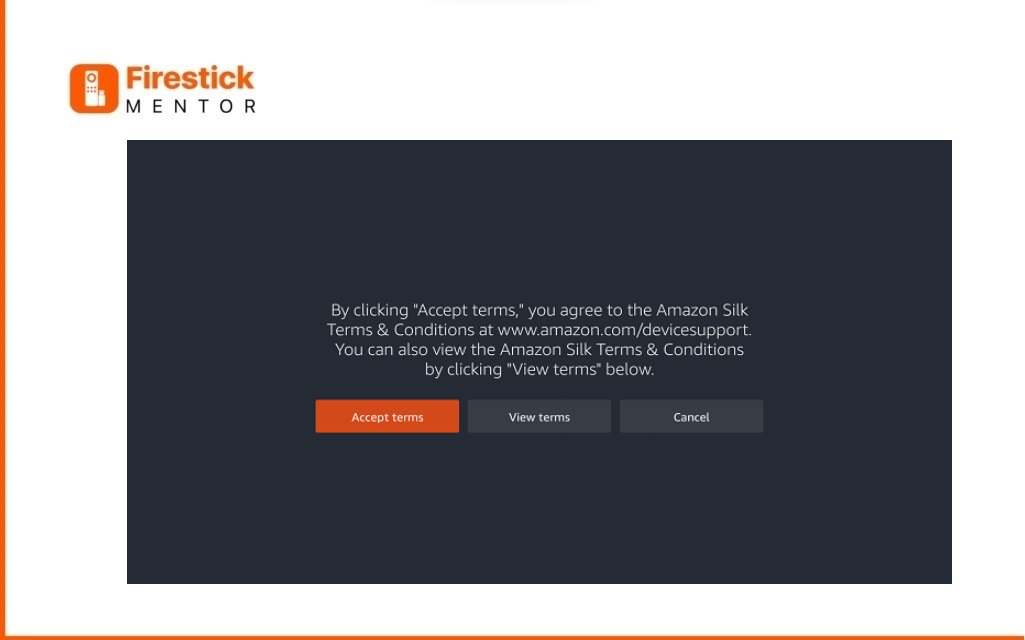
    • Select “Accept Terms” to use the browser
    • Watch STV player Using Silk Browser step 8
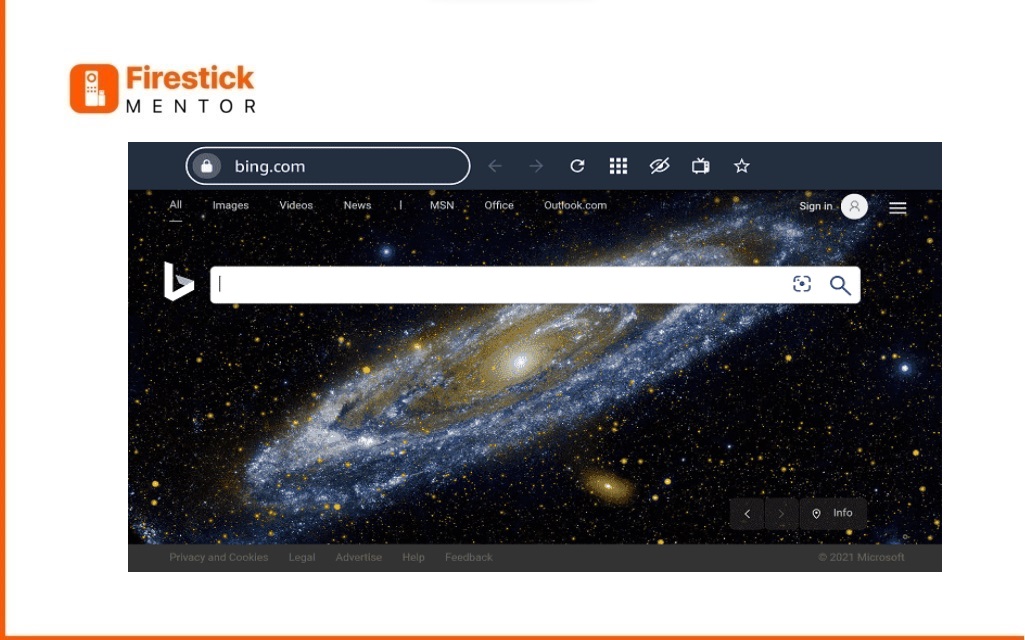
    • When the browser opens, it will start on Bing.com.
    • Watch STV player Using Silk Browser step 9
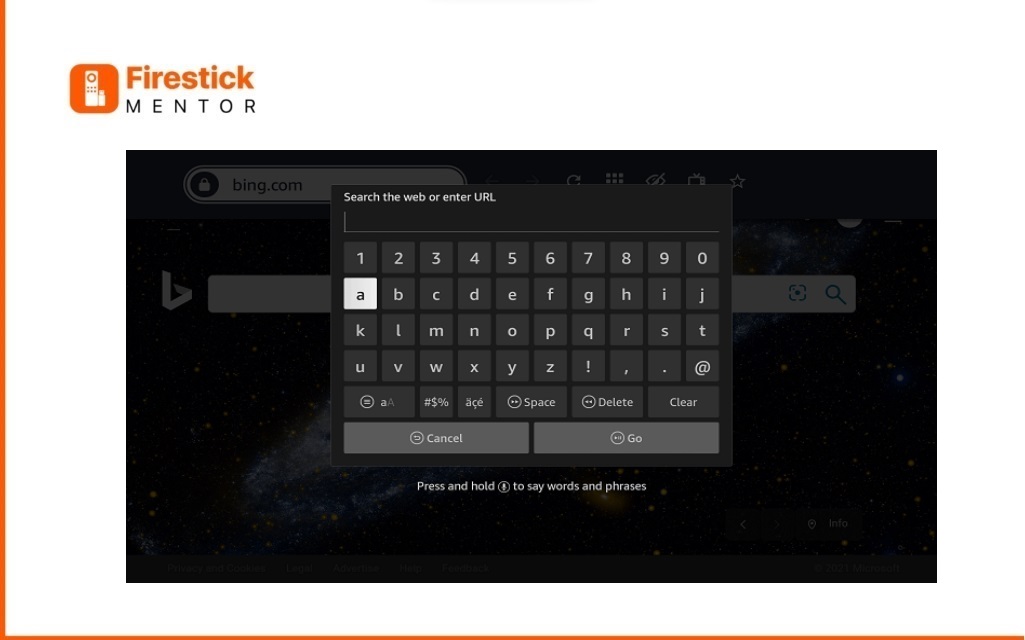
    • Enter the official STV Player website URL https://player.stv.tv/ and press Go.
    • Watch STV player Using Silk Browser step 1
    • The STV Player website will appear. Click on “Sign In/Join.”
    • Sign in to Watch STV player on FireStick Step 1
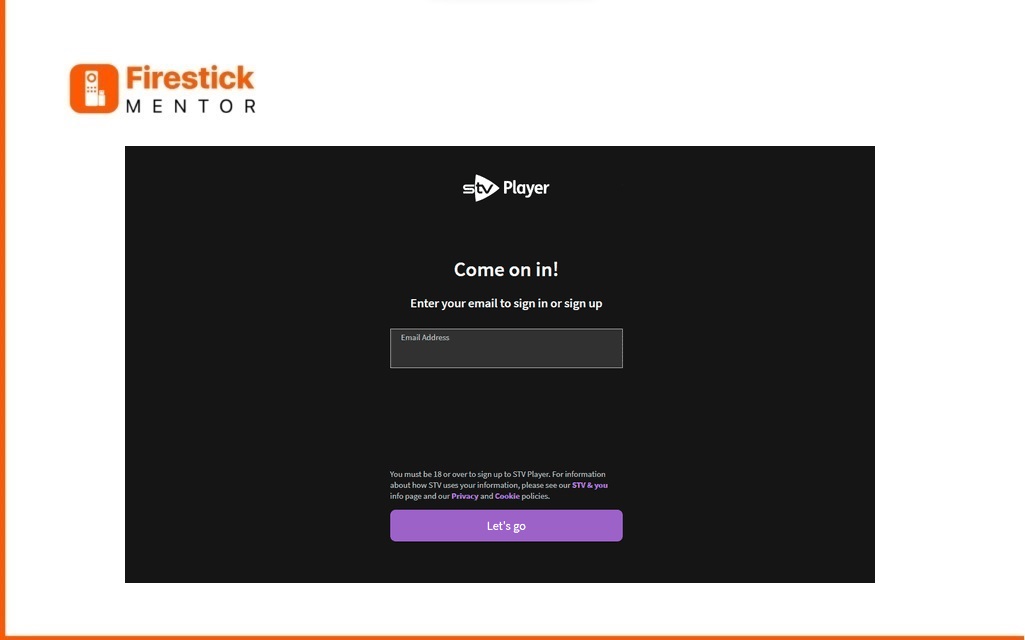
    • Enter a valid email to register a free account and click “Let’s Go.
    • Sign in to Watch STV player on FireStick Step 2
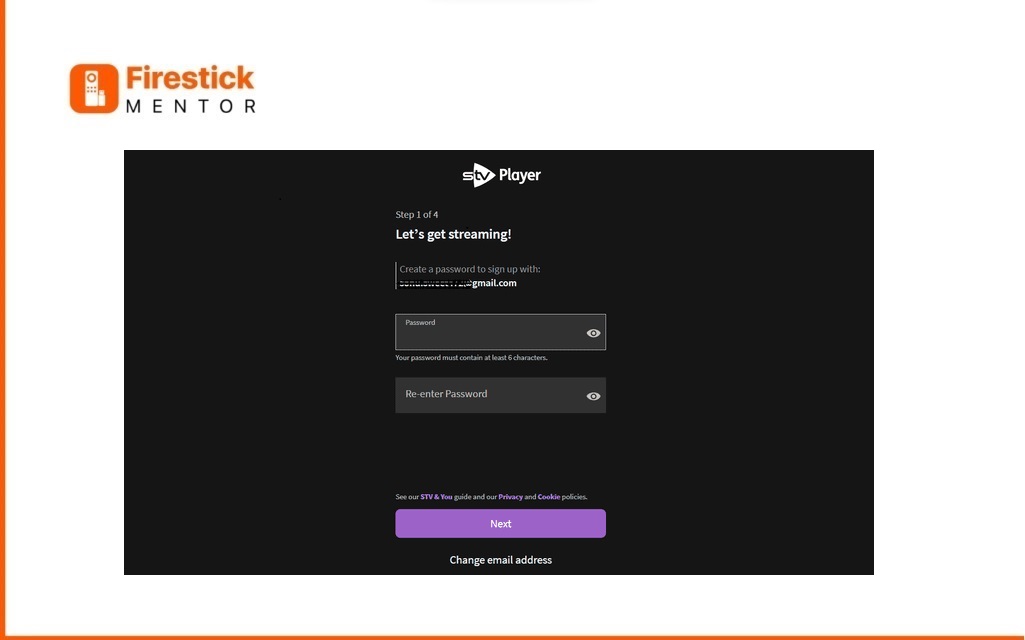
    • Create a password for your STV Player account and click “Next.”
    • Sign in to Watch STV player on FireStick Step 3
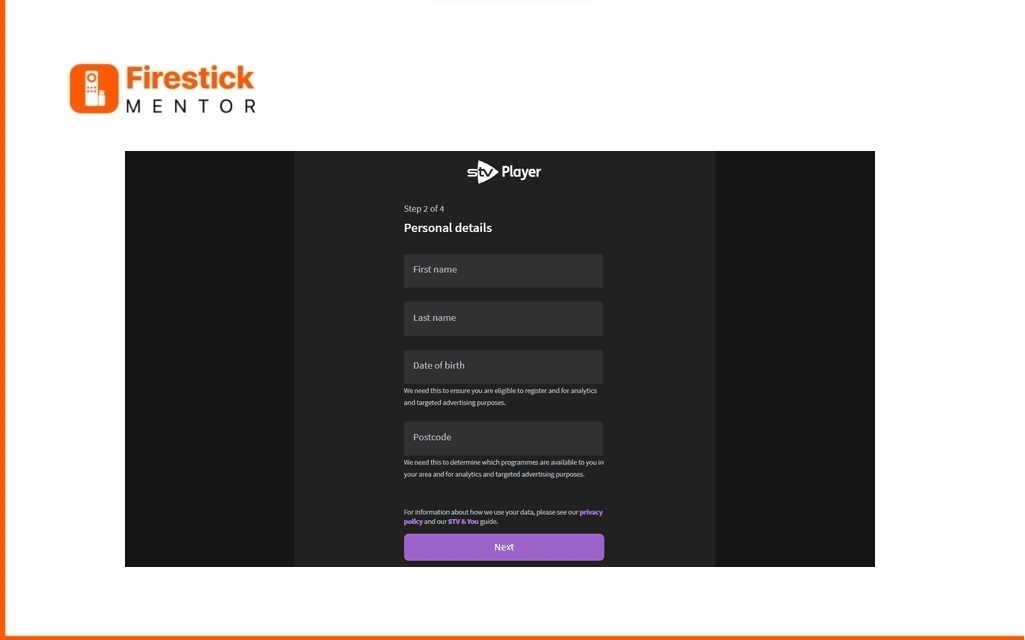
    • Provide the required details and enter a valid UK postal code (e.g., SO15, DN16, RH10, SE1P) or search it on Google, then click “Next.”
    • Sign in to Watch STV player on FireStick Step 4
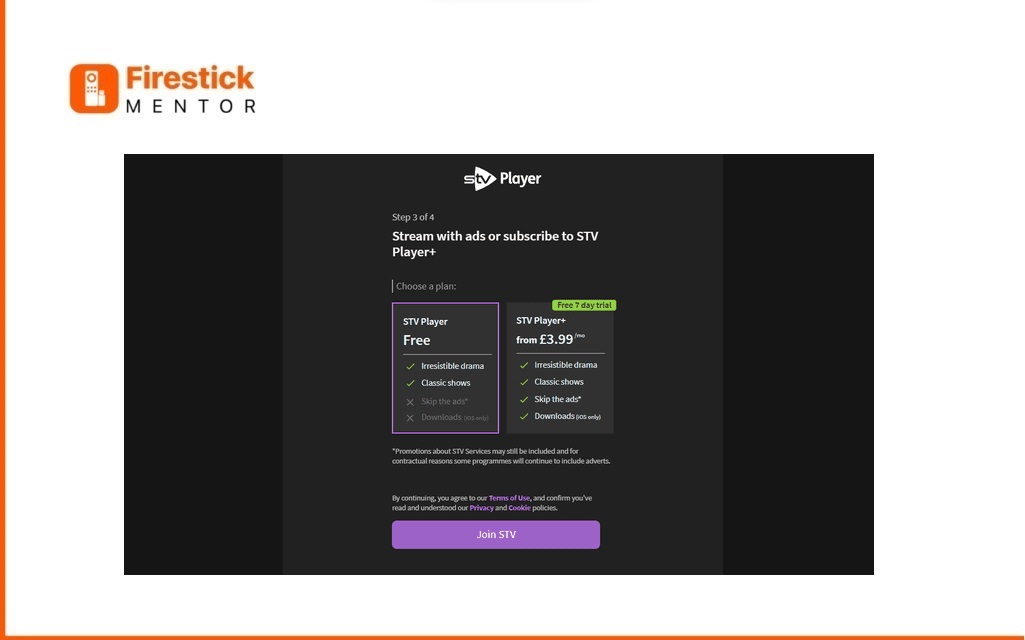
    • Choose the free plan and click “Join STV.“
    • Sign in to Watch STV player on FireStick Step 5
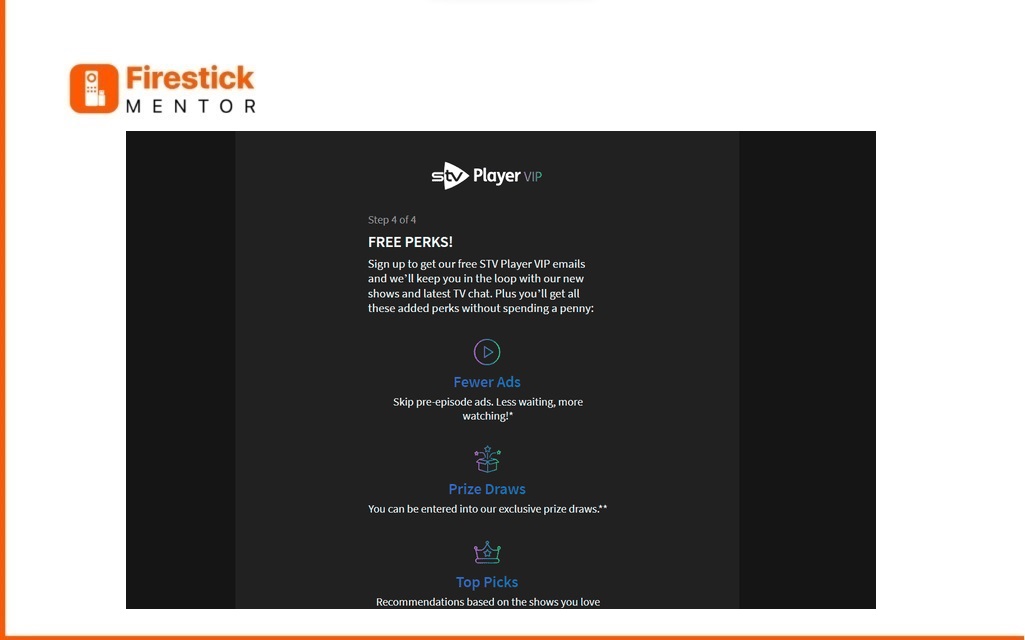
    • You may be asked to register for “STV Player VIP” for extra content and better suggestions. You can scroll down and click “Register” or “No thanks.” Note: It won’t cost extra, but you may receive promotional emails.
    • Sign in to Watch STV player on FireStick Step 6
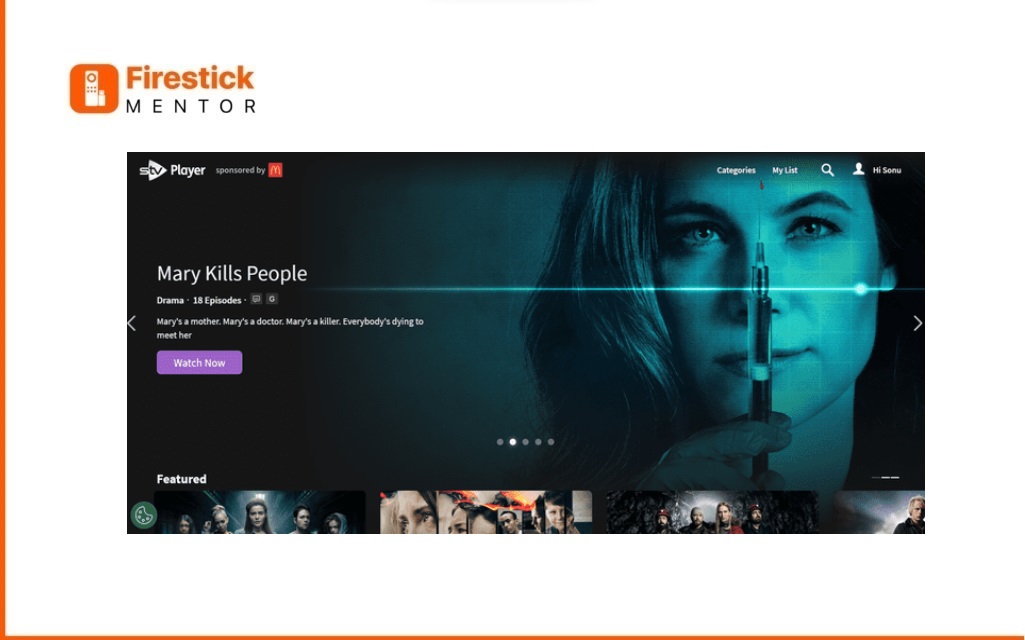
    • After registration, it will redirect to the Home page. Choose any content and click “Watch Now.”
    • Sign in to Watch STV player on FireStick Step 7
    • Tap on “Play.”
    • Sign in to Watch STV player on FireStick Step 8
    • . Since it’s a TV Drama, choose an episode.
    • Sign in to Watch STV player on FireStick Step 9
    • Click the “Play” button.
    • Sign in to Watch STV player on FireStick Step 10
    • Enjoy watching free content on STV Player.
    • Sign in to Watch STV player on FireStick Step 11

    Watch STV Player using Downloader App on Firestick 

    In this method, we’ll use the STV Player APK since the official app is limited to the UK. Make sure to have ExpressVPN installed on your FireStick to connect to a UK server.

    • Here are some easy steps:

      • Activate the VPN for anonymity.
      • Turn on Express VPN First
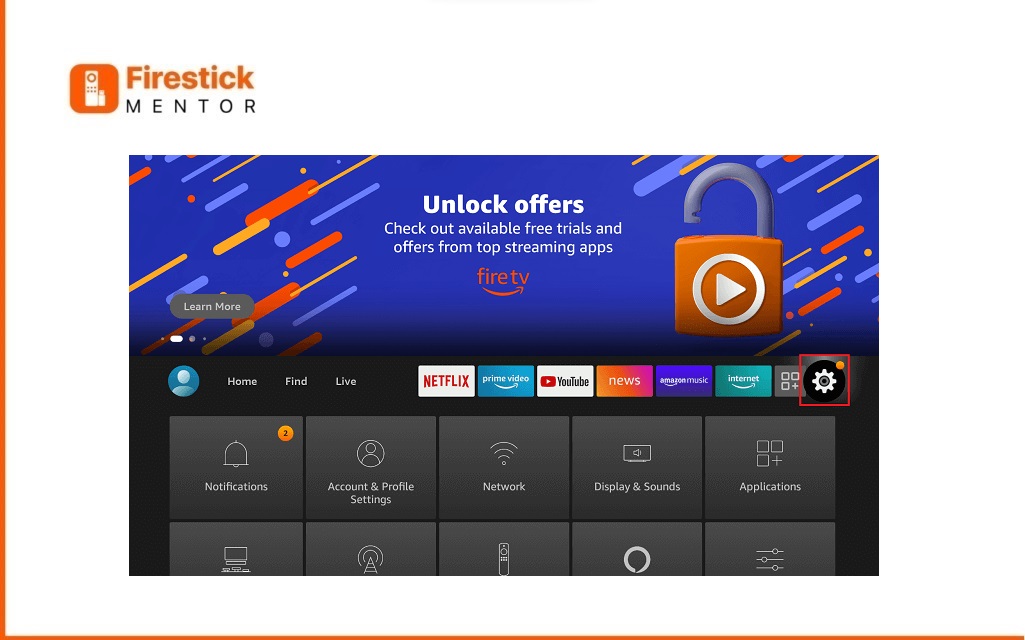
      • Click on the Settings icon
      • Turn on Unknown Source on FireStick Step 1
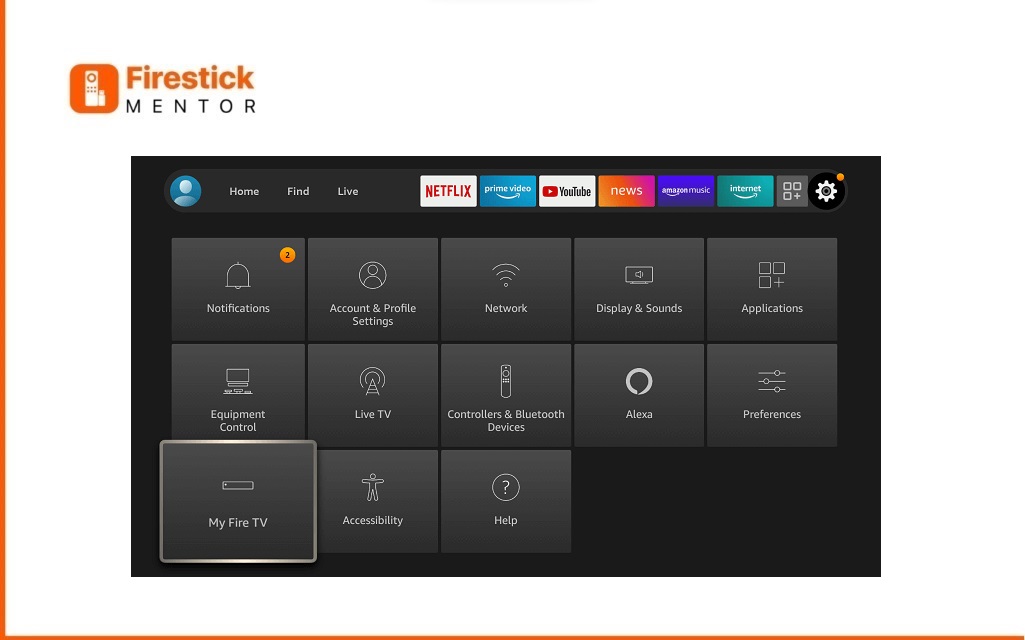
      • Tap on My Fire TV
      • Turn on Unknown Source on FireStick Step 2
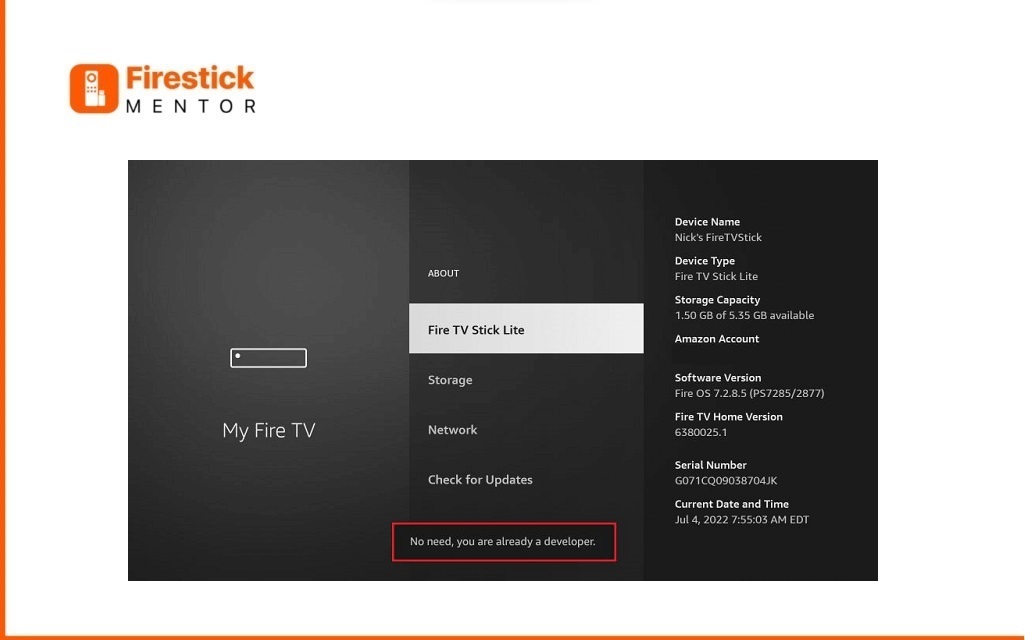
      • Access the “About” section, then go to “My Fire TV,” and tap “Seven times” to enable the “developer option“. A pop-up will appear, indicating that there’s no need as you are already a developer.
      • Turn on Unknown Source on FireStick Step 3
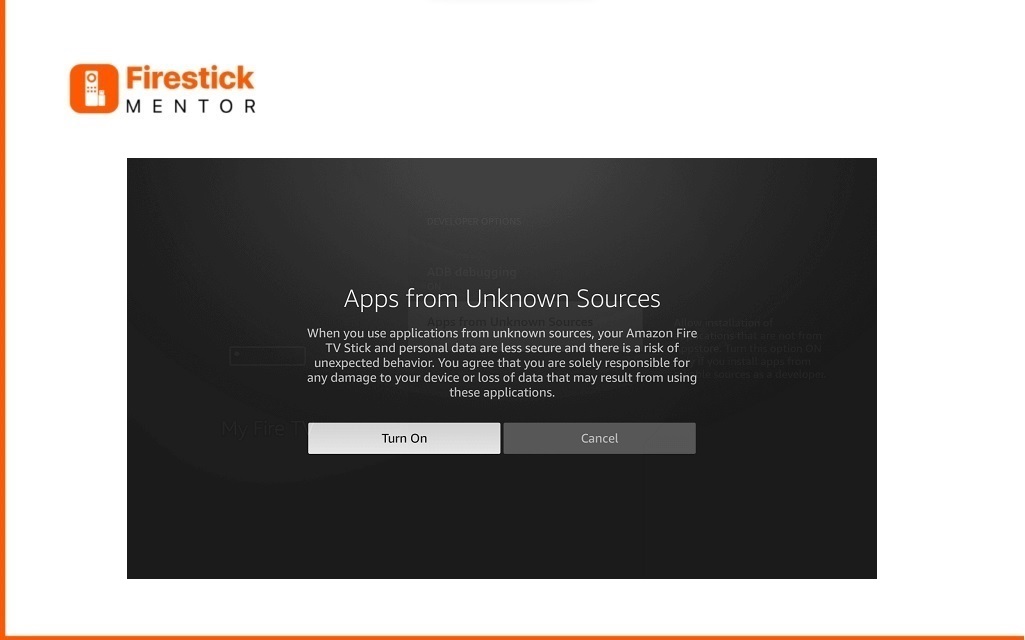
      • “Access the Developer Option” in the menu and enable “Apps from Unknown Sources” by turning it ON.
      • Turn on Unknown Source on FireStick Step 4
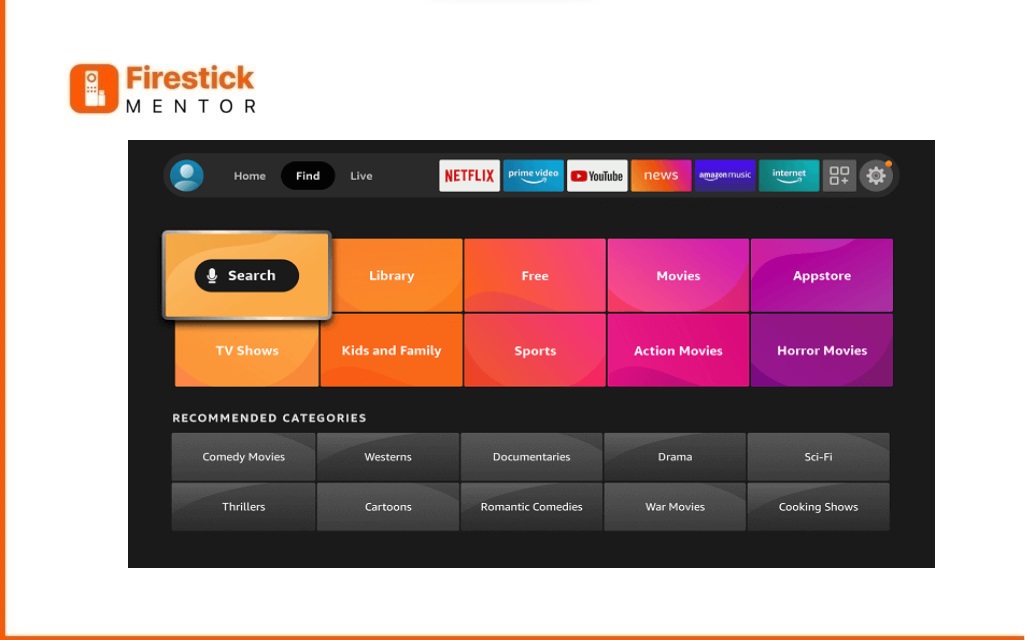
      • Press the “Home” icon on the remote and go to the Find section.
      • Sideload Application Using Downloader Step 1
      • Click on the Search icon.
      • Sideload Application Using Downloader Step 2
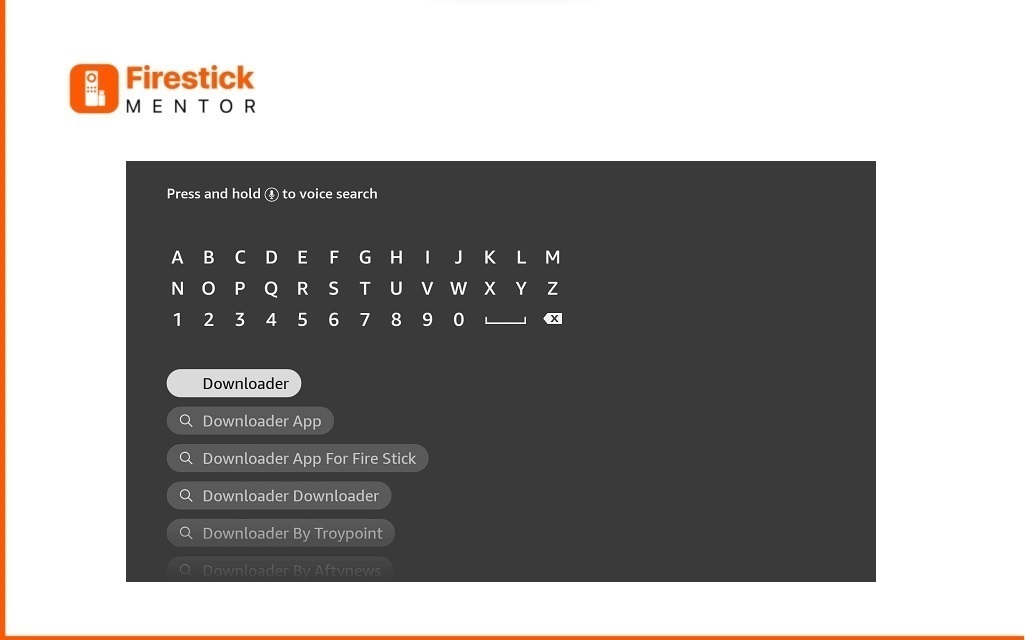
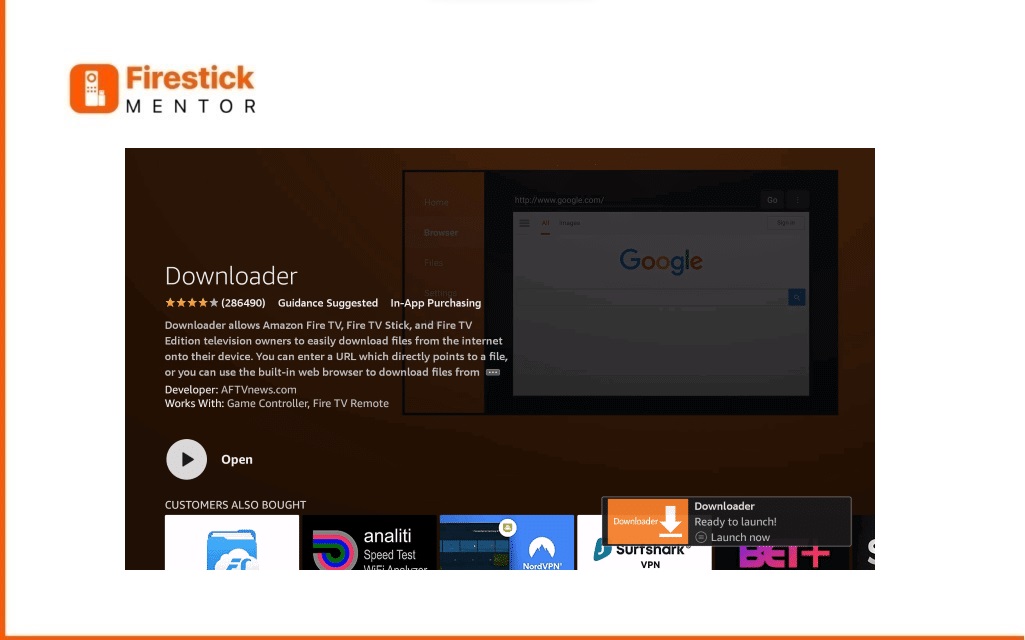
      • Enter “Downloader” in the search bar and select the app from the list.
      • Sideload Application Using Downloader Step 3
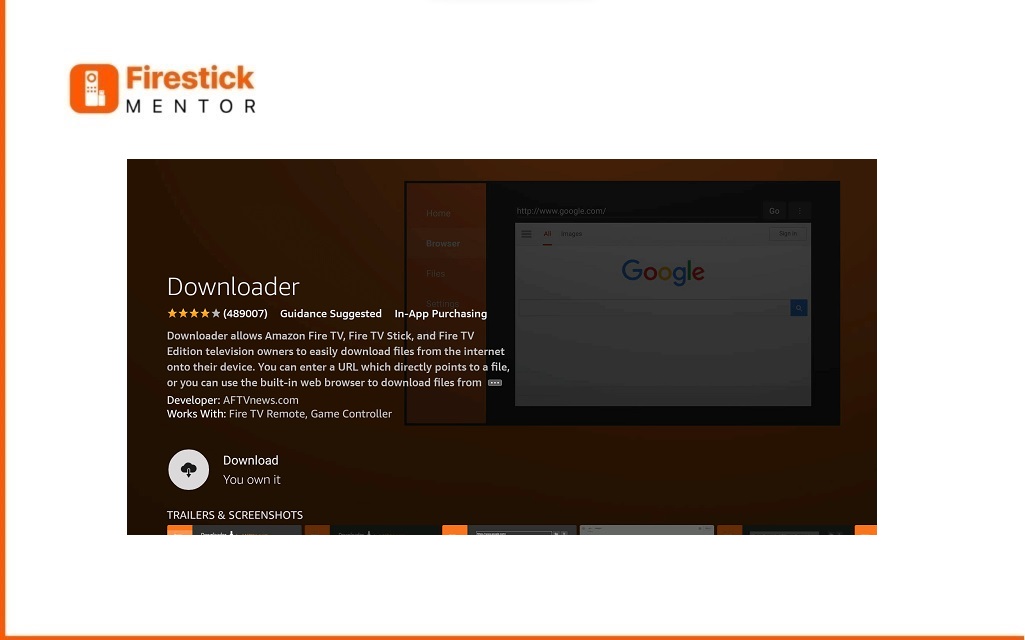
      • Application will appear Select it and then Tap Get/Download and wait for the installation to finish.
      • Sideload Application Using Downloader Step 4
      • Tap on Open
      • Sideload Application Using Downloader Step 5
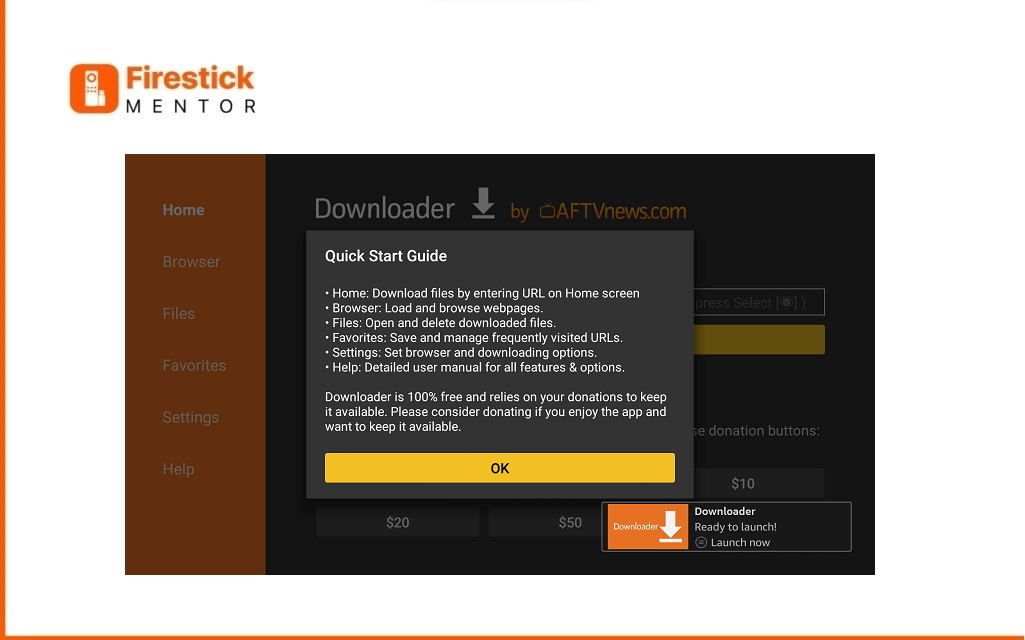
      • Choose Allow and OK when prompted.
      • Sideload Application Using Downloader Step 6
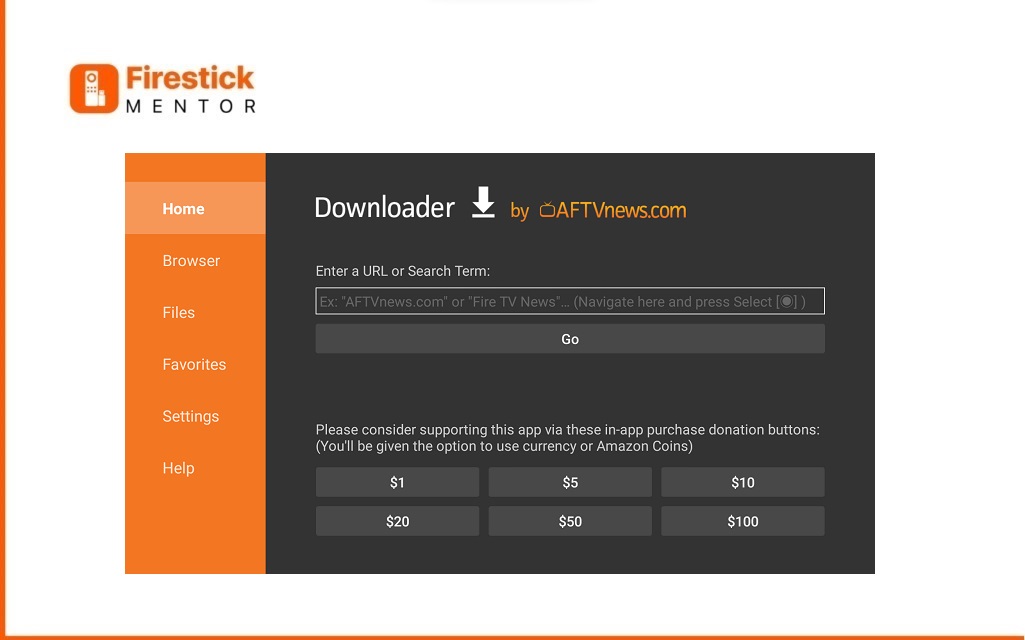
      • In the Downloader App, go to the Home tab and click the Search Bar.
      • Sideload Application Using Downloader Step 7
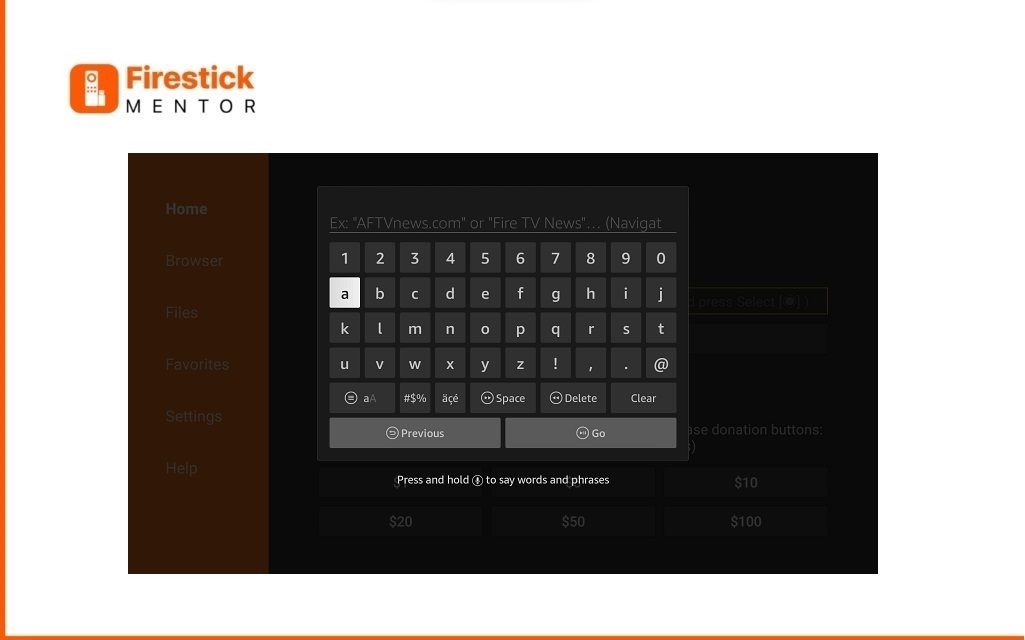
      • Search for STV Player APK: Type the STV Player APK URL: “tinyurl.com/33325121 OR bit.ly/4722512” OR enter STV Player Downloader CODE 464459 and click GO.
      • Sideload Application Using Downloader Step 8
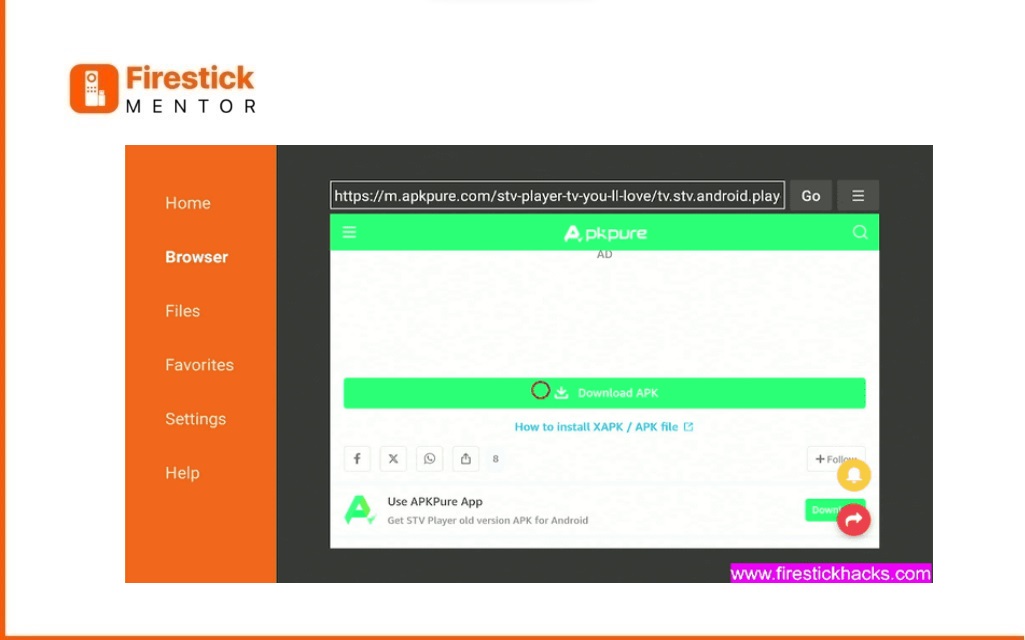
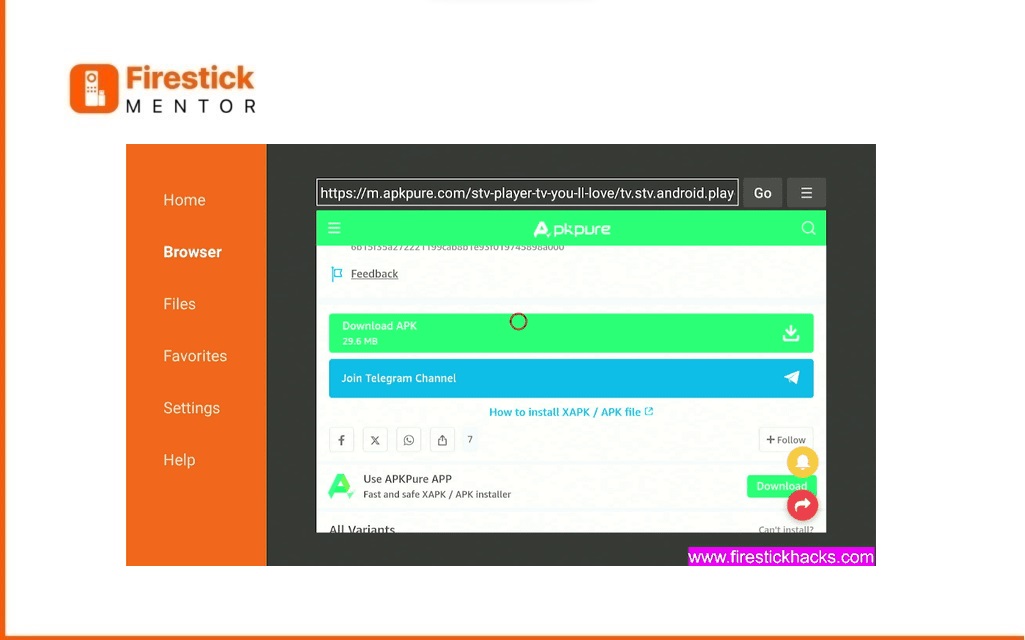
      • Scroll downwards and select the Download APK button.
      • Sideload Application Using Downloader Step 9
      • Allow the APK file to download.
      • Sideload Application Using Downloader Step 10
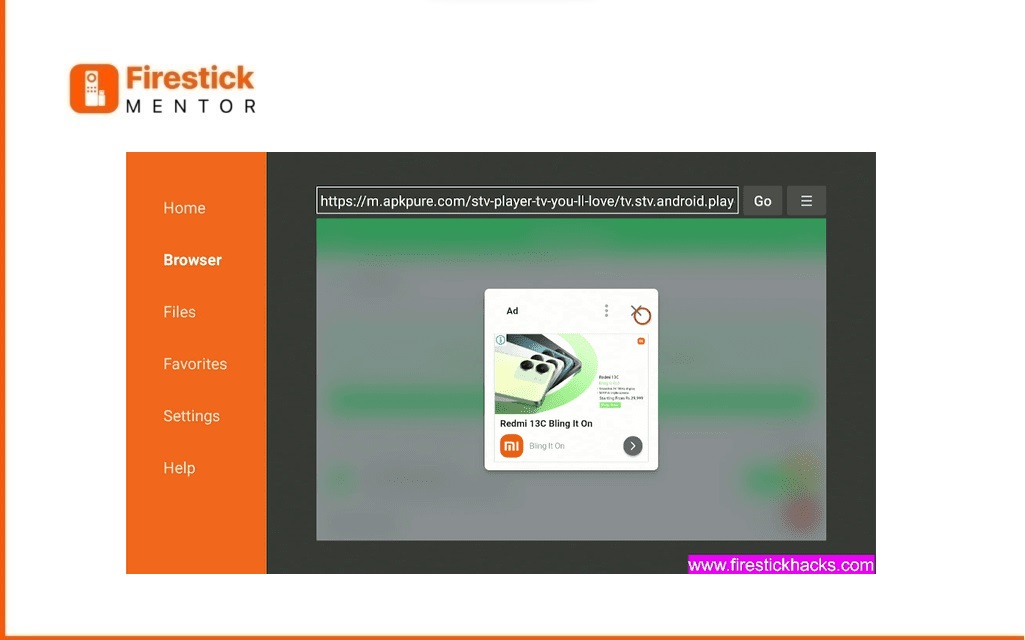
      • If advertisements pop up, close them by clicking the “Close” (X) button.
      • Sideload Application Using Downloader Step 11
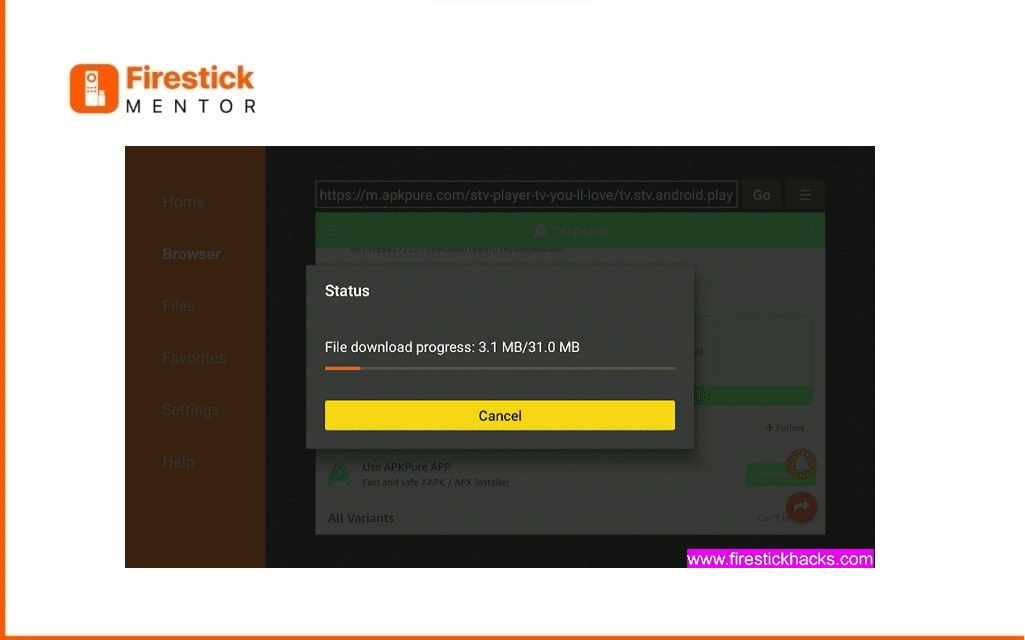
      • The APK file of STV Player will begin downloading; wait for it to finish.
      • Sideload Application Using Downloader Step 12
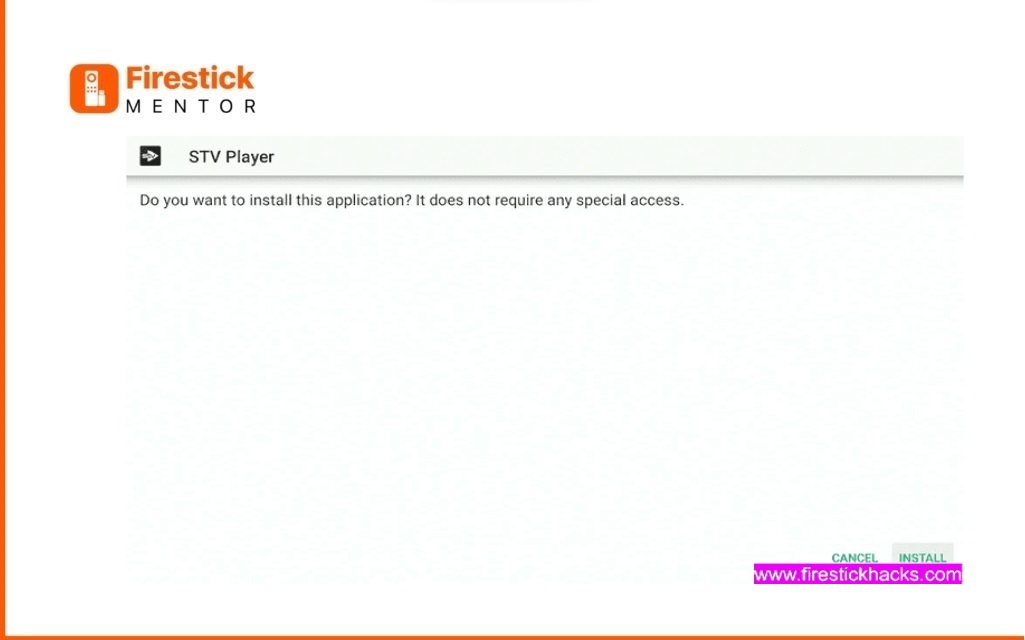
      • After downloading, click Install
      • Sideload Application Using Downloader Step 13
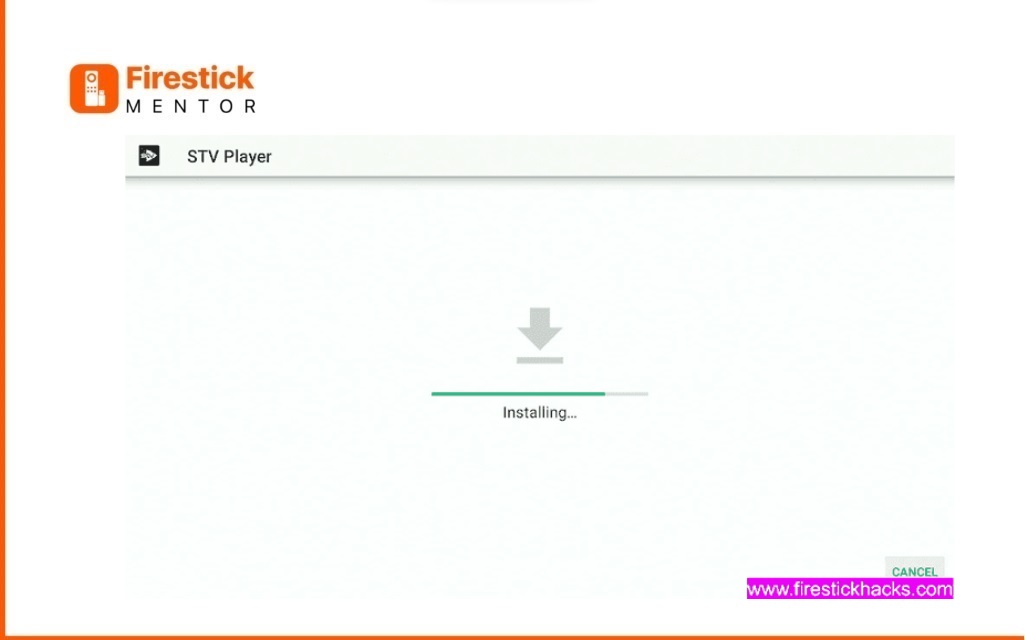
      • Wait for a while as the installation process takes place
      • Sideload Application Using Downloader Step 14
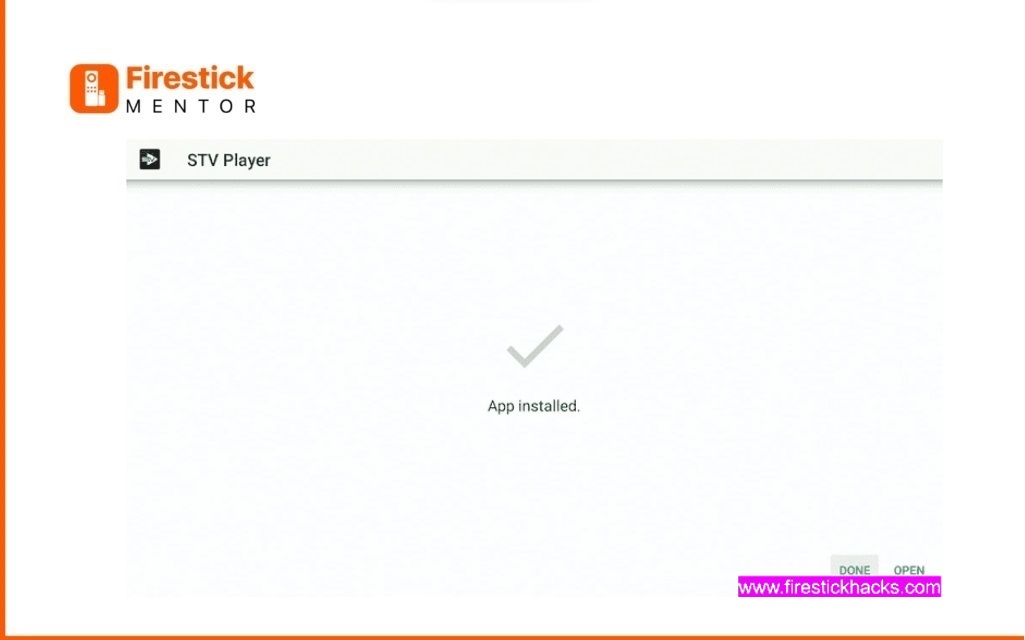
      • Once installed, Press Open.
      • Sideload Application Using Downloader Step 15
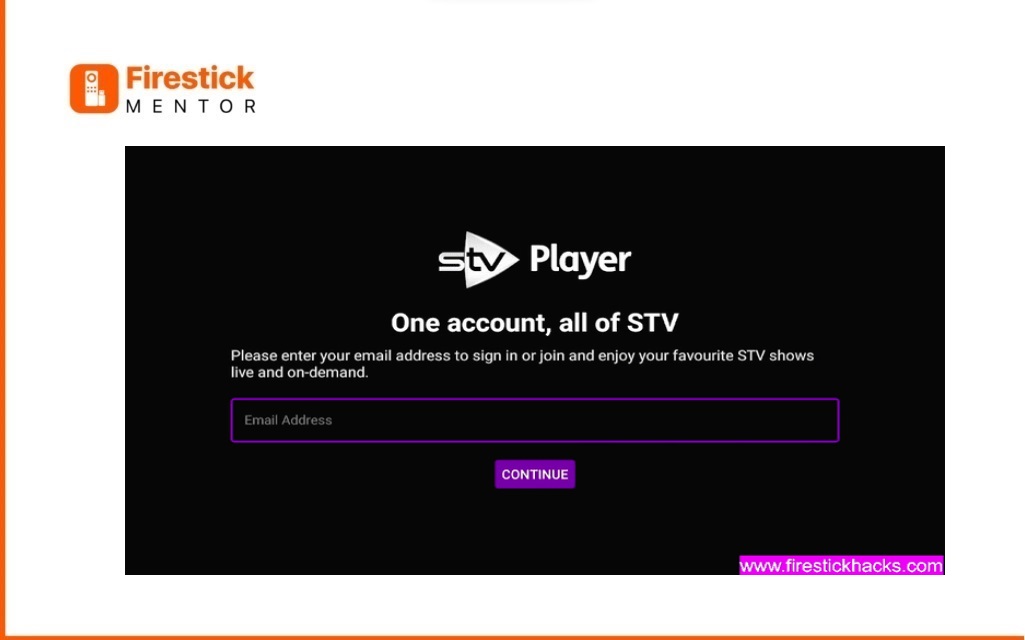
      • Open the Downloaded STV Player app on FireStick
      • Use STV Player app on FireStick Step 1
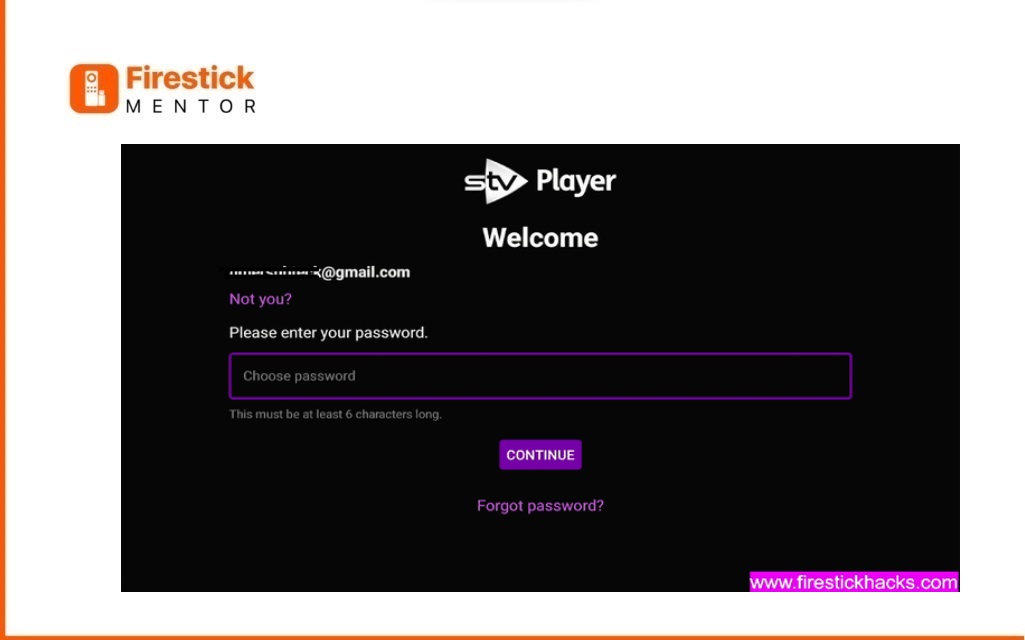
      • Enter the email registered with STV Player.
      • Use STV Player app on FireStick Step 2
      • Input the password.
      • Use STV Player app on FireStick Step 3
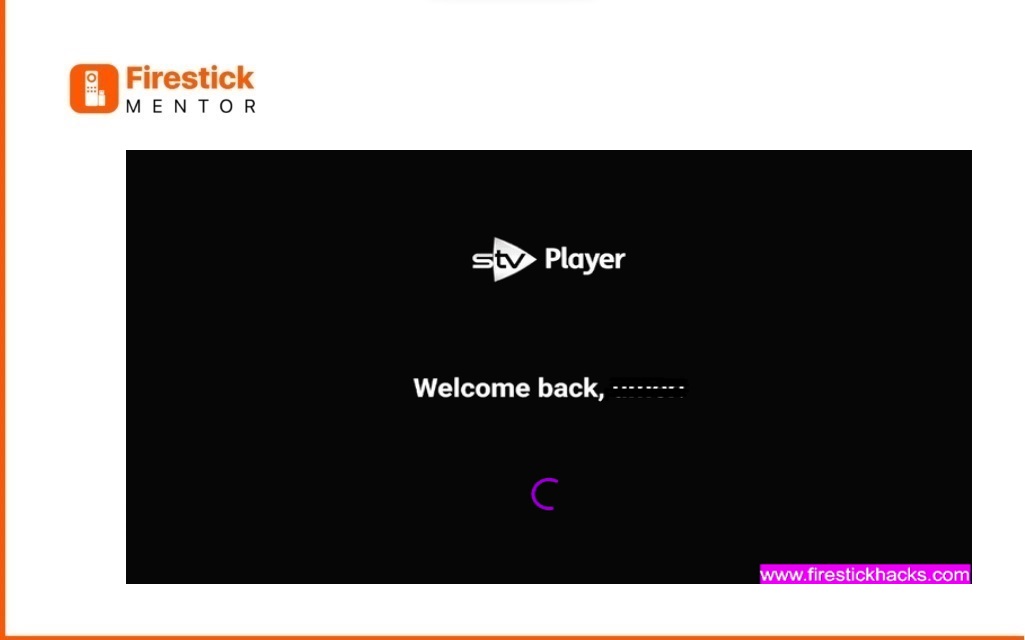
      • The Application will load
      • Use STV Player app on FireStick Step 4
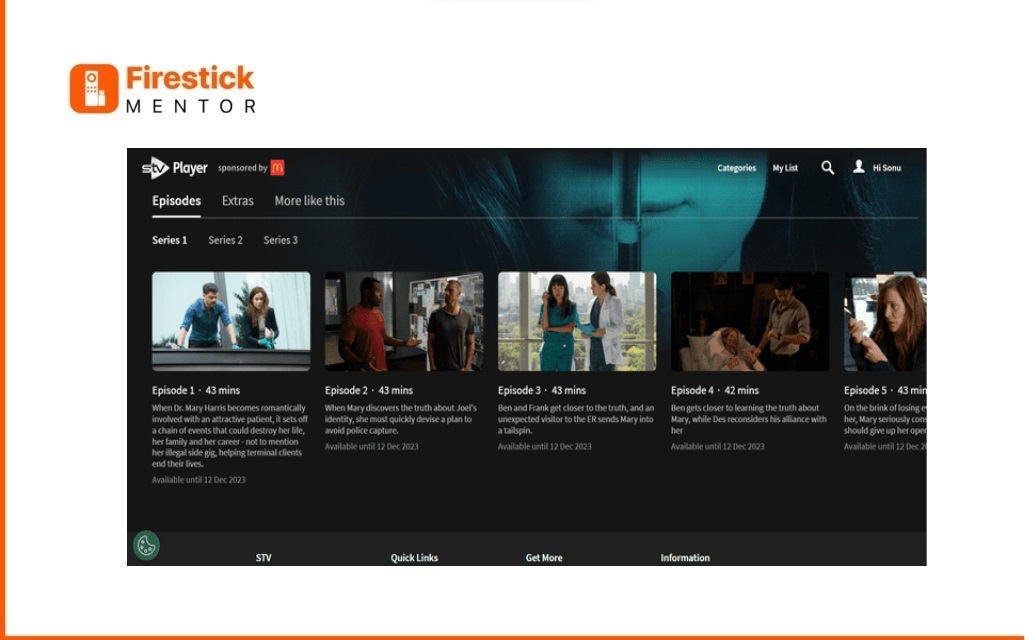
      • Explore the STV Player app interface.
      • Use STV Player app on FireStick Step 5
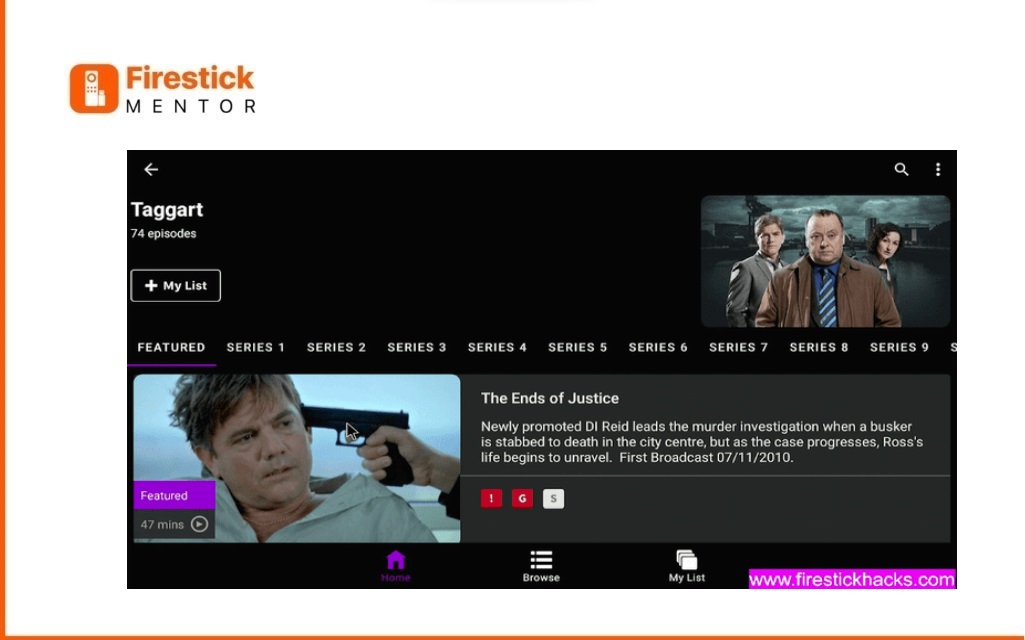
      • Scroll down and choose any Seriese to Watch
      • Use STV Player app on FireStick Step 6
      • Add to my List or tap on it to play
      • Use STV Player app on FireStick Step 7

        Now Begin enjoying free content on STV Player
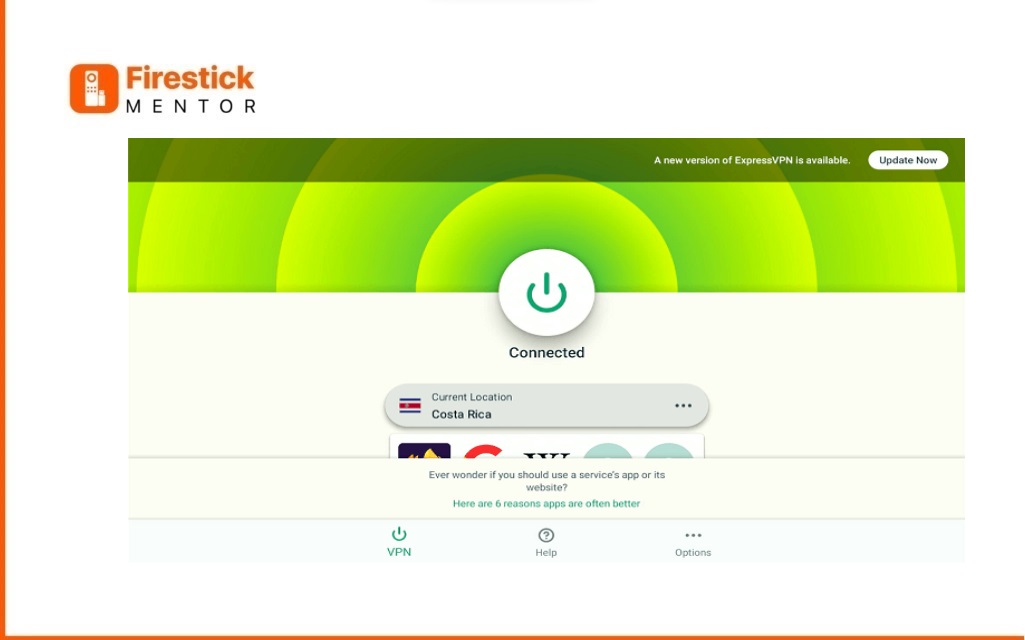
    How to Watch STV Player From Outside of the UK Free

    STV Player is a useful platform for people who really enjoy British TV, especially shows like Coronation Street or Emmerdale.

    Sadly, this service doesn’t work outside the UK, so if you’re on vacation in places like Portugal, Spain, Germany, or France, you can’t use it.

    But there’s good news! There’s a way to get around this problem, so you can still watch your favorite dramas without any issues.

    ExpressVPN Sign-Up and STV Player Access:

    • Sign up for ExpressVPN on their website.
    • Choose a plan, provide your email, and set up a password.
    • Download and install the ExpressVPN app.
    • Log in using your new account.
    • Connect to a UK server within the app.
    • Visit the STV Player website.
    • Enjoy your favorite British TV shows without location restrictions.

    • What is STV player+
    Get ExpressVPN

    FAQ’s

    • Is STV Player Free?

      STV Player, a Video-on-demand (Ads-supported) streaming service owned by STV Group, is accessible across the UK for free. While the official app on Amazon App Store allows free viewing on Firestick within the UK, those outside the UK can stream the service on a browser or install the STV Player APK, as discussed in this guide.

    • IS STV Player legal and where is it available on FireStick?

      Yes, STV Player is a legal streaming service. It is available on Firestick through the Amazon App Store. However, please note that this application is only accessible in the UK region. If anyone outside the UK wishes to access it, they should use ExpressVPN, a Virtual Private Network service, to bypass regional restrictions and enjoy STV Player’s content legally.

    • How do I activate STV Player on my Fire TV?

      Linking Smart TV or TV Device to STV Player:

      1. Download and install the STV Player app.
      2. Open the app and review privacy settings.
      3. Choose “Continue to STV Player.”

      Options for Linking:

      • Option 1: Visiting the Website or Entering the Code:
        • Visit the web address or scan the QR code.
        • Alternatively, go to www.stv.tv and choose TV Activation Code.
        • Log in or set up your STV account, enter the code, and click “Continue.”
      • Option 2: Entering the Code via Remote Control:
        • Choose “Sign In” (requires an existing STV account).
        • Enter email and password using the on-screen keyboard.
        • Select “Sign In” to complete the process.

    Conclusion

    STV Player, a UK-based streaming service owned by STV Group, offers 1000+ hours of free content within the UK. The premium service, “STV Player+,” provides ad-free viewing for £3.99/month. Accessible on Firestick via the Amazon App Store in the UK, non-UK users can utilize the Internet browser method. Overcoming geo-restrictions requires a VPN, with ExpressVPN recommended. In essence, STV Player caters to UK audiences, introducing a premium ad-free option, and offers accessibility beyond borders through alternative methods, with ExpressVPN as a reliable choice.

    Get ExpressVPN
    Muhammad Basit

    Related Posts

    How to Install Fluxus IPTV Addons on FireStick and Android TV

    Channels Apps & IPTV

    Watch Latest Release 2024 Movies on FireStick (For Free)

    Channels Apps & IPTV

    Watch and Download Shack TV On Firestick

    Channels Apps & IPTV

    13 Best USTVGO Alternatives for Live TV: [Tested by Experts]

    Channels Apps & IPTV
    Recent Posts
    • How to Get Dedicated IP in the UK
    • How to Get Dedicated IP in India
    • A Comprehensive Guide to Obtaining a Dedicated IP in the US
    • Setup Linksys Wireless Router with DedicatedIP Address
    • Setting Up a Dedicated IP Address on Netgear XR500

    We talk about almost everything around Amazon Fire Stick. Be it Apps, How to guides, Sports, Troubleshooting, latest news.

    Disclaimer: We may earn affiliate commissions if you decide to purchase through our links. For more details read our Ownership Disclosure.

    Facebook YouTube
    Latest Posts

    How to Get Dedicated IP in the UK

    March 12, 2024

    How to Get Dedicated IP in India

    March 12, 2024

    A Comprehensive Guide to Obtaining a Dedicated IP in the US

    March 8, 2024
    Explore by category
    • Channels Apps & IPTV
    • Dedicated IP
    • News
    • Sports Movies & Shows
    • Tips Tricks & Features
    • uncategorized

    Type above and press Enter to search. Press Esc to cancel.