


Google Chrome is the most famous web browser in the world. The browser was developed by Google in 2008. Google Chrome is compatible with every operating system in the world such as Linux, Windows, macOS, Android, etc.
Users can access websites, web apps, and online information using the Google Chrome browser. It is one of the most used internet browsers in the market as it is user-friendly, one of the oldest in the game, and has multiple features.
There are numerous reasons behind the success of Google Chrome, one being its accessibility; it is available on all kinds of devices, and consoles, which makes it more and more popular.
With the launch of FireStick, many people have been interested in the idea of using Google Chrome on their FireStick TV as the default FireStick browser is not as strong as Google Chrome. If you want to install Google Chrome on FireStick then continue reading.
How to Install Google Chrome on FireStick
Google Chrome has technically intended for PCs or Android smartphones. But as long as you can sideload the APK, the app’s Android installation file, it works with a FireStick.
Google Chrome is not available on the amazon store but it is still compatible with a FireStick. So, use the following steps to install Google Chrome on FireStick:
- First of all, turn on your FireStick.
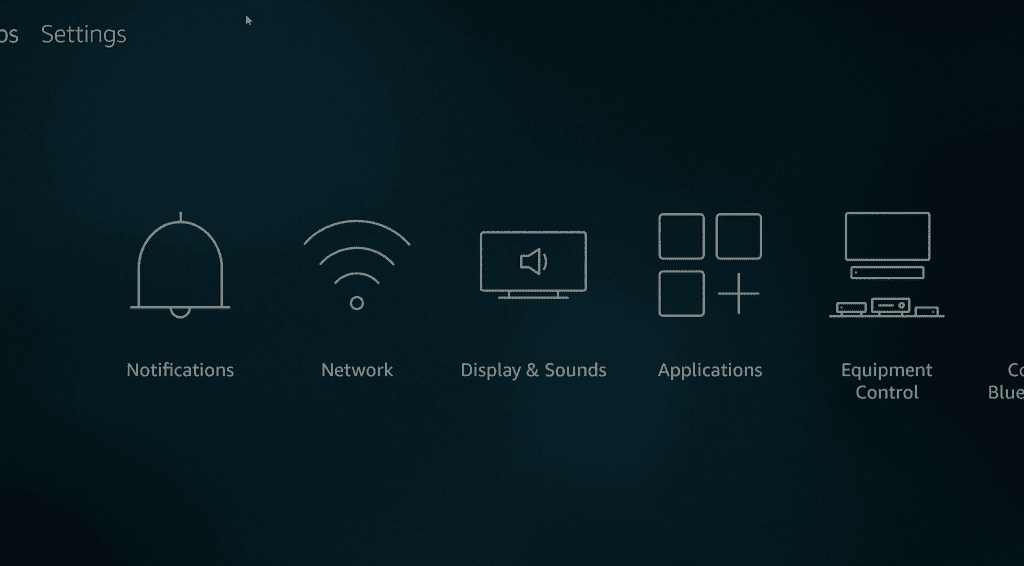
- Then go to the settings on the home screen.
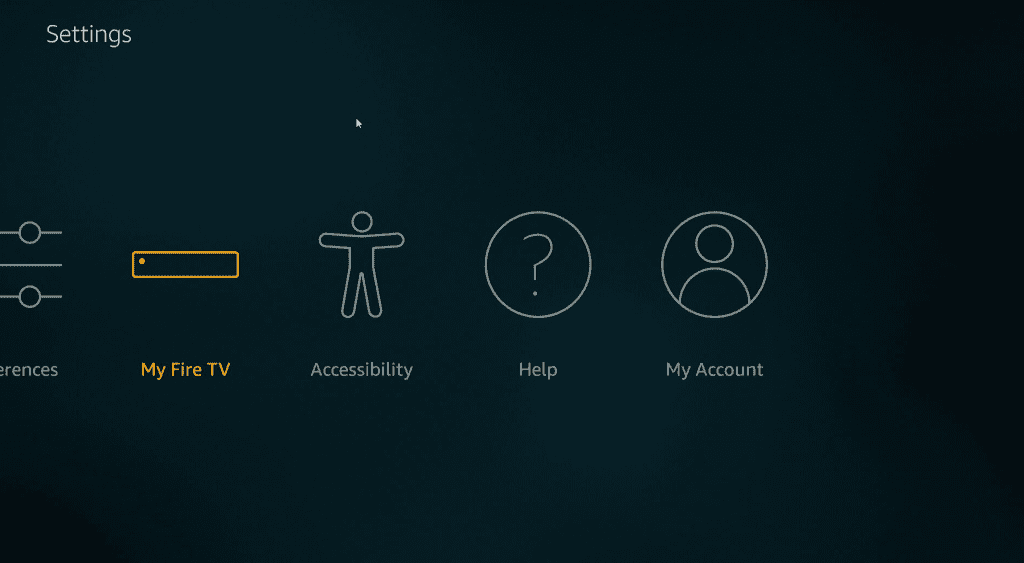
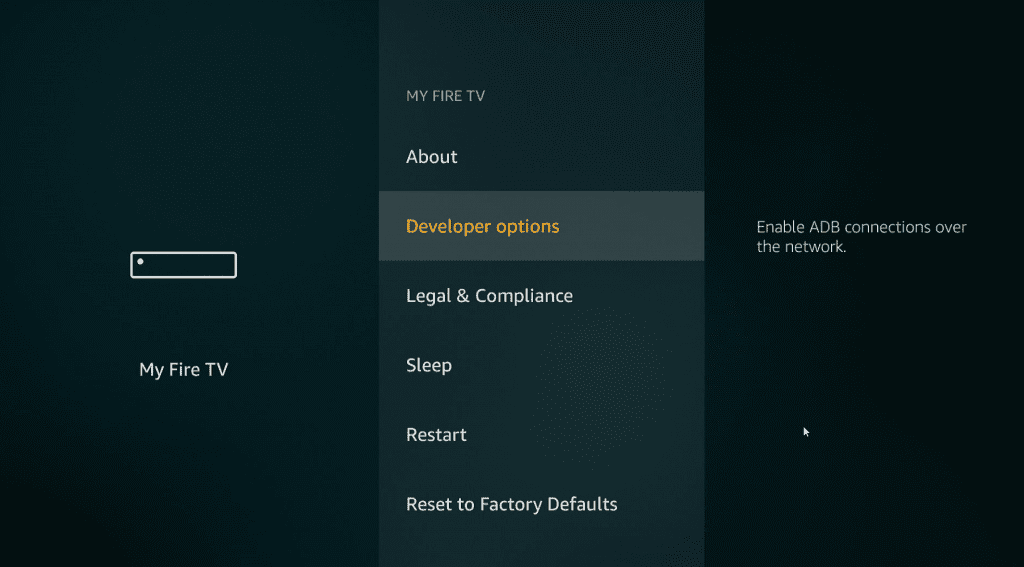
- Then select my FireTV.
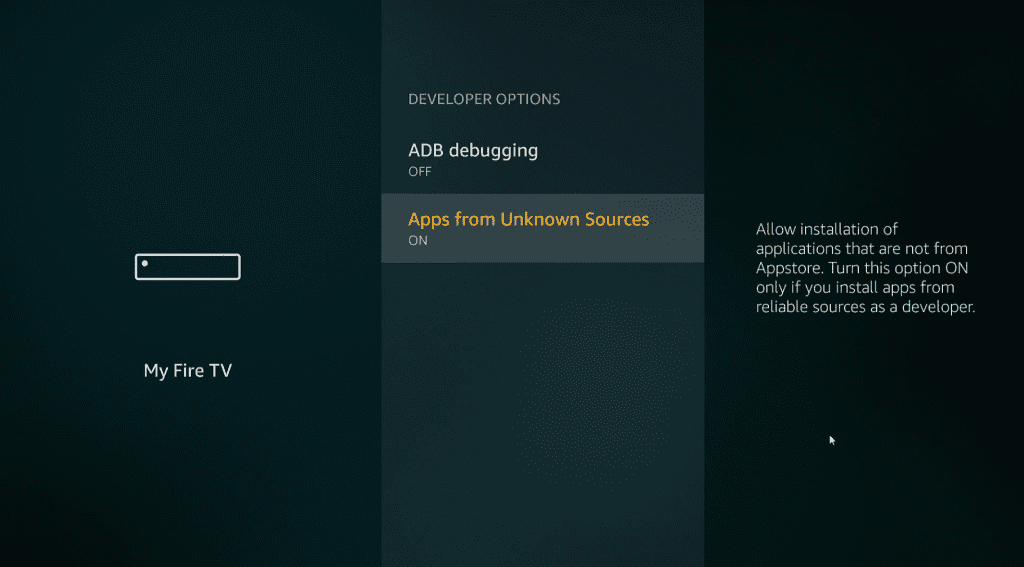
- Click the device and select developer options.
- Enable the install unknown apps feature, so you can download Google Chrome on FireStick.
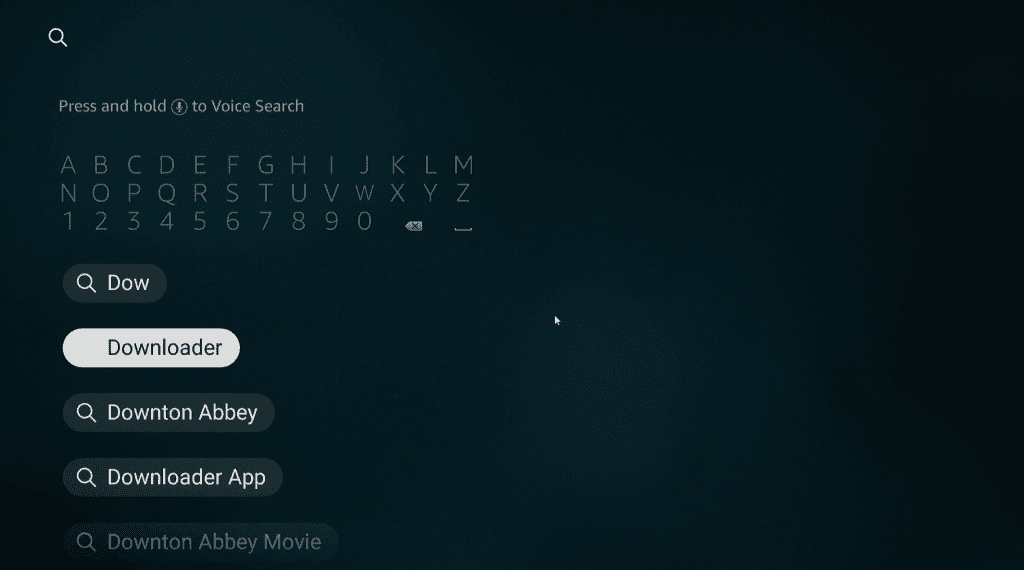
- Now select search and look for the downloader app.
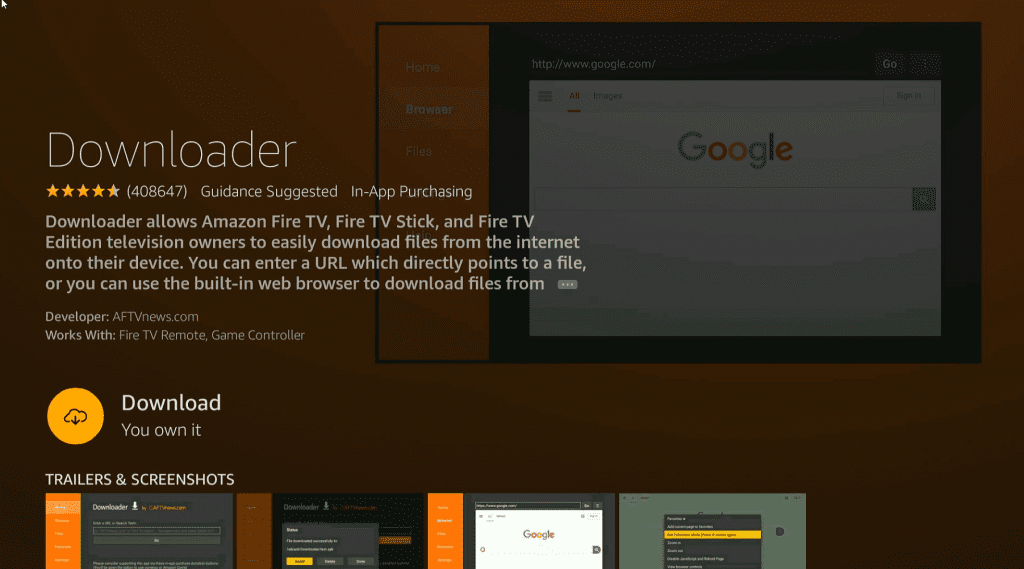
- Download the downloader app.
- Once the downloader app is installed, you can download Google Chrome via APK.
- Open the downloader app. The app will ask permission for storage access.
- Select allow and then select OK to lock configuration.
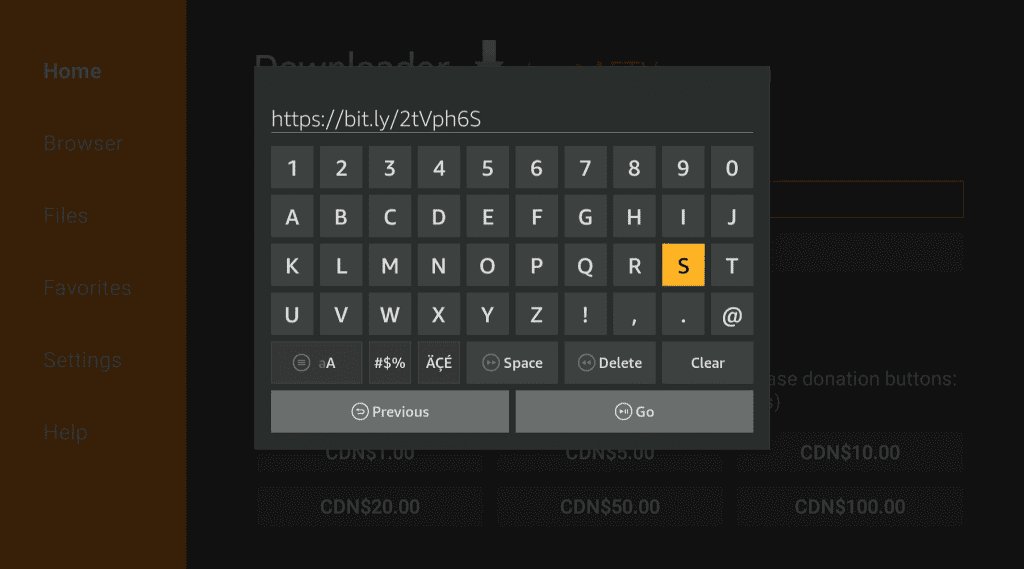
- Type the following URL on the downloader app: https://bit.ly/2tVph6S and hit go.
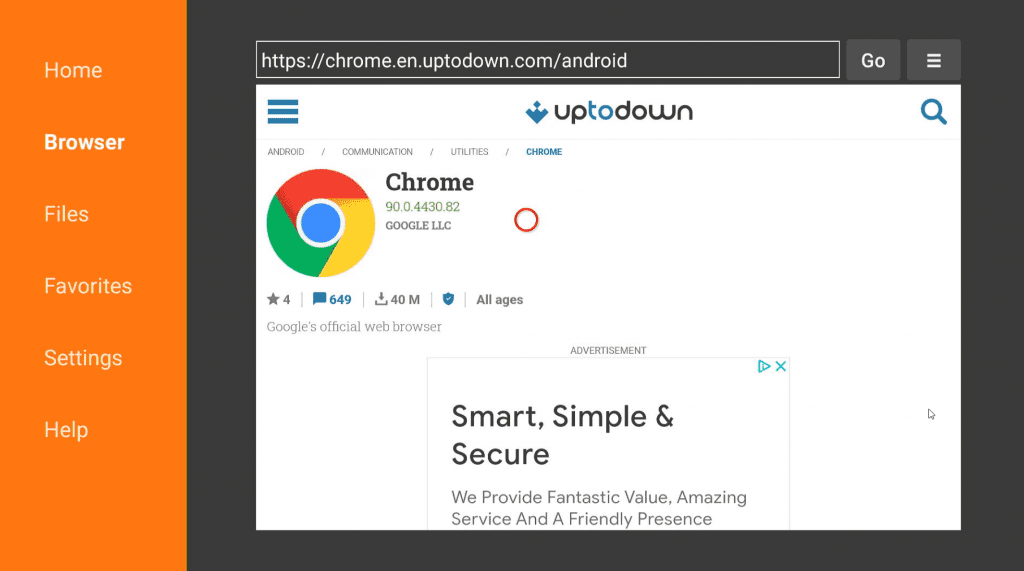
- The system will lead you to a page where you can download the Google Chrome APK.
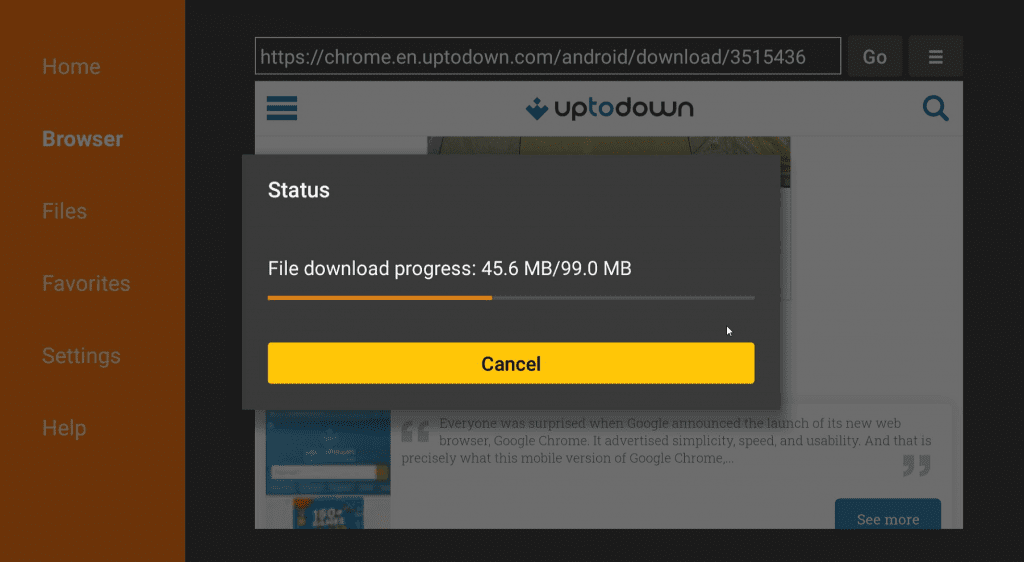
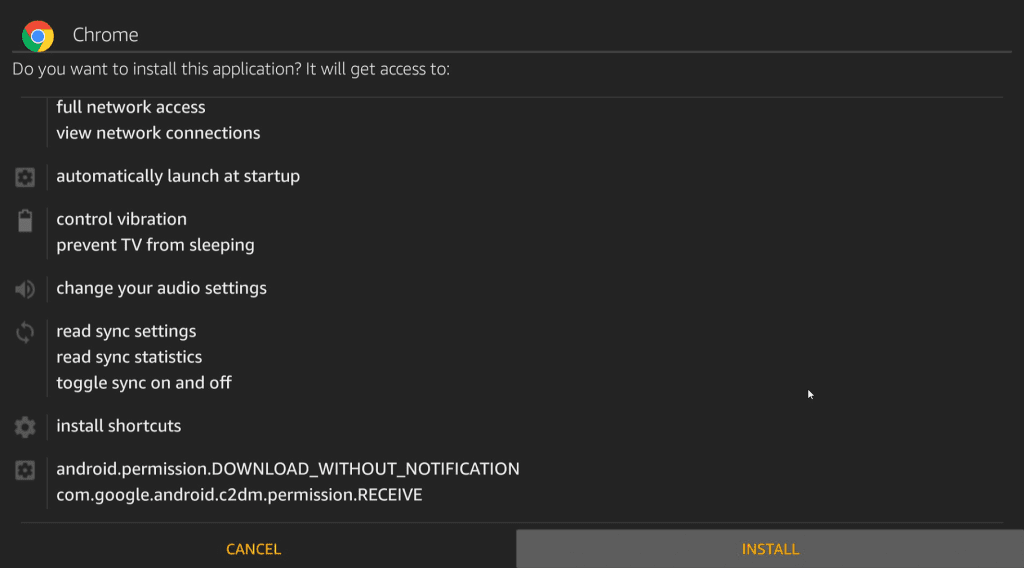
- Multiple versions will be available on the page. Select the version that suits you the best and install it.
- Once the file is installed then the system should take you back to the downloader app.
- Now go to the channels and apps section on your homepage and launch Google Chrome.
How to Use Google Chrome on FireStick
Google Chrome is built to be used as a touch device so, you cannot use Google Chrome with a FireStick remote.
To use Google Chrome on FireStick you have two options
- Mouse toggle: This is an app that you will need to download on FireStick. The app will give you a cursor that can be controlled by your FireStick remote. It is the preferred option.
- Bluetooth keyboard: The other option is using a wireless keyboard with a mousepad. You will need to connect a wireless Bluetooth keyboard with a mouse pad to your FireStick device. This way, you can use the mouse pad to manipulate the cursor on your FireStick screen. Although this option will work, it is not preferred because a keyboard is not as portable as a remote.
Features of Google Chrome
Google is known throughout the world to produce outstanding products. These products are time-tested and extremely consumer friendly.
Following are some features that make Google Chrome stand out:
- Account Synchronization: Unlike other browsers, Google has its own unique email service, the legendary Gmail. If you log in to your Gmail account on Google Chrome, all your data will be transferred to the FireStick TV and the preferences will be tuned according to your needs.
- Chrome Store: Although FireStick has its own App Store, the number of apps you can download from this store is somewhat limited. Google Chrome can act as your alternate app store from where you can download any app that is not available on the FireStick App Store.
- User Interface: The user interface is the most important feature of any browser, app, or website. Google Chrome easily has the best and the most convenient user interface out there.
- Multiple tabs: The in-built FireStick browser does not have the feature to open multiple tabs at a single time. Google Chrome can solve this problem for you as it allows you to add multiple tabs and maneuver through them at a single time.
- Changing the location of Downloads: Chrome stores downloads by default in the “Downloads” folder on your device. In fact, you can alter where those downloads are stored. There are actually two options for your download folder. You can decide on whatever default location you choose or decide to be prompted each time. It can be a good idea to modify Chrome’s settings if you see that your Downloads folder is growing out of control.
Using VPN for Google Chrome
Commercial IPTV add-ons, streaming apps, and services are commonly hosted on unreliable servers. These dubious servers keep track of every website or piece of internet content you browse through.
When you browse the internet, they can track your IP address, which can let them determine who you are and where you are. This compromises your security and privacy.
Therefore, it is advisable to use a reliable VPN, like ExpressVPN, when browsing. Your IP address will be concealed and changed to anonymous, enabling anonymous Internet access.
By doing this, you can prevent tracking of your online activity by your Internet Service Provider, third-party app and add-on developers, governmental agencies, and other organizations.
Furthermore, a VPN provides an additional layer of security and privacy to your data. To overcome these barriers and view certain content that is banned in your region, you will need a connection to a reliable and safe VPN. A VPN is a Virtual Private Network that has multiple servers in multiple countries and it allows you to change your server from one country to another.
By doing this you can avoid censorship in your region and access content of your choice in another region and also keep your data secure.
How to Install ExpressVPN on FireStick?
- Get ExpressVPN for FireStick.
- Download & Install the app on your device.
- Launch the app and connect to the US server.
- Launch Chrome and enjoy.
Google Chrome Alternatives
Although Google Chrome is a strong and reliable web browser, in the end, it depends on the user which browser suits them the best. Here are some alternatives you can use as well.
Frequently Asked Questions
-
Is Google Chrome safe to use?
Google is known throughout the world for always developing a good and strong product. Google Chrome is also an example of this. If you download Google Chrome on FireStick with Express VPN then your data will always be secure and you will always have a sense of privacy.
-
Can Google Chrome be downloaded and used for free?
Yes, Google Chrome can easily be downloaded from any other browser and on any type of device and yes, it is completely free of cost.
Google does not charge users any money to install Chrome and no user has to subscribe to a subscription for the usage of Chrome.
-
Are there any ads on Google Chrome?
Yes, ads do exist on Google Chrome but these ads can easily be avoided if you want to remove them. The ads can be removed easily by using an adblocker that is free of cost and already built into the browser. All you would need to do is activate the adblocker.
-
Does the premium or paid version exist for Google Chrome?
No, premium and paid versions of Google Chrome do not exist. According to Google, there are five separate versions of Chrome but only one of these exists for consumers. The latest version of Chrome is 105.0.5195.127.
-
Does the Browser have an official website?
Yes, Google Chrome does have an official website. The official website is: https://www.google.com.pk/webhp?tab=rw
This link on Chrome will take you to the settings of your Chrome:
chrome://settings/
-
Which devices is it compatible with?
Google Chrome is compatible with almost any device or operating system in the world. You can install it on any device having any operating system and enjoy brilliant compatibility and performance.
-
Is using a VPN necessary?
Yes, a strong and high-end VPN like ExpressVPN should be used while surfing online, as hackers and Internet Service Providers can steal information and personal data.