



Puffin Browser is a third-party app and is not available in the Amazon App Store. To install Puffin Browser, you may need to enable the installation of apps from unknown sources on your FireStick.
Once you have installed Puffin Browser, you can use it to browse the web, watch online videos, and access websites that are not normally available on your FireStick. The Puffin browser uses cloud computing to load and display web pages, which can result in faster browsing speeds compared to traditional web browsers.
Installing Puffin Browser on your Amazon FireStick is a quick and easy process that can enhance your FireStick experience by giving you access to a wider range of web content. Just follow these steps, and you’ll be able to enjoy fast and secure browsing in no time.
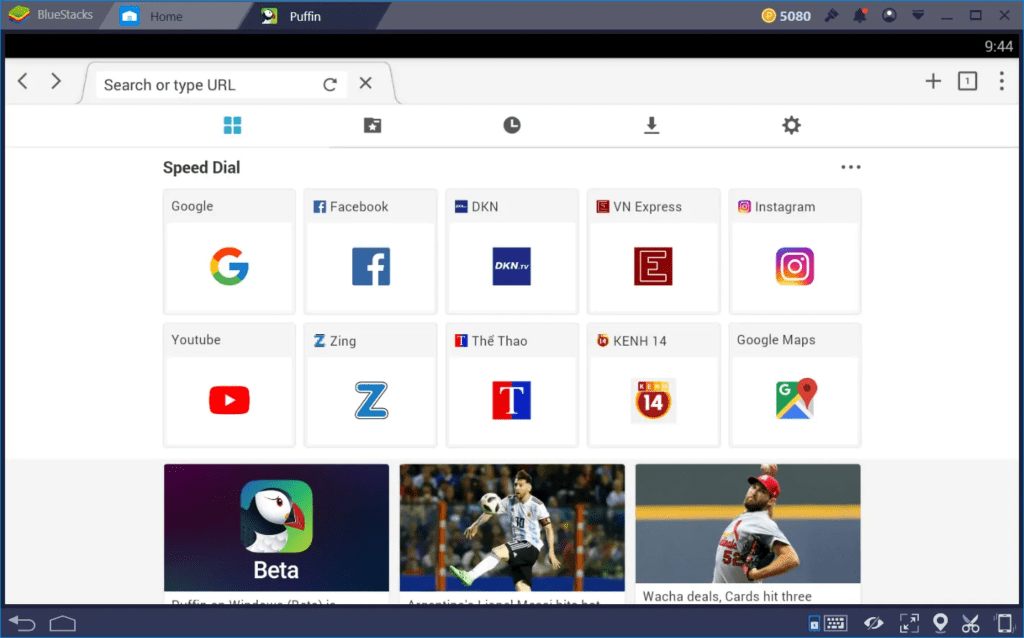
How to Download Puffin Browser on Firestick
Follow the steps mentioned below to get Puffin Browser on FireStick.
- Turn on your FireStick and go to the home screen.
- Select the search icon (magnifying glass) in the upper-left corner of the screen.
- Search for “Puffin” using the on-screen keyboard.
- Select the Puffin Browser app from the search results.
- Click the “Download” or “Get” button to start the download process.
- Wait for the download to complete and then click “Open” to launch the app.
- Once the app has launched, you may be prompted to sign in to your Amazon account.
- After signing in, the app will automatically download any necessary updates.
- When the updates have finished downloading, the app will be ready to use.
Using VPN for Puffin Browser
There are so many ways a VPN can help you. Following are some of the most popular benefits of using a VPN with Puffin Browser that FireStick users love.
Privacy and Security: A VPN encrypts your internet traffic, making it much more difficult for hackers, governments, and internet service providers (ISPs) to access your online activity. This can help keep your personal information, passwords, and financial data secure.
Bypassing Censorship and Geo-Restrictions: Some countries have strict internet censorship laws that block access to certain websites or services. A VPN allows you to connect to servers in different countries, allowing you to bypass these restrictions and access the content you want.
Anonymous Browsing: A VPN can help you remain anonymous while browsing the web. Your IP address and other identifying information will be hidden, making it more difficult for websites and online advertisers to track your online activity.
Improved Streaming Experience: Some streaming services, such as Netflix, use geo-restrictions to limit the content available to viewers in different countries. By using a VPN, you can connect to a server in a country where the content you want is available, allowing you to stream it without any restrictions.
In summary, using a VPN with Puffin browser can enhance your online privacy and security, help you bypass censorship and geo-restrictions, and improve your streaming experience. Keep in mind, however, that not all VPNs are created equal, so it’s important to research and choose a reputable VPN provider.
Puffin Browser Alternatives
Here are some alternative web browsers to Puffin that you can consider:
Google Chrome
Google Chrome is a popular browser that is widely used on computers and mobile devices. It offers fast browsing speeds, a clean interface, and a vast library of extensions and plugins.
Read More: How to Install Google Chrome on FireStick
Mozilla Firefox
Firefox is an open-source browser that is known for its privacy-focused features and large community of developers who create add-ons. It also supports cross-platform syncing of bookmarks and tabs.
Microsoft Edge:
Microsoft Edge is a new browser from Microsoft that replaces Internet Explorer. It is based on the Chromium open-source project and offers a fast, modern browsing experience with features such as a built-in news reader and web collection.
Safari:
Safari is the default browser for Apple devices and is known for its speed and user-friendly interface. It also integrates well with other Apple services and has privacy-focused features, such as Intelligent Tracking Prevention.
Brave:
Brave is a privacy-focused browser that blocks ads and trackers by default. It also has a built-in cryptocurrency wallet for users to earn and use the Basic Attention Token (BAT).
These are some alternative web browsers to Puffin that you can consider, each with its own unique features and benefits. Choose the one that best fits your needs and preferences.
Read More: How to Install Brave Browser on FireStick?
Frequently Asked Questions
How to activate Puffin browser for free?
Puffin Browser offers both a free version and a paid version with additional features. To activate the free version of Puffin Browser, follow these steps:
- Download Puffin Browser from the app store on your device (such as Google Play Store or Apple App Store).
- Open the app and tap on the “Get Started” button.
- Accept the terms and conditions and privacy policy to continue.
- Once you have completed the setup process, you can start using the free version of Puffin Browser.
Note that the free version of Puffin Browser has some limitations, such as advertisements and limited cloud computing time. If you want to access the full set of features, you can purchase a subscription to the Puffin Pro version.
How to block Puffin browser?
If you want to block access to Puffin Browser on your device or network, you have several options:
Parental Controls: If you are trying to block access to Puffin Browser for children, many devices and operating systems have built-in parental controls that can be used to restrict access to specific apps and websites.
Firewall: If you have a firewall on your network, you can block access to the Puffin Browser by adding it to the list of blocked applications in your firewall settings.
Router Configuration: If you want to block access to Puffin Browser on your home network, you can modify the settings on your router to block access to the app. This will prevent all devices connected to your network from accessing Puffin Browser.
Device Restrictions: If you have an Android device, you can use the “Screen Time” or “Digital Wellbeing” feature to set restrictions on which apps can be used and for how long. This can be used to block access to Puffin Browser.
These are some of the ways you can block access to Puffin Browser on your device or network. The specific method you choose will depend on your individual needs and technical capabilities.
How to set up the Homepage on Puffin browser?
To set up the homepage on Puffin Browser, follow these steps:
- Open the Puffin Browser app on your device.
- Tap on the “Menu” icon (represented by three horizontal lines) in the top-right corner of the screen.
- Select “Settings.”
- Scroll down and tap on “Homepage.”
- Enter the URL of the website you want to set as your homepage in the text field.
- Tap on “Save” to apply the changes.
Now, whenever you open Puffin Browser, the specified website will automatically be loaded as your homepage. If you want to change your homepage later, simply repeat these steps and enter a new URL.
Conclusion
Puffin Browser is a cloud-based web browser available on various platforms, including Amazon FireStick. It uses cloud computing to load and display web pages, resulting in faster browsing speeds compared to traditional browsers. Puffin Browser supports flash content and also has a built-in VPN for added privacy and security. The browser offers a clean and user-friendly interface, with options for customization and customization. Overall, Puffin Browser is a great option for those looking for a fast and secure browsing experience on their FireStick device.