


Rokkr is a popular video streaming application that allows users to access a wide range of TV shows, movies, and live TV channels. Rokkr APK provides a diverse range of content in high definition and is compatible with various devices, including FireStick and Android TV Box.
In this article, we will explore how to install and use Rokkr on FireStick and Android TV Box.
What is Rokkr?
Rokkr is a free, open-source media streaming program that allows users to view a large variety of video from numerous sources. This portal provides access to movies, TV series, and live TV channels from several nations, including the United States, United Kingdom, and Canada.
The application streams material using peer-to-peer technology, resulting in high-quality streaming and speedier load times.
One of Rokkr’s most popular qualities is it’s easy and user-friendly UI. Viewers may quickly navigate through many content categories, such as movies, TV series, and live TV channels.
The platform has a search option as well that enables users to look for specific material by genre, title, or even actor.
How to Install Rokkr APK on FireStick?
The installation of Rokkr on FireStick is an easy process that can be accomplished in a few easy steps.
You can follow the steps below:
- Open the My Fire TV option from the Settings menu on your FireStick.
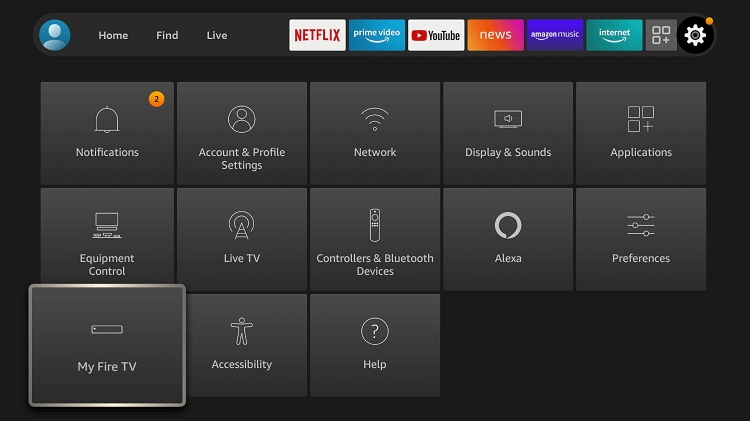
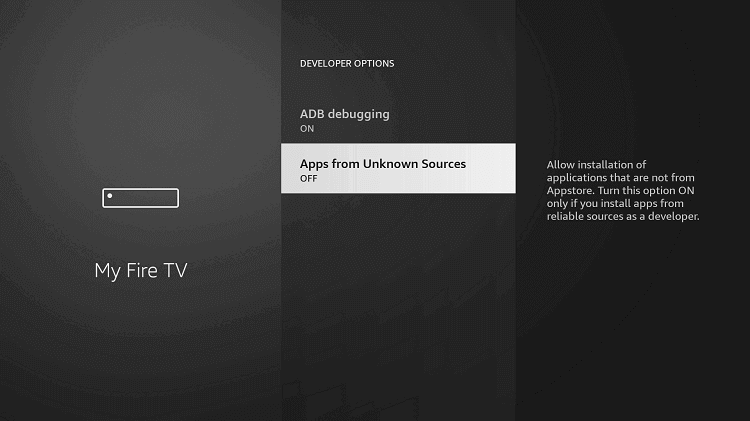
- Open the Developer Options.
- Enable the “Apps from Unknown Sources” option.
- Return to the home screen and tap the search icon.
- Enter “Downloader” and choose the Downloader app from the results.
- Install and run the Downloader app.
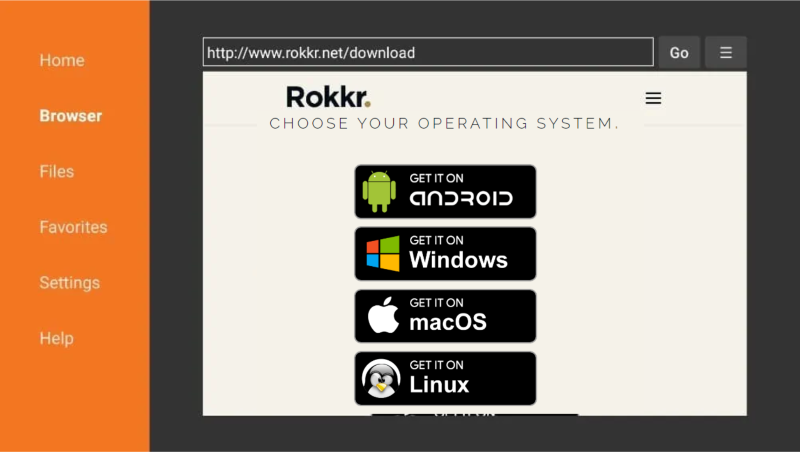
- Open the app and enter the following URL into the field: https://rokkr.net/download and press Go.
- Click on Get it on Android and Rokkr APK file will begin to download.
- After the download is finished, click Install.
- Wait for the installation to finish before clicking Open to activate the Rokkr app.
How to Use and Access Rokkr on FireStick?
Rokkr can be used easily after it has been installed on your FireStick. You can follow these steps to use Rokkr on your FireStick:
- Open your FireStick’s home screen
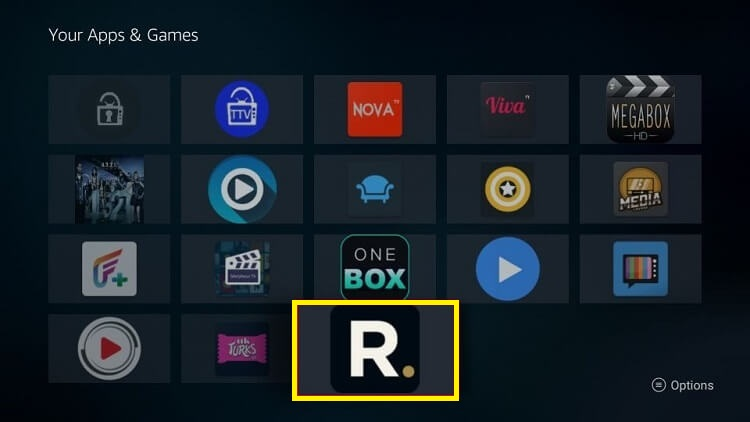
- Open the Your Apps & Channels option.
- Scroll down until you locate the Rokkr app and click on it to open it.
- You may now search for material by category, such as movies, TV series, and live TV channels. Use the search feature to discover specific material by title, genre, and even actor.
- Click on the desired results and enjoy your favorite content for free!
How to Install Rokkr APK on Android TV Box?
Installing Rokkr on an Android TV Box is the same as installing it on a FireStick.
The following steps can be used for this:
- Open the Settings menu on your Android TV Box.
- Open Security & Restrictions.
- To allow app installs from third-party sources, enable the “Unknown Sources” option.
- Download the Downloader app from the Google Play Store.
- Launch the app and enter the following URL: https://rokkr.net/download
- Press Go.
- The Rokkr APK file will begin to download.
- After the download is finished, click Install.
- Click Open to activate the Rokkr app after it has been installed.
Why do you need to use a VPN with Rokkr?
It is highly suggested that you use a VPN with Rokkr to assure a safe and private watching experience.
A VPN service like ExpressVPN helps by encrypting your internet connection and conceals your IP address, helping to keep your online activities private and secure.
When you use Rokkr, you could be viewing geo-restricted or copyrighted information. Without a VPN, your ISP or government might be capable of monitoring your online behavior and potentially prosecute you for streaming copyrighted content.
Furthermore, utilizing a VPN allows you to circumvent geographical limitations and access content that might be restricted in your country.
This is especially beneficial if you are going to another nation and want to keep watching your favorite series and movies.
Overall, utilizing a VPN with Rokkr might assist you safeguard your privacy, provide a safe streaming experience, and gain access to material that might be restricted in your location.
Here’s a quick guide to install ExpressVPN on FireStick:
How to Install ExpressVPN on FireStick?
- Get ExpressVPN for FireStick.
- Download & Install the app on your device.
- Launch the app and connect to the US server.
- Launch Rokkr & enjoy streaming.
Frequently Asked Questions
Is it safe to use Rokkr APK?
Yes, Rokkr is completely legal, and thus a safe streaming application. Nevertheless, when streaming material on Rokkr, you must utilize a VPN to assure a safe and private viewing experience.
What other devices can Rokkr be installed on?
Rokkr can be installed on a variety of devices, such as personal computer, tablets, and smartphones, etc., along with smart TVs. The application is compatible with iOS, Android, MacOS, and Windows.
Can I download movies on Rokkr?
No, Rokkr doesn’t provide a download option for movies or TV series. The software can only broadcast material in real time. Still, users can use screen recording software to capture the material for later viewing. It is crucial to understand that downloading copyrighted information is unlawful and may result in legal penalties.
Conclusion
If you are into instant entertainment then you should go for Rokkr. It is a wonderful platform that will help you watch your favorite TV shows and movies right after their release. Ensure that you have the subscription of ExpressVPN before you use it on FireStick.