


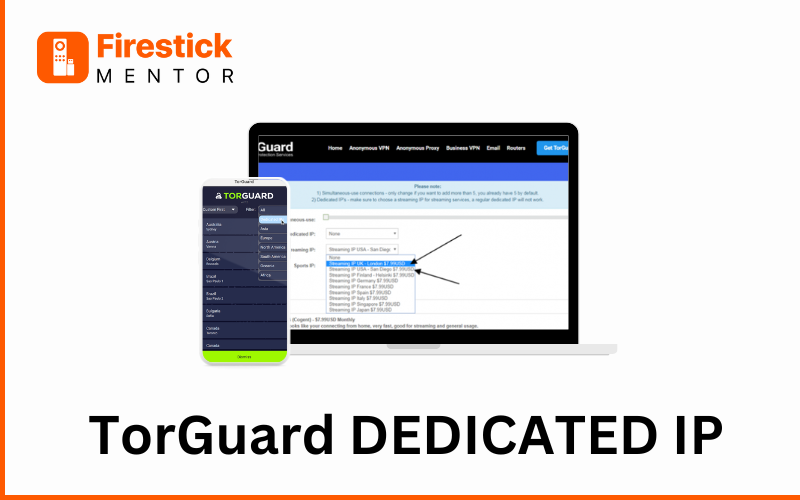
In the ever-evolving landscape of online security and privacy, dedicated IP addresses have emerged as a valuable tool for users seeking enhanced control and stability. For those considering this option with TorGuard, a renowned VPN provider, navigating the setup process can appear daunting.
This comprehensive guide aims to demystify the process, walking you through each step of setting up a TorGuard dedicated IP address, ensuring a smooth and secure experience. Whether you’re a seasoned tech user or a privacy novice, this guide will equip you with the knowledge and confidence to successfully configure your dedicated IP and unlock its potential benefits.
Subscribing for TorGuard Dedicated IP
While TorGuard offers reliable VPN services, subscribing to their dedicated IP service requires additional steps beyond a standard VPN subscription. Here’s a comprehensive guide to walk you through the process:
- Choose Your Dedicated IP Plan: Explore the available plans, which differ in location, price, and data transfer limits. Select the plan that best suits your needs.
- Complete the Checkout Process: Proceed through the checkout process, entering your billing information and choosing your preferred payment method. TorGuard accepts various payment options, including credit cards, cryptocurrencies, and others.
- Verify Your Order and Payment: Complete the payment process according to your chosen payment method.
- Contact TorGuard Support: After successful payment, contact TorGuard support to activate your dedicated IP address. You can reach them through their live chat feature, email ([email address removed]), or ticketing system within your account dashboard.
- Provide Necessary Information: When contacting support, be prepared to provide your account information, chosen dedicated IP location (if applicable for your plan), and any other details requested by the support representative.
- Receive Your Dedicated IP Address: Once verified, the TorGuard support team will activate your dedicated IP and provide you with the necessary information, including the IP address itself, username, password, and any specific instructions for setup.
- Configure Your Device for Dedicated IP Usage: Follow the following instructions for steps on how to configure your chosen device (computer, router, etc.) to use the dedicated IP address.
How to Setup Dedicated IP on Android
- Launch the TorGuard VPN app: Open the TorGuard VPN app on your Android device.
- Log in: Enter your TorGuard account credentials (username and password) and log in to the app.
- Access Server List: Tap the “Servers” option or similar button to access the list of available servers.
- Filter by Dedicated IPs: Look for a filter option or search bar within the server list. Use keywords like “Dedicated IP” or filter by location (if your chosen plan offers location-specific dedicated IPs).
- Choose Dedicated IP Server: Select the server associated with your dedicated IP address. The server name might explicitly mention “Dedicated IP” or include a specific location indicator.
- Connect to Server: Tap the “Connect” button next to the chosen dedicated IP server.
How to Setup torguard Dedicated IP on iPhone
- Launch the TorGuard VPN app: Open the TorGuard VPN app on your iPhone/iPad.
- Log in: Enter your TorGuard account credentials (username and password) and log in to the iPhone app.
- Access Server List: Tap the “Servers” option or similar button to access the list of available servers.
- Filter by Dedicated IPs: Look for a filter option or search bar within the server list. Use keywords like “Dedicated IP” or filter by location (if your chosen plan offers location-specific dedicated IPs).
- Choose Dedicated IP Server: Select the server associated with your dedicated IP address. The server name might explicitly mention “Dedicated IP” or include a specific location indicator.
- Connect to Server: Tap the “Connect” button next to the chosen dedicated IP server.
How to Setup torguard Dedicated IP on MAC
- Launch TorGuard VPN client:Open the TorGuard VPN client application on your Mac.
- Log in: Enter your TorGuard account credentials (username and password) and log in to the client.
- Access Server List: Click on the “Servers” tab or similar option within the client interface to view the available server list.
- Filter by Dedicated IPs: Look for a filter option or search bar within the server list. Use keywords like “Dedicated IP” or filter by location (if your chosen plan offers location-specific dedicated IPs).
- Choose Dedicated IP Server: Select the server associated with your dedicated IP address. The server name might explicitly mention “Dedicated IP” or include a specific location indicator.
- Connect to Server: Click the “Connect” button next to the chosen dedicated IP server. You might be prompted to enter your VPN login credentials again.
How to Setup torguard Dedicated IP on Windows
- Log in to Your TorGuard Account: Enter your TorGuard username and password to log in to the application.
- Configure Dedicated IP: In the TorGuard application, navigate to the settings or options menu. Look for an option related to dedicated IP or server selection.
- Select Dedicated IP Server: Choose the option to select a dedicated IP server. TorGuard should provide you with the details of your dedicated IP address. Select the dedicated IP server corresponding to your assigned IP address.
- Connect to the Server: After selecting the dedicated IP server, click on the connect button or option to establish a connection to the server.
- Test Connection: Finally, test your internet connection to ensure that everything is working properly while connected to the TorGuard dedicated IP server.
How to Setup torguard Dedicated IP on Router
- Access Router Settings: Open a web browser on a device connected to your router’s network. Enter your router’s IP address into the address bar (common addresses are 192.168.1.1 or 192.168.0.1) to access the router’s settings.
- Log in to Router Interface: Log in to your router’s interface using your router’s admin credentials. If you haven’t changed these, check your router’s manual for default login information.
- Locate VPN Settings: Once logged in, navigate to the VPN or WAN settings section. This location may vary depending on your router model and firmware.
- Enable VPN: Enable the VPN feature on your router if it supports VPN connections. Some routers may require you to install custom firmware like DD-WRT or Tomato to enable VPN functionality.
- Enter TorGuard Server Details: Enter the server details provided by TorGuard, including the server hostname or IP address, your dedicated IP username, and password.
- Configure VPN Protocol and Encryption: Choose the VPN protocol and encryption settings recommended by TorGuard. Common options include OpenVPN with UDP or TCP and AES encryption.
- Save Settings: After entering the server details and configuring the VPN settings, save your changes and apply the settings.
- Restart Router: Restart your router to apply the changes.
- Verify Connection: Once your router has restarted, check the VPN status to ensure it’s connected to TorGuard’s dedicated IP server. You can verify the connection by checking your IP address using a website like whatismyip.com.
How to Setup torguard Dedicated IP on Huawei
Setting up TorGuard Dedicated IP on a Huawei router typically involves configuring the router’s VPN settings. Here’s a general guide on how to do it:
- Access Router Settings: Open a web browser on a device connected to your Huawei router’s network. Enter your router’s IP address into the address bar (common addresses are 192.168.1.1 or 192.168.0.1) to access the router’s settings.
- Log in to Router Interface: Log in to your Huawei router’s interface using your router’s admin credentials. If you haven’t changed these, check your router’s manual for default login information.
- Navigate to VPN Settings: Once logged in, navigate to the VPN or WAN settings section. This location may vary depending on your Huawei router model and firmware version.
- Enable VPN Feature: If your Huawei router supports VPN connections, enable the VPN feature. Some Huawei routers may require you to install custom firmware like DD-WRT or Tomato to enable VPN functionality.
- Configure VPN Connection: Enter the TorGuard server details provided, including the server hostname or IP address, your dedicated IP username, and password. Choose the VPN protocol and encryption settings recommended by TorGuard (e.g., OpenVPN with UDP or TCP, AES encryption).
- Save Settings: After entering the server details and configuring the VPN settings, save your changes and apply the settings.
- Restart Router: Restart your Huawei router to apply the changes.
Conclusion
TorGuard’s dedicated IP feature offers a powerful solution for users seeking enhanced privacy, stability, and control over their online presence. By following the steps outlined in this guide, you can easily set up TorGuard dedicated IP and enjoy the benefits it provides, whether you’re browsing the web, streaming content, or conducting business online. With TorGuard, you can take control of your online privacy and security with confidence.