


One of the best methods to strengthen family ties is to capture memories and share stories from the past. Thankfully, you can do that with your Amazon Fire TV Stick. The days of having to pass around your albums or phones among all family members are long gone.
Instead, you can now relive your daily moments while watching slideshows with your friends on the biggest screen and FireStick gadget. The device allows you to upload your photographs to Amazon Photos and access to view them whenever you want on your TV Stick right away.
However, the main question arises how one can access or view these pictures on their FireStick? The whole process is quite easy.

This article will explain how to browse your images using your FireStick, add your favorite photos and movies to the screensaver on your Amazon Fire TV, and delete them whenever needed.
Download Amazon Photos on FireStick
FireStick allows you to download your photos and videos from Amazon Photos to your device to access them easily, even offline.
You can follow these steps for this:
- Open Applications from the Settings option on your FireStick device
- Open Amazon Photos.
- Open the desired Album.
- Select the photos/ videos you wish to download on your device (You cannot download the whole Album at one time. Instead, you can select all the media you want to download from that Album).
- Click Download.
- Follow the instructions appearing on the screen.
View Amazon Photos on FireStick
You can manually set up your Fire TV or Echo Show to display your photos or ask Alexa for assistance. For doing this process manually, nevertheless, you can follow the steps below:
- Open Applications from the Settings option on your FireStick device
- Open Amazon Photos.
- Select the photos, or even entire albums, that you want to view. These will be shown as a slideshow
- Click Play.
Upload photos on your FireSick Screensaver
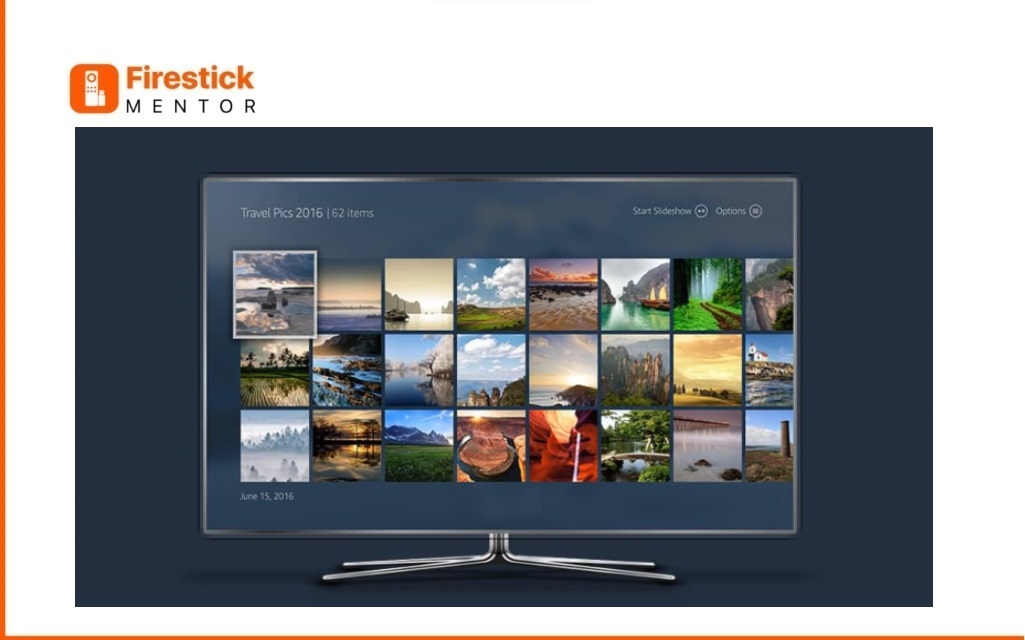
To upload photos to your Fire Stick screensaver, you can use the Alexa app and follow these steps:
- Open the Alexa app on your mobile device.
- Tap on “More.”
- Select “Settings.”
- Scroll down and choose “Photos.”
- Tap on “Devices” and select your Fire TV device.
- Upload the photos you want from your phone to set them as your screensaver.
If you are already using Amazon Photos and have specific albums in mind, you can personalize your Fire TV by selecting those albums. Just tap “More Collections” on the screensaver page in the Alexa app.
To view slideshows on demand, you can say, “Alexa, show my photos.” Alternatively, open the Amazon Photos app from your Fire TV settings. Choose the photo album you want to view, press Play, and enjoy your personalized screensaver.
Note: The Amazon Photos app is available on all Fire TV devices in the US, including Fire TV Stick Lite, Fire TV Stick, Fire TV Stick 4K, Fire TV Cube, and Fire TV Edition smart TVs. Prime members receive unlimited, full-resolution photo storage and 5 GB of video storage.
Disable Amazon Photos on FireStick
You can even disable Amazon Photos on your FireStick device to free up space. Adhere to the following steps to do this.
- Open Applications from the Settings option on your FireStick device
- Open Amazon Photos.
- Select Disable Prime Photos
- Select Disable again to confirm.
However, it is important to note that The Prime Photos application would still be listed in the applications menu on your FireStick even if the app has been disabled.
Yet, clicking it would bring up a popup informing you that the app is disabled and that you must go into settings to enable it again before you can use it.
Delete Amazon Photos on FireStick
You can use your FireStick device to delete any photos permanently for your Amazon photos. You can use the following steps for this:
- Open Applications from the Settings option on your FireStick device
- Open Amazon Photos.
- Open the desired Album.
- Select the photos you want to delete permanently
- Click on the trash icon that appears.
- Another three-dot icon will appear on the page’s top. Click and choose “Move to Trash.”
Customized Screensaver for your FireStick
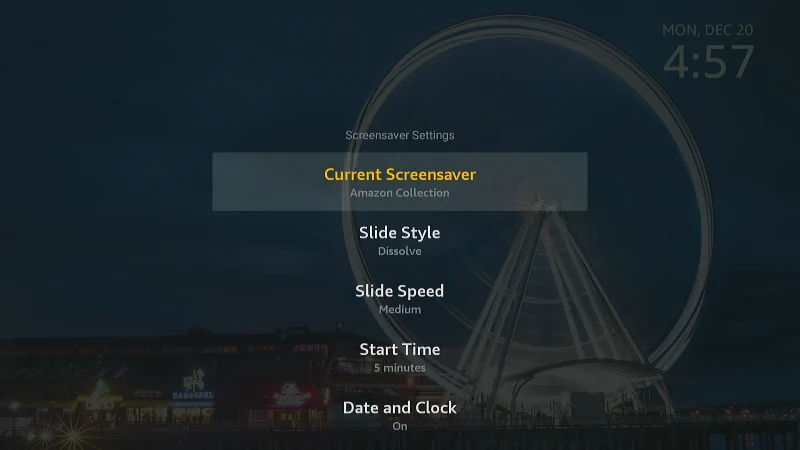
Amazon FireStick allows you to set your favorite photos as your screensaver to display them on your screen whenever your device is not in use. You can do this by following these steps:
- Open the Settings option on your FireStick device
- Open Display & Sounds
- Select Screensaver
- Select Current Screensaver
- Choose your favorite photo, or even multiple photos, and confirm
Always Use a VPN with FireStick
It would be best if you thought about utilizing a reliable Virtual Private Network (VPN) before watching anything on your FireStick.
Here are some of the ways a VPN can help in making your FIreStick streaming experience, better, safer, and more fun:
Avoid ISP Throttling
Usually, internet service providers (ISPs) limit the amount of bandwidth that their clients’ connections may use. This generally happens whenever your network is overloaded with traffic queues during periods of peak demand.
Another time this happens is if you are surfing a specific sight forbidden by local laws or ISPs. Thus, using a VPN service is your best bet for avoiding bandwidth limiting.
Rerouting your internet traffic through a new server node can increase your speed when the usual path is clogged. Furthermore, thanks to VPN encryption, your ISP wouldn’t be able to see what you are streaming online, preventing them from identifying a justification to limit your connection.
Evade Geo-Restrictions
Geographic limits are mostly put in place by websites and content providers under copyright agreements. However, using a VPN can get around these geographical limitations.
The VPN gives you a new IP address from the location you select as the one from which you want people to think you are. You can view material from almost any place with the VPN.
Increase Privacy
Your online activity can be watched by ISPs, advertising, hackers, and other third parties if you aren’t utilizing a VPN, hence putting your privacy in danger.
Your data is available to others whenever you join a public WiFi network. An evil user can learn your login and password, contact information (such as your name and address), the content you are surfing or downloading, and the websites you visit, all just by using an unencrypted connection.
A reliable VPN service keeps zero records of your internet activities. Since the data trail, or fingerprint, of your internet actions, is removed, this assists in safeguarding your privacy.
Strengthen Security
Although an Amazon FireStick is excellent for online streaming, it poses various security problems as it connects to the internet in the same way as any other device does.
Most people use web browsers for online activities, such as handling private data and banking. By establishing an encrypted connection, a VPN aids in keeping these actions safe. Your Internet service provider cannot see your data as it travels via this encrypted tunnel.
Best VPN for FireStick
If you’re seeking a VPN provider, PureVPN is one of the best VPNs in all aspects, especially for Amazon FireStick. You can enjoy secure streaming utilizing the VPN owing to PureVPN’s exceptional qualities.
The complex algorithm will pick the fastest server for you regardless of where you are. You can continue streaming on the most immediate internet connection with PureVPN because of its rapid 20Gbps servers.
PureVPN offers a great new feature, known as the Internet Kill Switch. It immediately turns off your WiFi and masks all of your viewing activities from your internet service provider, so that you can still maintain your privacy even if the VPN connection is lost.