
Firestick MentorFirestick Mentor
    What's Hot

    How to Get Dedicated IP in the UK

    March 12, 2024

    How to Get Dedicated IP in India

    March 12, 2024

    A Comprehensive Guide to Obtaining a Dedicated IP in the US

    March 8, 2024
    • Privacy Policy
    • Contact Us
    Facebook YouTube
    Firestick MentorFirestick Mentor
    • Sports Movies & Shows
    • Channels Apps & IPTV
    • Tips & Tricks
    • VPN
    Firestick MentorFirestick Mentor
    Home » Tips Tricks & Features » How to change time & Date on Amazon FireStick/ FireTV
    Tips Tricks & Features

    How to change time & Date on Amazon FireStick/ FireTV

    Rimsha SafdarBy Rimsha SafdarSeptember 27, 2023Updated:September 27, 2023No Comments6 Mins Read
    change time on firestick
    Facebook Twitter LinkedIn Email

    Knowing how to change the time and date on your Amazon FireStick is imperative for FireSick users. If the date and time are inaccurate and not according to your time zone, it will prevent you from acquiring certain updates on your FireStick. This article will show you exactly how to match your FireStick date and time with your time zone.

    How to change time on FireStick

    Follow the steps below to change your time on the Amazon FireStick:

    1. Launch your FireStick
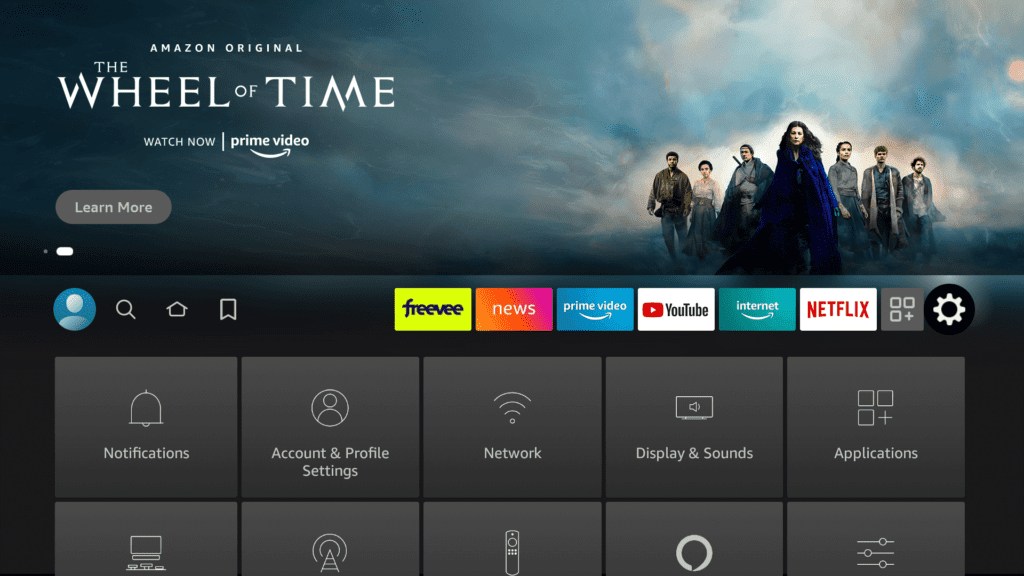
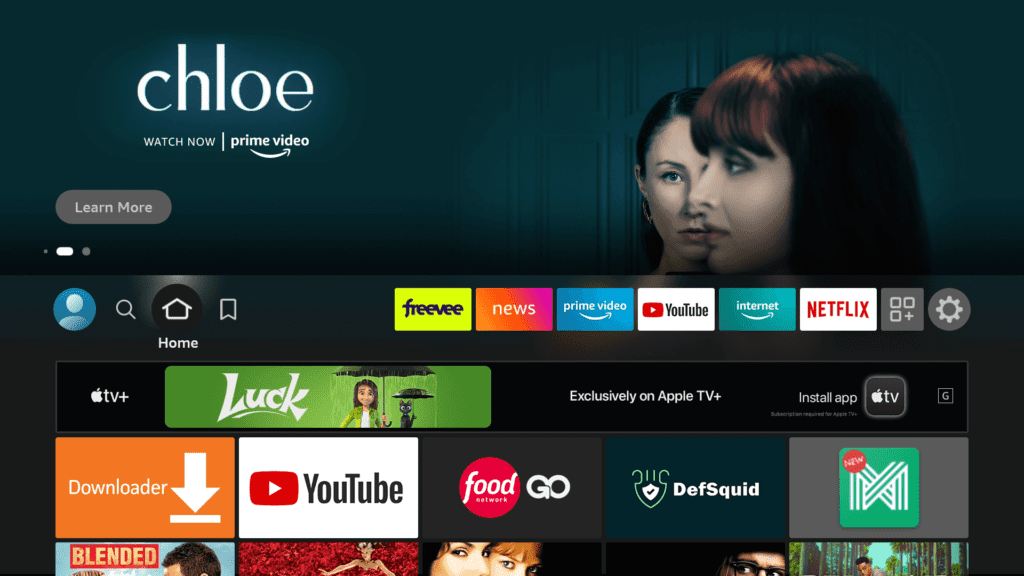
    2. Press the Home button on your FireStick remote to get to the homepage
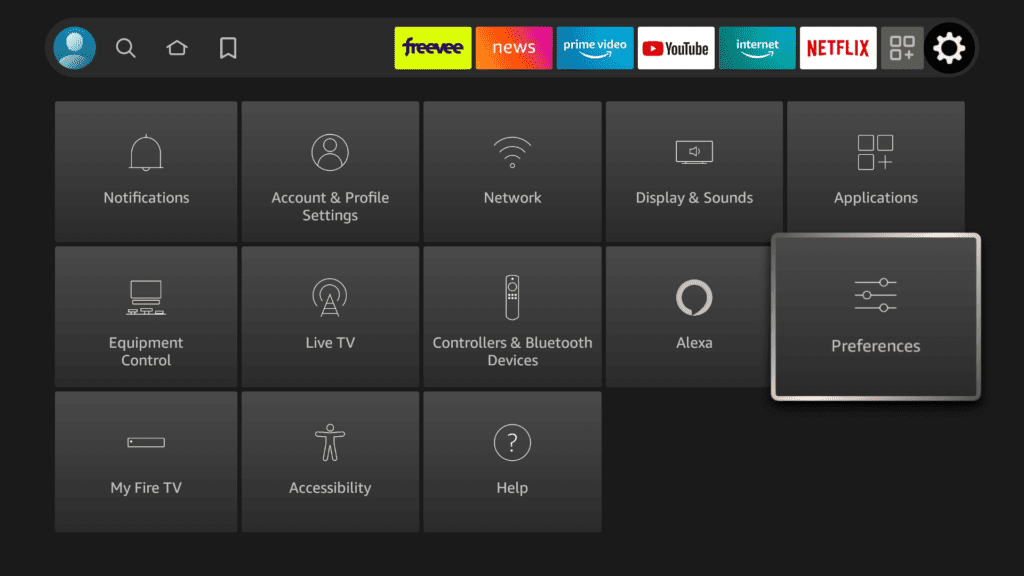
    3. Navigate to Settings
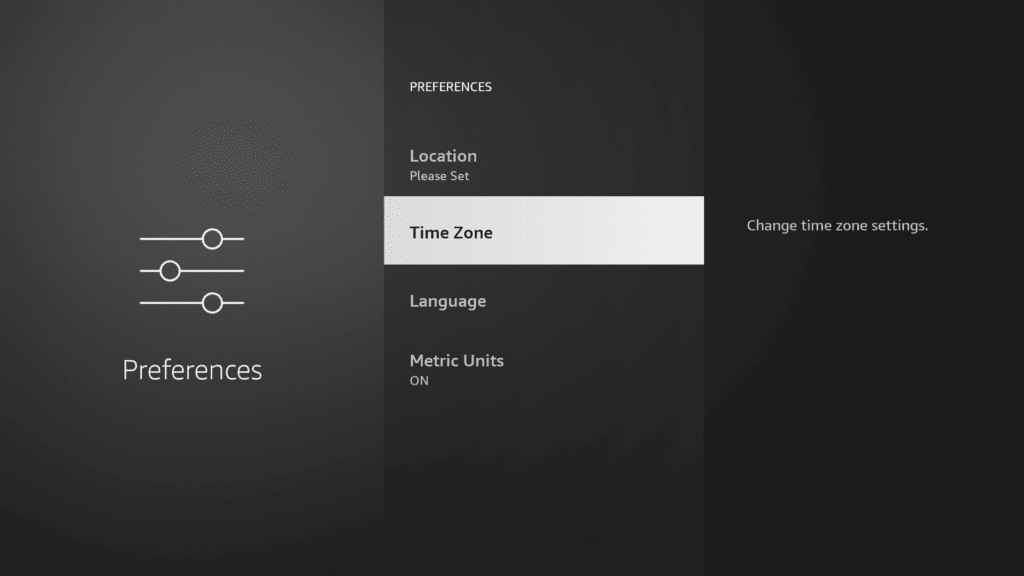
    4. Now select Preferences
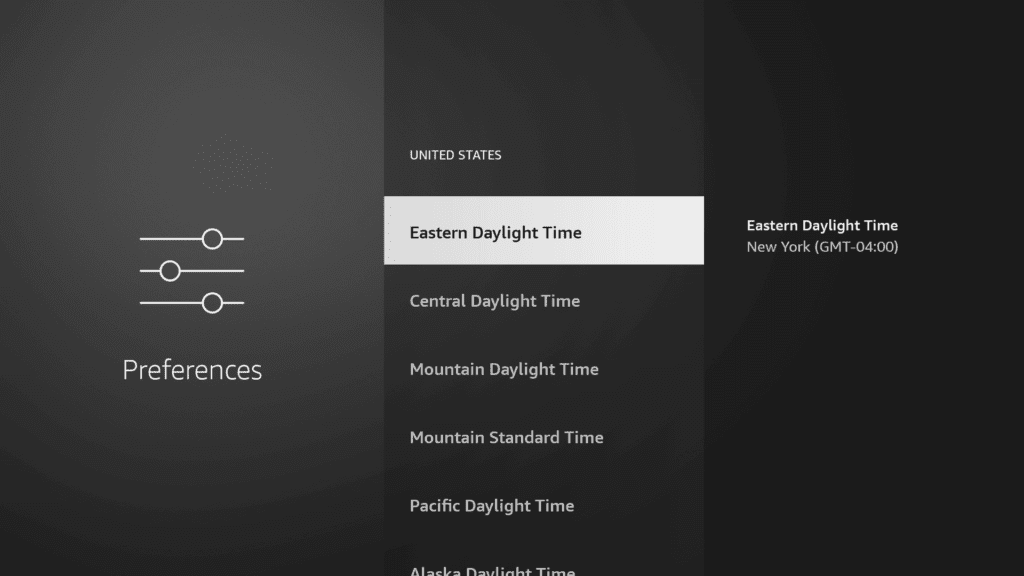
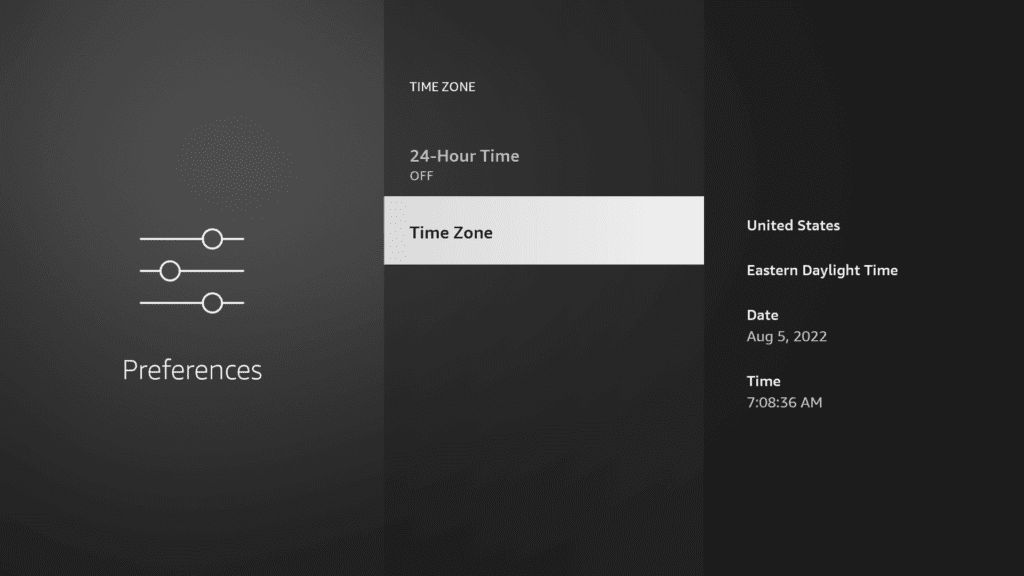
    5. Scroll down and click on Time Zone
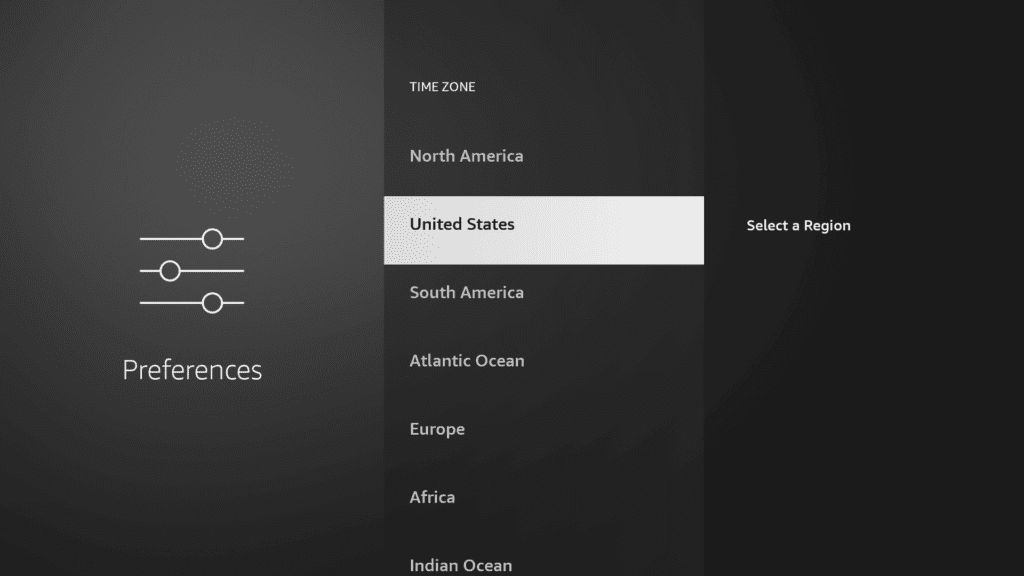
    6. You will see another Time Zone option. Click on it.
    7. You will be presented with various time zones- select your region.
    8. Choose from the given list

    9. Doing that will automatically set your FireStick’s time zone accurately. 
    How to change the time on Amazon Fire TV

    Changing the time on your Amazon Fire TV is similar to that of FireStick. Follow the steps mentioned above and select your region. You will then be asked to choose a specific part of the region for your time zone. Choose your region part, and your time zone will automatically change to it. 

    How to change the date on Amazon FireStick

    If you wish to change your FireStick’s date, follow the same steps mentioned above to change the time. FireStick doesn’t let users set the date and time on their own. The only way you can change your date and time is by choosing your respective regional time zone, automatically setting your date and time to your time zone. 

    How to display time on the FireStick Home Screen

    Recently, the Amazon FireStick has launched a new update that showcases the date and time on the home screen’s upper right corner. This option has only appeared in a few FireStick devices and isn’t a permanent update yet. But FireStick users who got the update are really liking it. If you wish to check if your FireStick has the update, navigate to Settings on your Amazon FireStick and click on the Screensaver option. Select the Display & Sounds menu and see if the update is available on your FireStick. You will find the update below the Start Time option.

    However, if the update isn’t available on your Amazon FireStick, you can still get an analog and digital clock as a screensaver that displays both date and time. Follow the steps below to get it:

    1. Launch your FireStick
    2. Navigate to Home by pressing the Home button on your remote.
    3. Click on Find and select the Search option.
    4. Type Analog in the search bar and press OK on your remote.
    5. You will see an app icon with black background named ‘Analog & Digital Clock Screensaver’ – click on it.
    6. Select the Get (free to download) button to begin the installation.
    7. Once the app is installed, click Open to launch the app instantly.

    Troubleshooting methods to fix the date and time issue on FireStick:

    Sometimes software issues prevent the date and time from updating on FireStick. Such problems are common, and following the troubleshooting methods mentioned below will help you fix them:

    Reset your device

    Sometimes restarting your FireStick also fixes some minor software problems. But the most definite way to fix the date and time issue is to rest your FireStick device. Resetting your device will restore your Wi-fi signals and optimizes the original and exact location settings, which brings you accurate date and time according to your time zone.

    How to Fix My Firestick Keep Restarting

    Insufficient power issue

    The timing issue can also occur in the Amazon FireStick due to insufficient power. The low power issue occurs when using the USB port to link with Amazon FireStick. To fix the power issue, optimize your FireStick’s direct connection to get sufficient power.

    Poor internet connection

    The time issue can also occur if your internet connection is poor and not linked with the time of your device. If your internet connection is low, restart your Wi-fi modem to optimize its internet signals. Reduce the distance between your wi-fi modem and FireStick device for a stronger internet signal. You could also try buying a new Wi-fi modem with a more robust and broader range of signals.

    Factory reset

    Factory reset deletes all FireStick data, making your device as good as new. This also includes all settings and customization. When you factory reset your device, it resets all your settings to default. Doing this will most likely repair the date and time issue.

    Conclusion

    The date and time issue on FireStick can hinder a lot of your activities. Users usually come across this issue where the time and date on their FireStick are off by a week or so. This issue prevents you from getting timely updates. This issue also prevents you from watching live TV on FireStick. Live TV is based on your location, zip code, and date and time. If your FireStick has an inaccurate date and time zone, you won’t be able to watch your desired channels since they’d either be behind or ahead of time. This article shows you how to fix that issue with a few simple steps.

    Frequently asked questions

    • How to change app notification settings on Amazon FireStick?

      Changing your app notification settings is a relatively simple task. Go to your FireStick’s home screen and navigate to Settings. Go down and select Preferences. Scroll down and go to Notification Settings. Now scroll down again and click on App Notifications. Now change the app notification settings of your desired app.

    • How to change the FireStick display settings?

      To change your FireStick display settings, follow these steps: Go to your FireStick or Fire TV’s home screen and go to Settings. Navigate to the Display & Sound option and then scroll down to Display. You can change the display settings from there however you like. You can change your video resolution, color depth, color format, and many more.

    Rimsha Safdar

    Related Posts

    Firestick Error Code P-49999: Causes and Solutions

    Tips Tricks & Features

    Decoding Firestick Error Code 401: Causes and Fixes

    Tips Tricks & Features

    Demystifying Firestick Error Code ITV-101: Troubleshooting Guide

    Tips Tricks & Features

    Firestick Error Code 5001: Resolve connectivity Issues

    Tips Tricks & Features
    Recent Posts
    • How to Get Dedicated IP in the UK
    • How to Get Dedicated IP in India
    • A Comprehensive Guide to Obtaining a Dedicated IP in the US
    • Setup Linksys Wireless Router with DedicatedIP Address
    • Setting Up a Dedicated IP Address on Netgear XR500

    We talk about almost everything around Amazon Fire Stick. Be it Apps, How to guides, Sports, Troubleshooting, latest news.

    Disclaimer: We may earn affiliate commissions if you decide to purchase through our links. For more details read our Ownership Disclosure.

    Facebook YouTube
    Latest Posts

    How to Get Dedicated IP in the UK

    March 12, 2024

    How to Get Dedicated IP in India

    March 12, 2024

    A Comprehensive Guide to Obtaining a Dedicated IP in the US

    March 8, 2024
    Explore by category
    • Channels Apps & IPTV
    • Dedicated IP
    • News
    • Sports Movies & Shows
    • Tips Tricks & Features
    • uncategorized

    Type above and press Enter to search. Press Esc to cancel.